Smartphone Remote view (NVSIP APP)
1. At the first remote configuration, we recommend you to connect your Smartphone at
same Wi-Fi of the LAN that the DVR is connected.
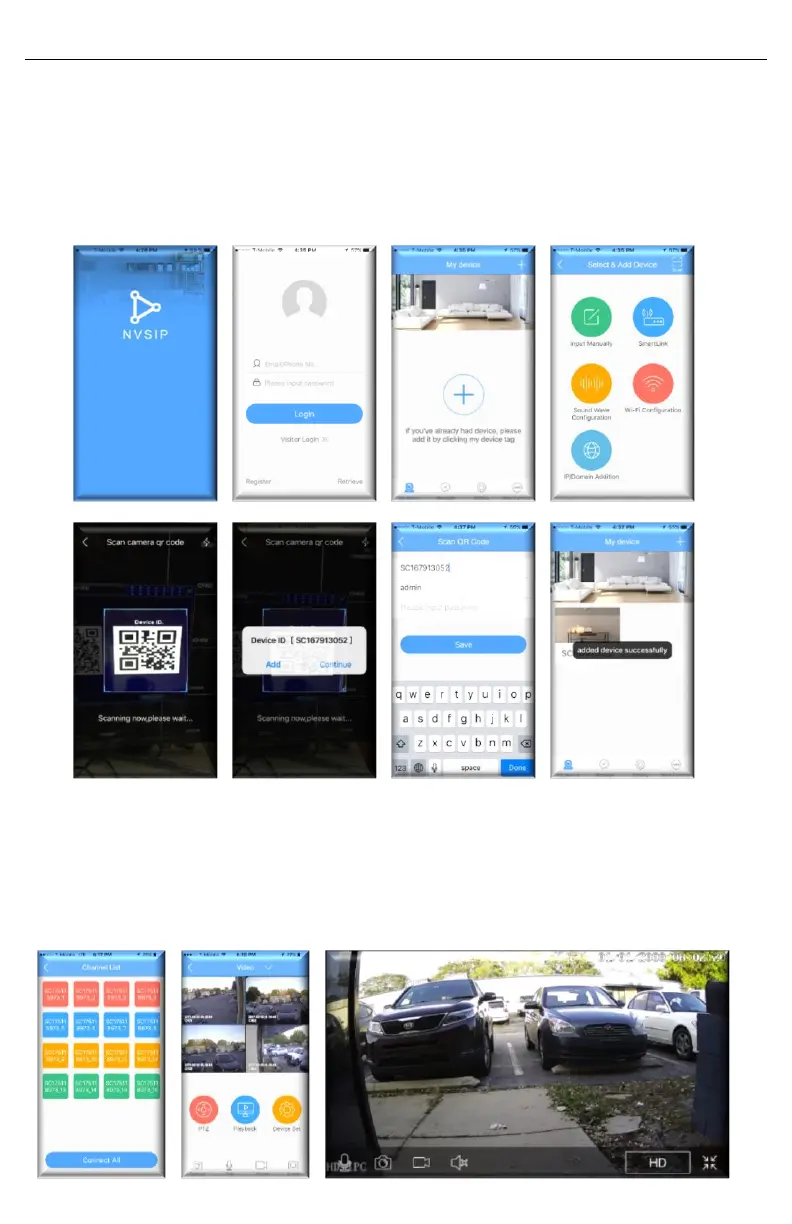
2. Search “NVSIP” in App Store (for iOS) or in Google play (for Android), or scan QR code APP.
You can check QR codes accessing MAIN MENU / SYSTEM / PHONE MONITORING
3. Open the APP at your smartphone, at the first time running the software you need to
register, then can login and manage device, through registered accounts multiple devices
can be added to manage. You can also use visitor login to add and view a single device
4. After login, click the (+) button, then scan the Device ID QR code, introduce User and
password (admin and none by default) and save.
5. Please exit APP and restart your phone. (extremely recommended for Android users)
6. Open NVSIP app again, and log in or click visitor login.
7. Then click your added device, select channels and start to monitor your cameras, you can
also control PTZ, record and change some device settings remotely.


 To Next Page