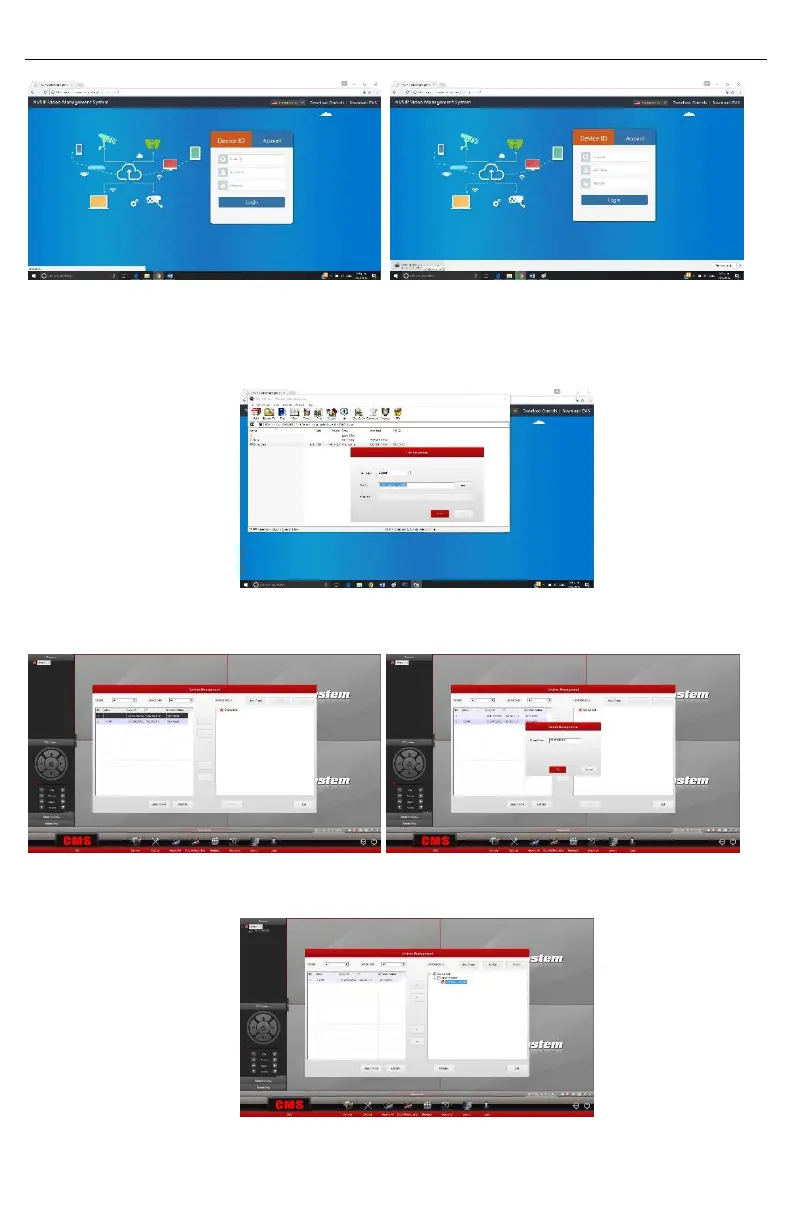
Remote view via CMS program
1. Please open the web page www.nvsip.com/en/login.shtml
2. Once there please do click on Download CMS. The program will start downloading, it will
take a few second. After the downloading process is completed, please open the CMS
program and proceed to install the program on your computer, the process will take a few
minutes more. This program is completely safe so please accept all the permissions on
your computer.
3. Open CMS program, please click on “Devices” to add your DVR, after login (User: admin
and no password by default) please select “Device list”, then create a new group. This new
group could be called as you like, and press OK.
4. If the DVR you want to add is connected to the same network of your PC it will
automatically appears on the left hand of this menu. Please double click on the device and
it will be added to the group previously created, then click exit.
5. If your pc is not connected to the same network of your DVR or the device does not
appear on the list previously described please select the group you have already created
and click on “Manually”icon.


 To Next Page