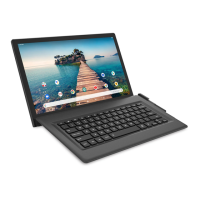
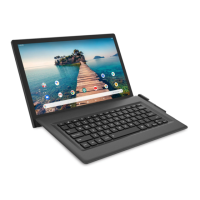
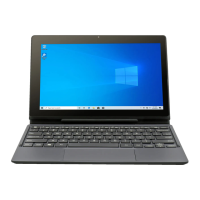
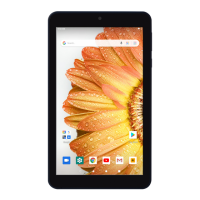
The Venturer Challenger 10 (VCT9B06 Q22N20) is a tablet designed for general use, offering a range of features for connectivity, entertainment, and productivity. It runs on the Android operating system, providing access to a wide variety of applications through the Google Play Store.
Function Description
The Challenger 10 serves as a portable computing device, allowing users to browse the internet, send and receive emails, access social media, play games, watch videos, and listen to music. Its core functions include:
- Internet Connectivity: Supports Wi-Fi for accessing the internet, enabling web browsing, streaming, and online communication.
- Multimedia Playback: Capable of playing music, movies, and TV shows, with support for headphones for personal listening.
- Application Usage: Users can download and install a vast array of Android applications from the Google Play Store, expanding the tablet's functionality for various tasks.
- Data Storage: Features a microSD card slot for expandable storage, allowing users to store more photos, videos, music, and other files.
- Communication: Supports Bluetooth for connecting to other Bluetooth-enabled devices like wireless headphones or smartphones, facilitating file sharing and audio streaming.
- Camera Functionality: Equipped with both front and rear cameras for taking photos, recording videos, and engaging in video calls.
- Personalization: Offers various settings to customize the user experience, including display brightness, sound profiles, and home screen layout.
Usage Features
The tablet's design focuses on ease of use and intuitive interaction.
- Touchscreen Interface: The primary method of interaction is through the touchscreen, supporting gestures like tap, press & hold, drag or swipe, and zoom (pinch-to-zoom).
- Physical Buttons:
- Power Button: Used to turn the tablet ON/OFF, enter/exit standby mode, and wake the tablet from sleep. A long press brings up the "Power off" option.
- Volume +/- Buttons: Control the audio output volume.
- Reset Button: A small, recessed button that can be pressed with a paper clip to reset the tablet in case of freezing or serious errors.
- Navigation:
- Home Screen: The central hub for accessing apps and widgets.
- Notification & Status Bar: Located at the top of the screen, it displays system notifications, status icons (Wi-Fi, Bluetooth, battery, etc.), and quick settings. Swiping down reveals more details and quick access toggles.
- Jumping Bar: A visual cue at the bottom of the screen that reminds users to swipe up to access the "All Apps" menu.
- Back Icon: Returns to the previous screen or action.
- Home Icon: Returns to the Home screen from any application.
- Recent Apps Icon: Displays a list of recently used applications, allowing for quick switching or closing background apps.
- Initial Setup: Upon first use, the tablet guides the user through essential setup steps, including language selection, Wi-Fi connection, and signing in with a Google Account.
- App Management: Users can easily move app icons and widgets on the Home screen, view app information, and uninstall apps.
- Connectivity Management:
- Wi-Fi: Simple interface to scan for available networks, connect, and manage Wi-Fi settings. It can automatically connect to previously known networks.
- Bluetooth: Allows for pairing with other Bluetooth devices, sending and receiving files.
- VPN: Supports setting up and managing Virtual Private Networks for secure browsing.
- Display Settings: Offers options to adjust screen brightness, enable Night Light mode (reduces blue light), choose wallpapers, enable Dark theme mode, and set screen timeout duration. Advanced display settings include auto-rotate screen, font size, display size, screen saver, and lock screen display.
- Sound Settings: Users can adjust media, alarm, and notification volumes.
- Storage Management: Provides an overview of internal storage usage and allows for managing files and apps.
- Privacy and Location: Settings to control privacy options and manage location services for apps.
- Security: Features to help secure the device and its data.
- Accounts: Allows for adding and managing multiple Google Accounts and other account types, with options for automatic data syncing.
- System Settings: Includes language and input preferences, gesture controls (e.g., Jump to camera), date and time settings, data backup, and firmware updates.
Maintenance Features
To ensure optimal performance and longevity, the tablet incorporates several maintenance-related aspects:
- Battery Charging: The tablet uses an included AC adaptor for charging. A blue indicator light on the rear blinks during charging and remains solid when fully charged. It's recommended to fully charge the tablet before first use and to connect the adaptor when the charge falls below 20%.
- Battery Life Prolongation: Tips are provided to extend battery life, such as turning off Wi-Fi when not in use, closing unused navigation apps, reducing screen brightness, setting a shorter screen timeout, and disabling automatic data syncing for apps.
- MicroSD Card Management: The microSD slot allows for easy insertion and removal of microSD cards (up to 128GB) to expand storage. Users can check storage status through settings.
- Troubleshooting Guide: The manual includes a section to address common issues like network errors, slow touchscreen response, tablet freezing, and the tablet getting warm during prolonged use.
- Software Updates: The system settings include an option for firmware updates, which can improve performance and add new features.
- Reset Options: In addition to the physical reset button, the system settings offer reset options for various tablet functions.
- Safety Instructions: Comprehensive safety guidelines are provided to prevent damage to the device and ensure user safety, covering aspects like proper charging, ventilation, handling liquids, and avoiding high-volume audio to prevent hearing damage.
- Environmental Disposal: Information on the proper disposal of batteries and the product itself, highlighting the importance of not disposing of them with domestic waste due to potentially harmful substances.

 Need help?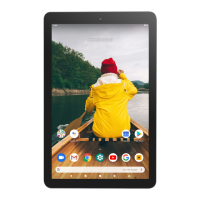

 To Next Page

 General