Need help?
Do you have a question about the Venturer Luna Max 14 and is the answer not in the manual?
Instructions for charging the tablet battery using the AC adapter, understanding the indicator, and best practices for battery health.
Tips for extending the battery life by managing Wi-Fi, screen settings, and app syncing.
Step-by-step guide on how to power on the tablet using the power button.
Initial setup process for the tablet, including language, Wi-Fi, and Google account configuration.
Detailed instructions on how to turn the tablet on, off, and put it into sleep mode using the power button.
Step-by-step guide to connect the tablet to a Wi-Fi network, including adding new networks.
How to enable Bluetooth, pair with other devices, and connect for communication.
Explanation of basic touchscreen gestures like tap, press & hold, drag, swipe, and zoom.
Configuration options for Wi-Fi, Data Usage, Tethering, VPN, Aeroplane mode, and Advanced network settings.
Configuring languages, input, gestures, date & time, backups, and system updates.
Solutions for network errors, slow touch response, frozen tablet, and insufficient storage.
Essential safety guidelines for handling, using, and maintaining the tablet to prevent hazards.
Further safety warnings related to the AC adapter, ventilation, liquids, heat, and environmental conditions.
Warning against listening at high volume levels to prevent potential hearing damage.
This document serves as a user manual for the Venturer Luna Max 14 tablet, model VCT9T48, providing comprehensive instructions on its operation, maintenance, and various features.
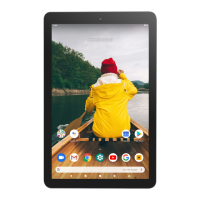
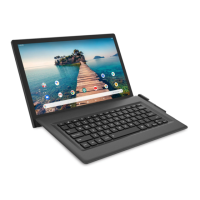
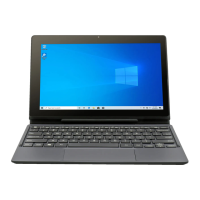
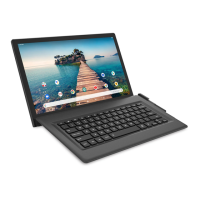
The Venturer Luna Max 14 is a versatile tablet designed for a range of uses, from browsing the web and sending emails to accessing entertainment and managing personal information. It operates on an Android system, allowing users to download and utilize a wide array of applications, games, music, movies, TV shows, and magazines through the Google Play Store. The tablet supports both Wi-Fi and Bluetooth connectivity, enabling communication with other devices like wireless headphones or smartphones, and facilitating internet access. It features a touchscreen interface for intuitive navigation and interaction, complemented by physical buttons for power, volume control, and reset functions. The tablet can be docked with a keyboard, transforming it into a more traditional laptop-like device for enhanced productivity. It also includes a microSD card slot for expandable storage, supporting cards up to 128GB, and an HDMI port for connecting to external display devices.
Upon first use, it is recommended to fully charge the tablet using the included AC adaptor. The charging process is indicated by a blinking blue light, which turns solid blue when fully charged. Charging from 0% typically takes 4-5 hours. The tablet can be turned on by pressing and holding the POWER button for 4-5 seconds until the logo appears. To turn it off, press and hold the POWER button until the "Power off" message displays, then tap the onscreen message. A brief press of the POWER button puts the tablet into sleep mode, and it will automatically enter sleep mode after a period of inactivity. To wake the tablet, press the POWER button and then swipe up from the bottom of the screen to unlock.
Several tips are provided to extend battery life. Users are advised not to wait for the battery to be fully depleted before recharging. Turning off Wi-Fi when not in use, closing unused Maps or Navigation apps, reducing screen brightness, and setting a shorter screen timeout are effective strategies. Additionally, turning off automatic data syncing for all apps can conserve battery, though this requires manual syncing for updates.
The touchscreen supports various gestures:
The Home screen displays app icons and a notification/status bar. The "Back" icon returns to the previous screen, while the "Home" icon returns to the Home screen from anywhere. The "Recent Apps" icon displays recently used apps, which can be closed by swiping them upward. The volume can be adjusted using the physical volume buttons or through the settings menu. The Home screen can be customized by dragging app icons from the All Apps screen. Widgets, which are app information displays, can be added by pressing and holding an empty part of the Home screen. Icons and widgets can be moved between screens or deleted by dragging them to the "X" icon. Wallpapers can also be changed by pressing and holding an empty part of the Home screen.
The Settings menu offers extensive configuration options:
The manual provides solutions for common issues:
Users are advised to read and follow all safety instructions, including:
The manual highlights the importance of proper disposal for batteries and the product itself, indicated by crossed-out wheelie bin symbols. These items should not be disposed of with domestic waste due to potentially damaging substances. Chemical symbols (Hg, Cd, Pb) indicate the presence of mercury, cadmium, or lead, respectively, in batteries, in accordance with Battery Directive (2013/56/EU).
ALCO INTERNATIONAL LTD provides a one-year limited warranty for Venturer products, covering defects in materials or workmanship from the original retail purchase date. This warranty is limited to non-commercial use. The company reserves the right to service the product with new or refurbished parts at its sole discretion.
 General
| Screen Size | 14 inches |
|---|---|
| RAM | 2 GB |
| Internal Storage | 32 GB |
| Processor | Quad-Core |
| Rear Camera | 5 MP |
| Front Camera | 2 MP |
| Ports | Micro USB, 3.5mm Headphone Jack |
| Expandable Storage | MicroSD card (up to 128 GB) |
| Connectivity | Wi-Fi, Bluetooth |

 To Next Page