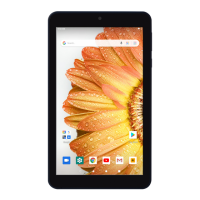
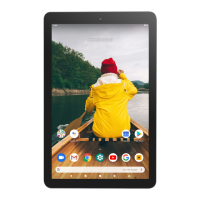
This document describes the Venturer VCT9T48 tablet, a portable computing device designed for various tasks including web browsing, email, entertainment, and app usage. The manual covers initial setup, basic operation, connectivity, troubleshooting, safety precautions, and warranty information.
Function Description:
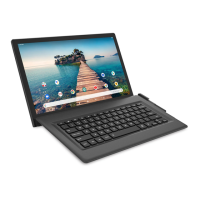
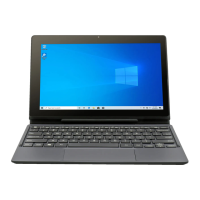
The Venturer VCT9T48 is a tablet that can be used independently or docked with a keyboard (not included in the initial setup, but supported). It runs on an Android operating system, providing access to a wide range of applications through the Google Play Store. Key functions include:
- Internet Access: Connects to Wi-Fi networks for web browsing, email, and social media.
- Multimedia: Supports music playback, video viewing, and games.
- Productivity: Allows for document viewing, email communication, and other work-related tasks through various apps.
- Connectivity: Features Bluetooth for connecting to wireless headphones, smartphones, and other Bluetooth devices. It also has a USB port for storage devices, mice, or wired keyboards, and an HDMI port to connect to a TV or display device.
- Storage Expansion: Includes a microSD card slot for additional storage up to 128GB.
Important Technical Specifications:
- Model: VCT9T48
- Power: DC IN 12V (operates with AC adapter).
- MicroSD Card Support: Up to 128GB (microSD and microSDHC cards).
- Wi-Fi Standard: Recommended IEEE 802.11 b/g/n certified Wi-Fi network.
- Battery Charging Time: Approximately 4-5 hours from 0% charge.
- Internal Storage: At least 700MB of free space recommended for app downloads.
- AC Adapter: Included, for use with this unit only.
- SAR Limit: 1.6 W/kg averaged over one gram of tissue (USA FCC requirements).
Usage Features:
- Initial Setup: The first-time setup requires selecting a language, setting up Wi-Fi, and signing in with a Google Account. It is recommended to complete the initial setup without the keyboard attached.
- Power Management:
- Turning ON: Press and hold the POWER button for 4-5 seconds.
- Turning OFF: Press and hold the POWER button until "Power off" displays, then tap the onscreen message.
- Sleep Mode: Briefly press the POWER button. The tablet enters sleep mode automatically after a period of inactivity.
- Wake from Sleep: Press the POWER button, then swipe up from the bottom of the screen to unlock.
- Touchscreen Interaction: Supports tap, press & hold, drag or swipe, and zoom (pinch-to-zoom).
- Navigation:
- Home Screen: Displays app icons and widgets.
- All Apps Screen: Swipe up from the bottom of the Home screen to access all installed applications.
- Notification & Status Bar: Swipe down from the top to view notifications and quick settings (Wi-Fi, Bluetooth, etc.).
- Back Button: Returns to the previous screen.
- Recent Apps Button: Displays recently used applications.
- Volume Control: Dedicated Volume +/- buttons to adjust audio levels.
- Keyboard Docking: The tablet connects to a keyboard via a connector. Upon successful connection, settings automatically adjust for keyboard use.
- Google Play Store: Allows downloading Android apps, games, music, movies, TV shows, and magazines.
- Google Account Integration: Organizes and accesses personal information across devices. Supports multiple Google Accounts and Microsoft Exchange ActiveSync accounts.
- Settings: Comprehensive menu for configuring tablet options, app preferences, accounts, networks, display, sound, storage, privacy, location, security, and system updates.
- Network & Internet: Manage Wi-Fi, data usage, tethering, VPN, airplane mode, and private DNS.
- Connected Devices: Manage USB preferences, pair Bluetooth devices, and view connection preferences for Bluetooth, Cast, Printing, and Chromebook.
- Apps & Notifications: View and manage installed apps, set preferences, and uninstall.
- Battery: View battery status.
- Display: Adjust brightness, enable Night Light, choose wallpaper, enable Dark theme, set screen timeout, and configure auto-rotate, font size, display size, screen saver, lock screen display, and HDMI settings.
- Sound: Adjust media, alarm, and notification volumes.
- Storage: View internal storage usage for apps, photos, videos, music, and system files.
- Privacy: Configure privacy settings.
- Location: Enable/disable location services, view recent location requests, and manage Wi-Fi/Bluetooth scanning, Emergency Location Service, Google Location Accuracy, History, and Sharing.
- Security: Configure device security and data protection.
- Accounts: Manage user accounts, add new accounts, and enable/disable automatic data sync.
- Accessibility: Select preferences for accessibility items.
- Google: Manage Google apps and account settings.
- System: Set languages, keyboard, gestures (Jump to camera, Prevent ringing), date & time, data backup, reset options, multiple users, and system updates.
- Microphone: For voice input.
- Headphones Jack: For personal listening.
- Reset Function: A physical reset button (requires a paper clip) is available for serious errors or freezes, in addition to holding the power button.
Maintenance Features:
- Battery Care:
- Charge fully before first use.
- Connect AC adapter when battery falls below 20% charge for optimum performance.
- Do not wait for full depletion before recharging.
- Avoid charging in high temperatures.
- If not used for a long time, the battery may enter over-discharge protection mode and take longer to charge.
- Tips to prolong battery life: turn off Wi-Fi when not in use, close unused navigation apps, reduce screen brightness, shorten screen timeout, and turn off automatic data syncing.
- Troubleshooting:
- Network/Service Error: Move closer to the Wi-Fi router.
- Slow/Incorrect Touch Screen: Remove protective film, ensure fingers are dry and clean, restart the tablet.
- Frozen/Serious Error: Close the app, reset by holding the power button for 10 seconds, or use the physical reset button.
- Tablet Gets Warm: Normal during prolonged use, does not affect performance.
- Video Call Issues: Improve Wi-Fi signal, disconnect other devices, increase internet bandwidth, ensure IEEE 802.11 b/g/n Wi-Fi network.
- Insufficient Storage: Maintain at least 700MB free internal storage for app downloads.
- Cleaning: Clean only with a dry cloth.
- Ventilation: Do not block ventilation openings; ensure sufficient space around the product.
- Power Cord Protection: Protect the power cord from being walked on or pinched.
- Servicing: Refer all servicing to qualified service personnel. Do not attempt to disassemble the cabinet.
- Environmental Protection: Do not expose the apparatus to rain or moisture.
- Hearing Protection: Do not play headset at high volume for extended periods.
Warranty and Support:
- Limited Warranty: One-year parts and labor warranty for defects in materials or workmanship from the original retail purchase date.
- Support Contact: https://www.1800customersupport.com/ for support, service, and warranty claims.
- Return Policy: Do not return the unit without prior authorization from Venturer Customer Support.
- Proof of Purchase: Retain the original sales receipt.
- FCC Compliance: The device complies with Part 15 of FCC Rules, designed to provide reasonable protection against harmful interference.
- Safety Precautions: Includes warnings regarding changes/modifications not expressly approved, and proper use of the AC adapter as a disconnect device.

 Need help?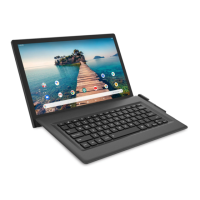

 To Next Page
 General