E - 11
CONNECTIONS
A. Connecting Game Systems/Video Equipment
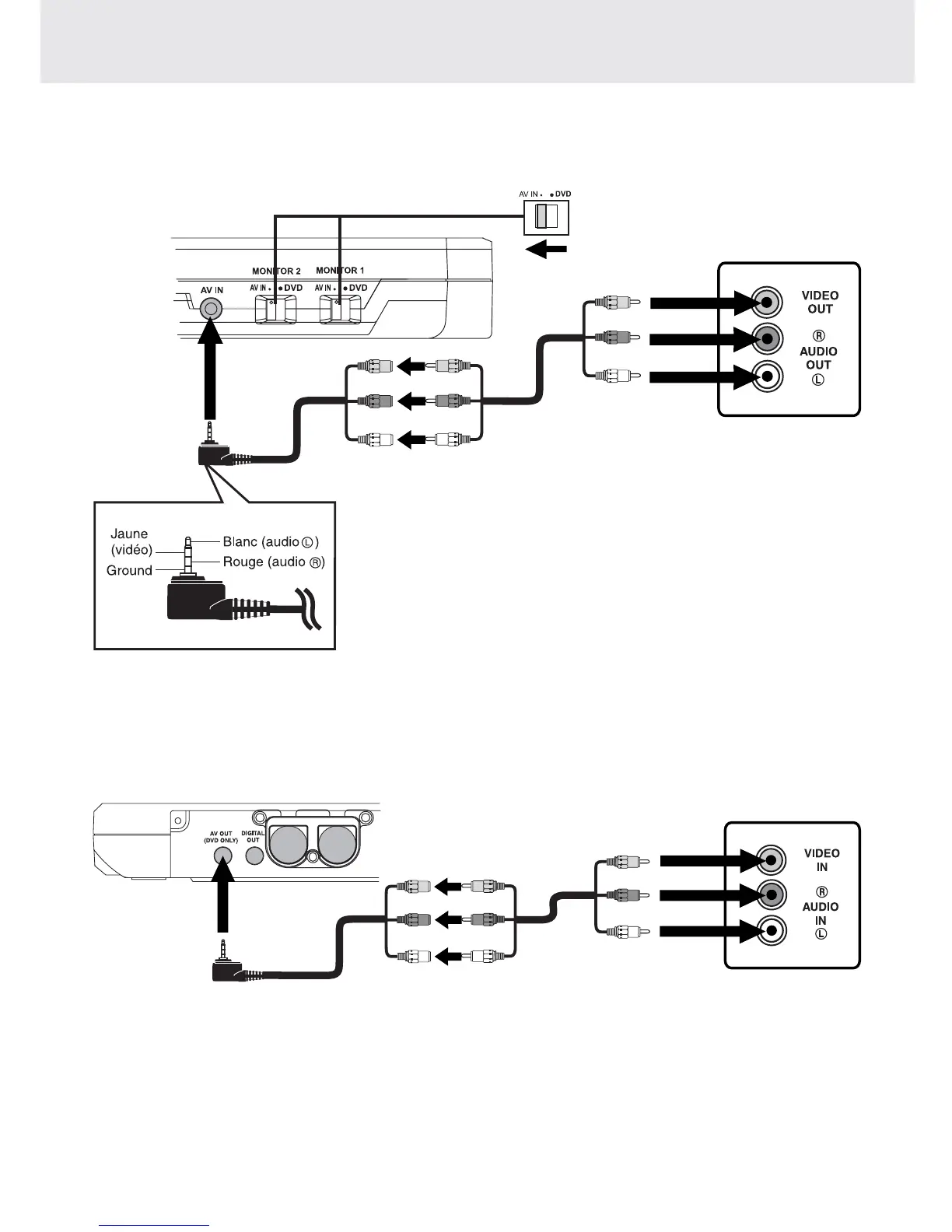
• You can connect Game Systems or other Video Equipment for playback through the monitors.
(continued on next page)(continued on next page)
(continued on next page)(continued on next page)
(continued on next page)
Watching a DVD on your TV
1.Turn on the unit, slide the AV IN / DVD switch to select "DVD".
2.Turn on the TV and follow the instructions provided with it to play the DVD.
Notes: Make sure you use the correct Audio/Video cable.
B. Connecting the unit to a TV
• This DVD Player can be used with a TV that has A/V inputs. If your TV does not have A/V inputs, you can purchase
an RF modulator (sold separately) to connect the DVD player.
Using this Unit with Other Equipment
Watching Video Equipment
1.Turn on the unit, slide the AV IN / DVD switch to select "AV IN".
2.Turn on the video equipment and follow the instructions provided with it
to playback.
Note:
If you have a mono VCR, the volume level from the speakers will be low.
Game Systems/
Video Equipment
(Yellow)
(Red)
(White)
Right side of unit
To AV IN
Jack
AUDIO/VIDEO CABLE
AUDIO/VIDEO CABLE (included)
(Yellow)
(Red)
(White)
TV
(Yellow)
(Red)
(White)
To DVD
AV OUT
Jack
AUDIO/VIDEO CABLE
AUDIO/VIDEO CABLE (included)
(Yellow)
(Red)
(White)
Rear of unit

 To Next Page
 Loading...