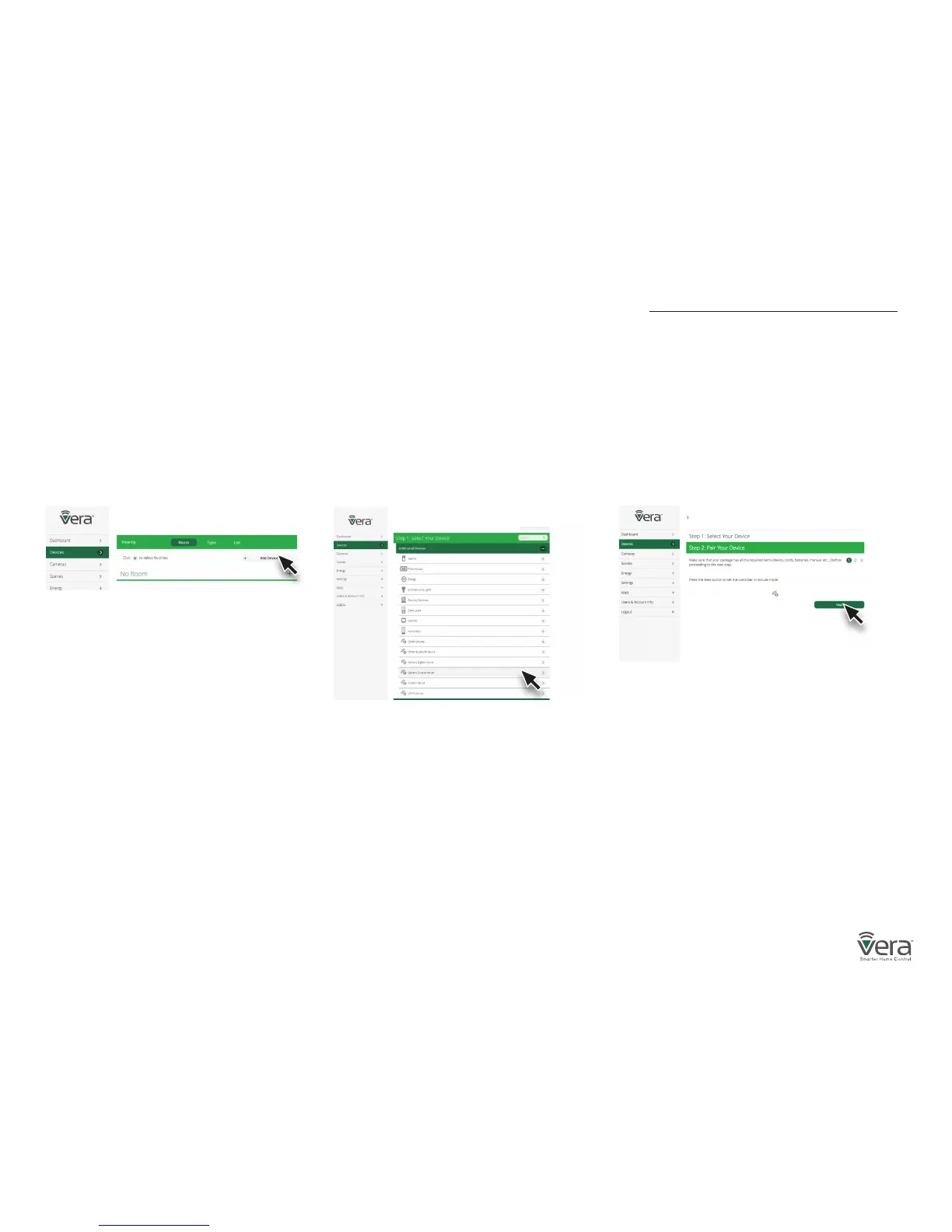
Inclusion/Exclusion for Devices using a Generic Device Wizard
After adding a new device, the VeraSecure Controller will ask you to name it and choose the room it is (or will be) located in.
Note: If the device was previously included with a dierent Z-Wave system, you’ll need to it exclude it before adding with your VeraSecure.(You may also
need to do this if you have problems Inclusion/Exclusion the rst time.) Press the Retry button to start the exclusion
process. Once the device is excluded, add it by following the inclusion steps.
Select Devices and click on the
Add Device option.
Click on the “+” sign for the Other
Device’s category. A list of Vera Custom
Device Wizards is displayed. If your specic
device is not shown, select the “Generic
Z-Wave Device” option.
Follow the steps in the Device Wizard
to add the device.
Step 1 Step 2 Step 3


 To Next Page