Inclusion/Exclusion for Devices with Vera Custom Device Wizard
After adding a new device, the VeraSecure Controller will ask you to name it and choose the room it is (or will be) located in.
Note: If the device was previously included with a dierent Z-Wave system, you’ll need to it exclude it before adding with your VeraSecure.(You may also
need to do this if you have problems Inclusion/Exclusion the rst time.) Press the Retry button to start the exclusion process. Once the device is exclud-
ed, add it by following the inclusion steps.
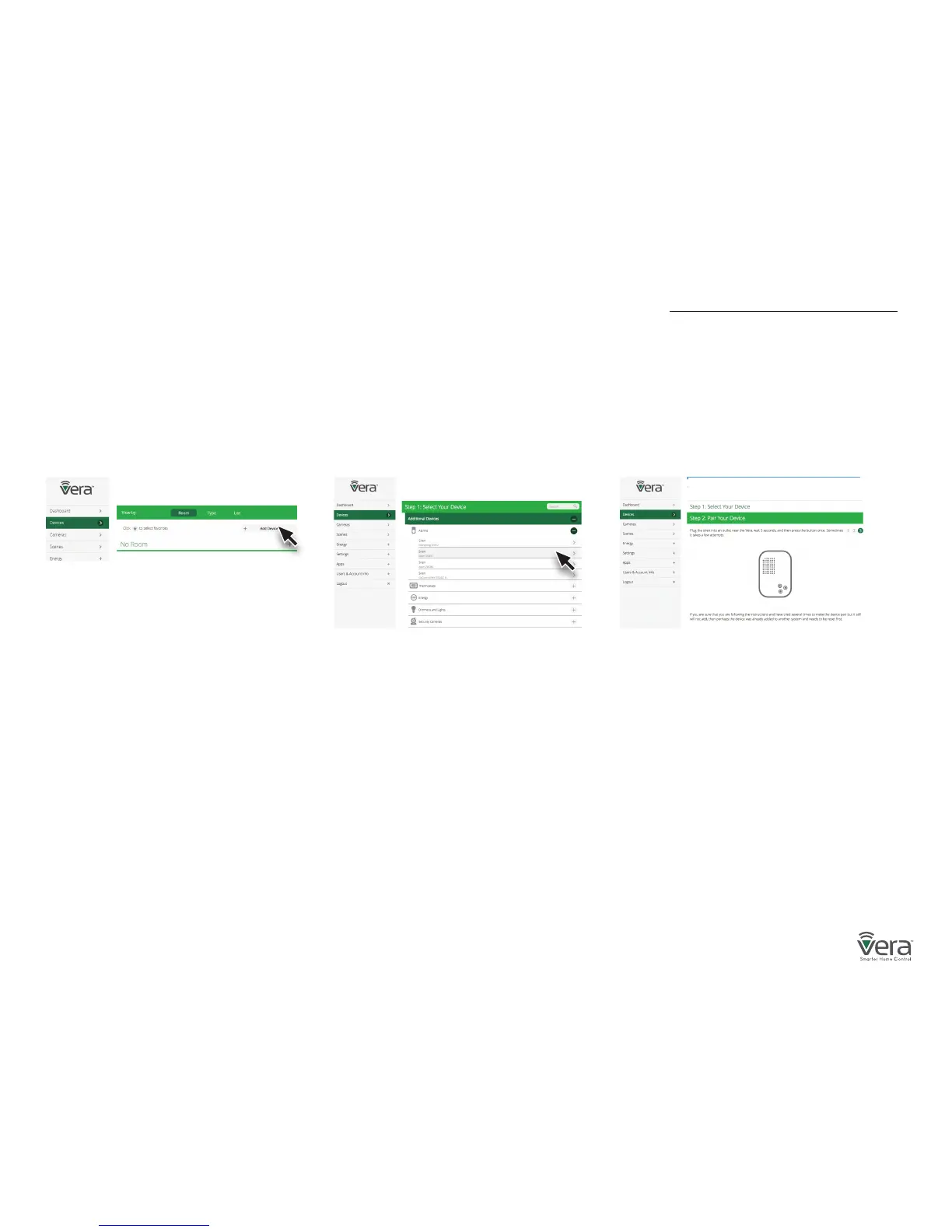
Select Devices and click on the
Add Device option.
Click on the “+” sign for the device’s
category. A list of Vera Custom Device
Wizards is displayed. Select a device
to include.
Follow the steps in the Device Wizard
to add the device.
Step 1 Step 2 Step 3


 To Next Page