2
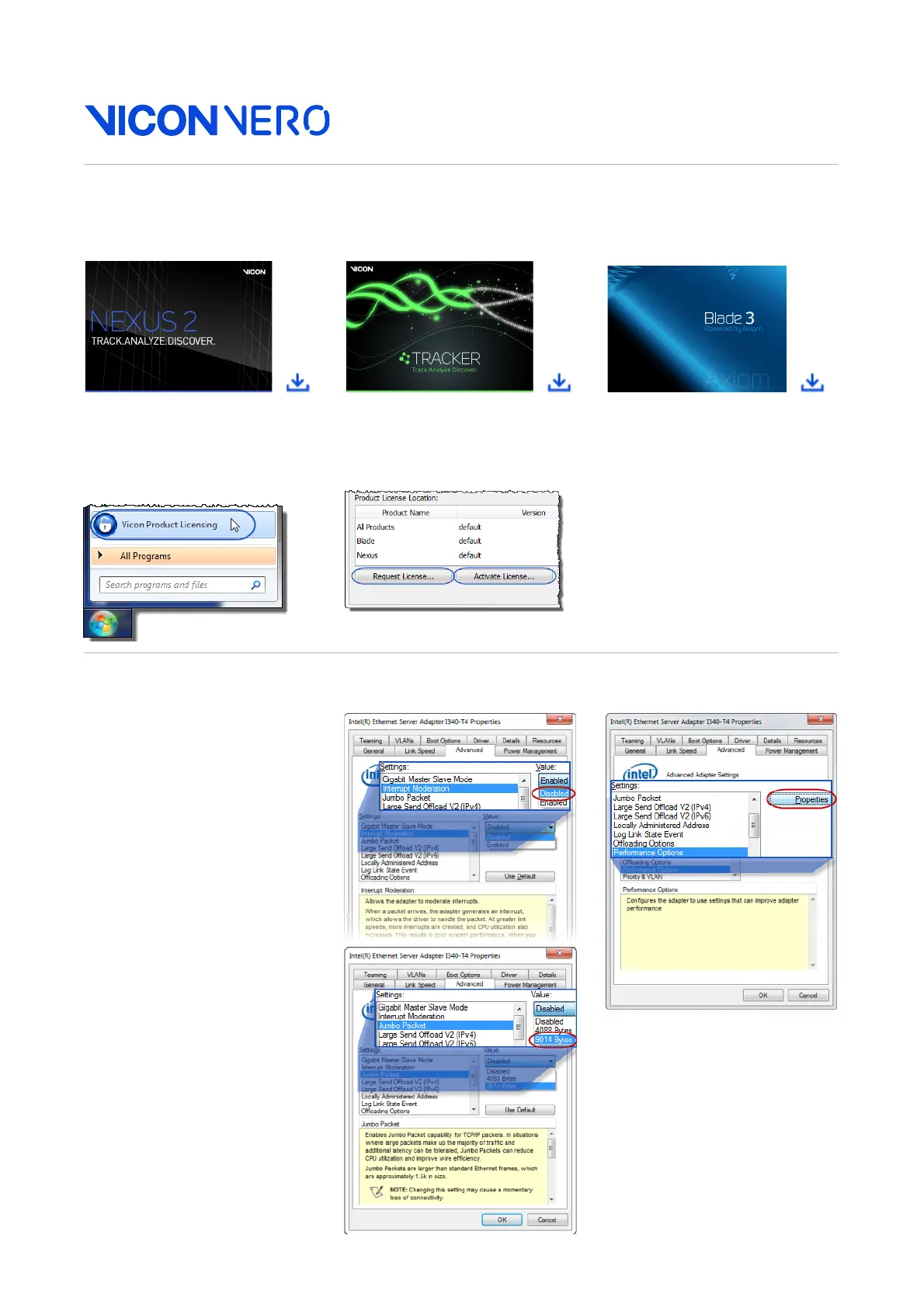
Software: Download. Install. License.
➋ Run SETUP.EXE.
➌ Click Start, then Vicon
Product Licensing.
➍ Request a license, save it
to a suitable location and
activate it.
For details on installing and
licensing, see your Vicon
software documentation.
System: Administrator. IP address. Adapter settings.
Important: Ensure you are
logged on as Administrator.
➊ Open the Network
Connections window.
➋ Right-click on the network
port that connects to the PoE
switch and click Properties.
➌ In the Properties dialog
box, click Configure and then
the Advanced tab.
➍ In the Settings list, ensure
the values shown (in the
images on the right and the
first two columns on page 3)
are selected, then click OK to
close the dialog box.
➎ Repeat step 2 to re-open
the Properties dialog box.
➏ Ensure only Internet
Protocol Version 4
is checked
(see page 3, last column) and
click the Properties button.
➐ Specify the IP address
192.168.10.1 and subnet
mask
255.255.255.0 (see
page 3, last column) and
click OK.
For detailed guidance on
system setup, download the
Vicon PDF, PC Setup for
Vicon systems.
➊ www.vicon.com/downloads (supported software: Vicon Nexus 3.4, Vicon Tracker 3.3, Vicon Blade 3.4 or later)


 To Next Page