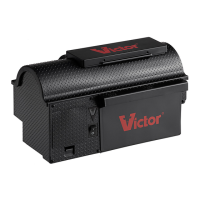
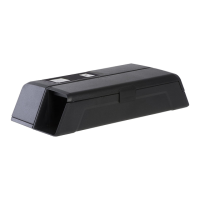
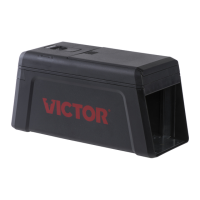
SMART-KILL
™
USER GUIDE
Electronic Traps
Latest Updates
1. Press Power Button
Press the power button to turn the
trap on. The Victor
®
“V” will blink
green 3 times.
2. Press and Hold Wi-Fi Button for 5
Seconds
The Wi-Fi button will blink blue 10
times while the trap is connecting.
3. Scan Trap Code
Center the trap’s code in the window
on the screen. The trap code is the
QR code located on the bottom of
the mouse trap and the back of the
rat trap. See FAQ page for images of
QR code locations.
If you have trouble successfully
scanning the code, try changing the
distance between the trap and
mobile device. Alternatively you can
enter the 15 digit alphanumeric code
manually by pressing the “ENTER
CODE MANUALLY” text found on the
bottom of the screen. Enter the
serial number found next to the QR
code on your trap.
4. Connect Mobile Device to Trap
Go to Wi-Fi settings on your device
by pressing the red “GO TO
SETTINGS” button. Select the trap,
which is VICTOR followed by 15
alphanumeric digits.
(Ex: VICTOR-WM170818BE00004).
Press “CONNECT”, then press the
back button.
5. Connect Trap to Wi-Fi
Select the Wi-Fi network to
connect the trap to.
Enter the network password for
the Wi-Fi network, then press the
red “CONNECT” button. It may
take up to 1 minute to connect.
6. Connected.
A notication appears when the
trap successfully connects. Press
the red “NEXT” button and
continue to step number 8.
7. Unable to Connect
If your trap did NOT successfully
connect, go to the Settings menu
of your mobile device, then select
the Wi-Fi option.
Select more options (often can be
found by pressing the options
button in the top right corner) then
select “Saved Networks.”
Find the trap name
(Ex: VICTOR-WM170818BE00004)
and select it.
Select “FORGET.”
Power trap off, then repeat
steps 1 through 7. If the trap
still does not connect, visit the
Trouble Shooting section or
call 1-855-5-VICTOR for
immediate assistance.
8. Name Your Trap
After successful connection,
name the trap and press
the red “NEXT” button.
9. Bait and Place Trap
Swipe through the three
instruction screens on baiting
and placing the trap, then
press the red “DONE button.
Visit the Frequently Asked
Questions section for more
information on baiting and
placing the trap.
10. Monitor Trap
Stay up to date on trap
activity from anywhere via
your mobile device.
Attic Trap
LAST ACTIVITY: 9/22/16 • 5:28 PM
RODENT
CAUGHT

 Need help?
 General

 To Next Page