31
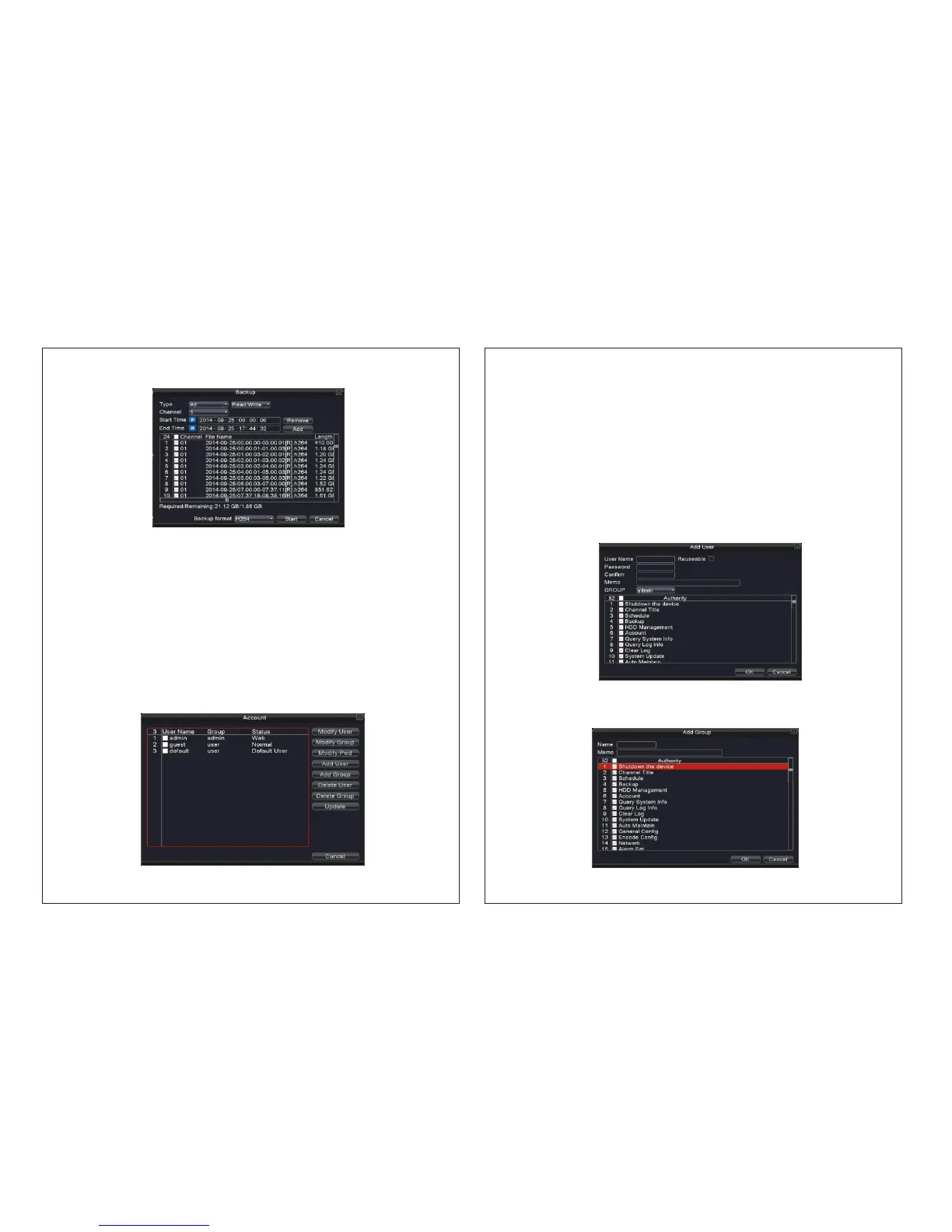
Picture 4.41 Backup
4.6.5 Account
Remove: Clear the file information.
Add: Showing the file information illustrating the set file attributes.
Start/pause: Click the play button to start the backup and click the pause button to stop
the backup.
Cancel: During backup you can exit the page layout to carry out other functions.
Backup format: H.264/H.265 and AVI are optional
Manage the user purview.
Note:
1. You can add or delete names according to user definition. The factory setup
include: user\admin. You can set the user names as per your requirement. The user can
appoint the purview in the team.
2. The user management includes: team/ user. The team and the user name cannot be the
same. One user belongs to one team only.
Picture 4.42 user management
32
Picture 4.44 add user
Modify user: Modify the existing user attribute.
Modify team: Modify the existing team attribute.
Modify password: Modify the user password. You can set a password of 1-6 characters.
The blank ahead or behind the char string is invalid. The middle blank in the char string is
valid.
Note: The user who possess the user control purview can modify his/her own or other
user’s password
Add Group: Add a user Group and set the function authority as shown in picture 4.45. It
includes shut down, real time surveillance, playback, recording setup, video file backup
and so on.
Add user: Add a user in the team and set the user preview. Enter the menu interface and
input the user name and password. Choose the team and select “cover using the user”
“Cover using” means that the account can be used by multiple users at the same time.
Once you have chosen the team, the user preview can be seen as the subclass of the
team. We recommend that the common users preview is set lower than the advanced user.
Picture 4.45 Add Group


 To Next Page