7-2 The Printer Does Not Start Rev AA
Videojet 1710 Operator Manual
The Printer Does Not Start
1 Make sure that the printer is turned on. To turn on the printer, press
the green push button.
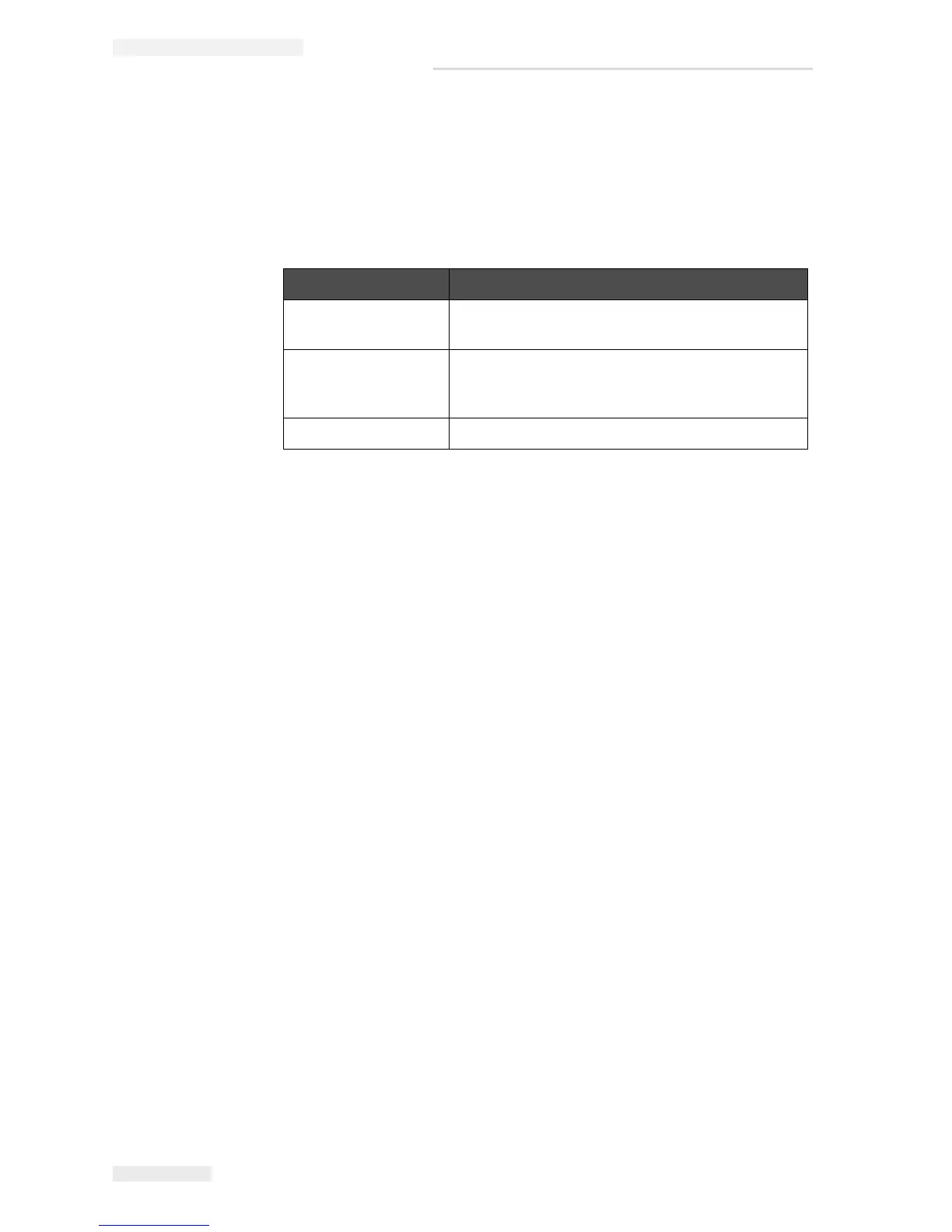
2 Check the system status LEDs (see Table 7-1) to see if a system fault
has occurred or if the user interference is required.
3 If the red or amber LEDs are illuminated, inspect the display to see
that icons and related message are displayed. Refer to
“Printer Status
Icons” on page 7-6.
4 If the green LED is illuminated, and the printer does not print:
• Make sure that the product sensor and shaft encoder are connected
and correctly operating (a lamp found behind the product sensor
must flash if a product passes the sensor).
• If the problem continues, report the fault to VTI @ 1-800-843-3610
(within United States only). The customers outside the US must
contact a Videojet subsidiary office or the local Videojet distributor.
5 If the system status LEDs do not illuminate, check the main electrical
supply as follows:
a. Make sure that the main electrical supply is available.
b. Make sure that the main input connector is fitted correctly.
c. Make sure that the main power supply button is in the ON position
(looks pressed in).
d. If the problem continues, report the fault to VTI @ 1-800-843-3610.
Illuminated Diagnosis
RED Any fault that prevents the printing. For example,
jet not running, deflector plate trip.
AMBER and GREEN The printer requires user interference to prevent
a system fault. For example, ink or make-up fluid
low
GREEN The printer can print correctly
Table 7-1: System Status LEDs



 To Next Page