EXCEL 2000 Series Operator Manual
6-11
Procedure
Complete the following steps to select the print matrix for a
message:
1.
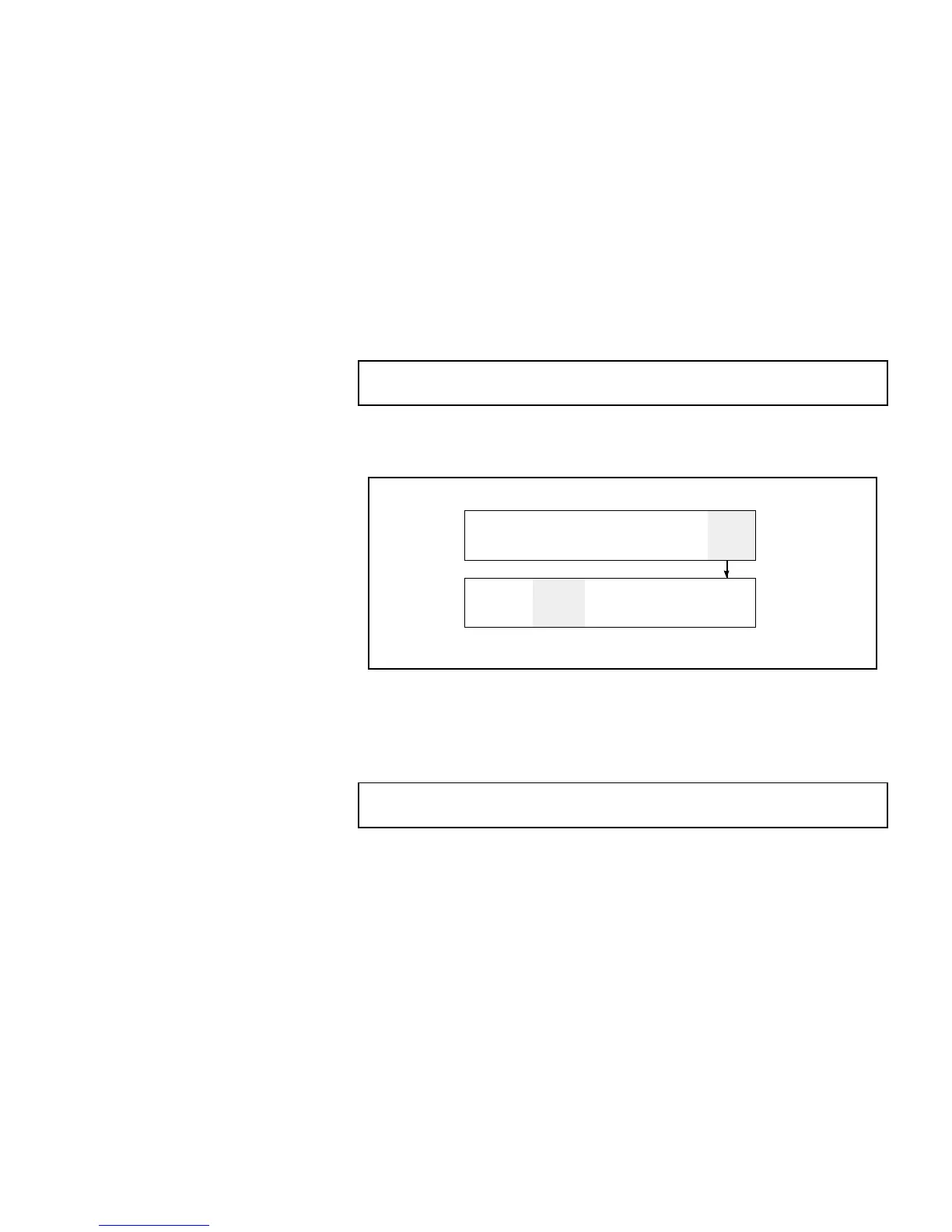
Press F5 until Frame <02 EDIT> appears in the display. Refer
to Figure 6-5.
2.
Does an existing message appear in the display screen?
•
If YES, clear the existing message. Press F2 and the
SHIFT key at the same time to select <CLEAR
MESSAGE>. The existing message disappears from the
display screen.
NOTE: The printer will not let you change the print matrix
setting unless the message has been cleared first.
•
If NO, continue to the next step.
3.
Begin in Frame <02 EDIT>. Refer to Figure 6-5.
xxx
PRINT
ATRIX
LEAR
ESSAGE
VIEW
PRINT
RINT
ESSAGE
1
DIT
xxx
HAR.
IZE
CHAR.
SET-UP
NSERTS
2
DIT
Figure 6-5. Accessing Frame <02 EDIT>
4.
View the current setting above <PRINT MATRIX>. If desired,
press F2 to change the setting.
NOTE:The printer will not let you change the print matrix
setting unless the message has been cleared first.
5.
View the current setting above <CHAR. SIZE>. If desired,
press F1 to change the setting. If it is not possible to change
the size of the characters within the message, the <CHAR.
SIZE> field will not be visible.
6.
You can now enter characters and/or inserts into the message.


 To Next Page