EXCEL 2000 Series Operator Manual
6-13
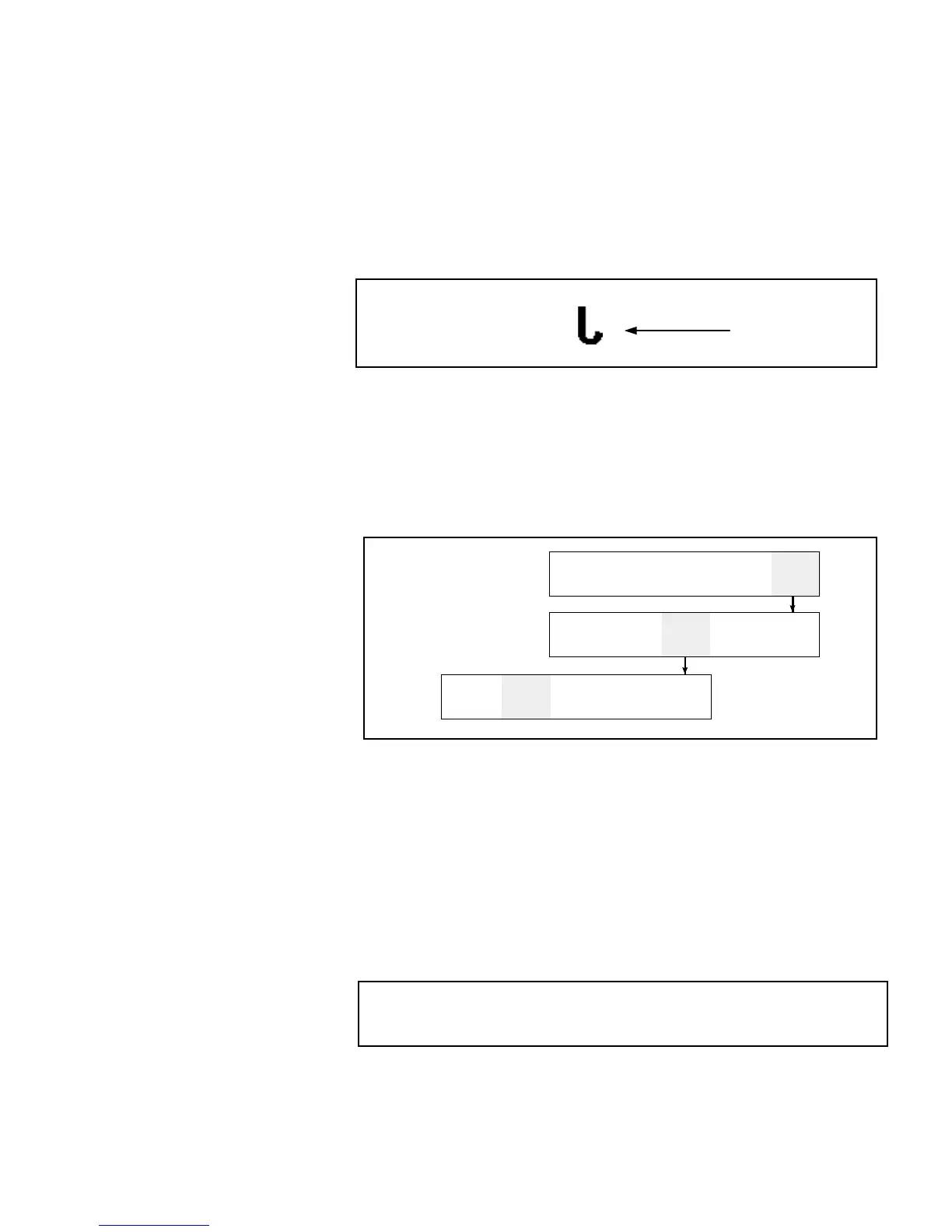
Reverse a Character
This procedure explains how to reverse individual characters
within a message. Reversing a character rotates the character 180
°
in a horizontal direction. (Refer to Figure 6-6). Only new
characters can be reversed; you cannot reverse an existing
character in the message.
Figure 6-6. Reversing the Character - Example
Procedure
1.
Use the arrow keys to move the cursor to the location in the
message where you want the character to appear.
2.
Begin in Frame <01 CHAR>. Refer to Figure 6-7.
LEAR
ESSAGE
VIEW
RINT
RINT
MESSAGE
01
EDIT
xxxx
RINT
MATRIX
xxxx
CHAR.
IZE
HAR.
ET-UP
INSERTS
2
DIT
OFF
REVERSE
CHAR.
MULTI
STROKE
FF
NVERT
CHAR.
01
HAR
Figure 6-7.
Accessing Frame <01 CHAR>
3.
View the current setting above <REVERSE CHAR.>. Is it set
to <ON>?
•
If NO, press F2 to change the setting to <ON>.
•
If YES, continue to the next step.
4.
Enter the new character into the message. The character
appears in the display screen reversed.
NOTE:The next character entered will also be reversed
unless you press F2 to change the setting to <OFF>
before entering the character.
Character “J”
is Reversed
VIDEO


 To Next Page