Creating and Printing Messages
6-18
Invert a Message
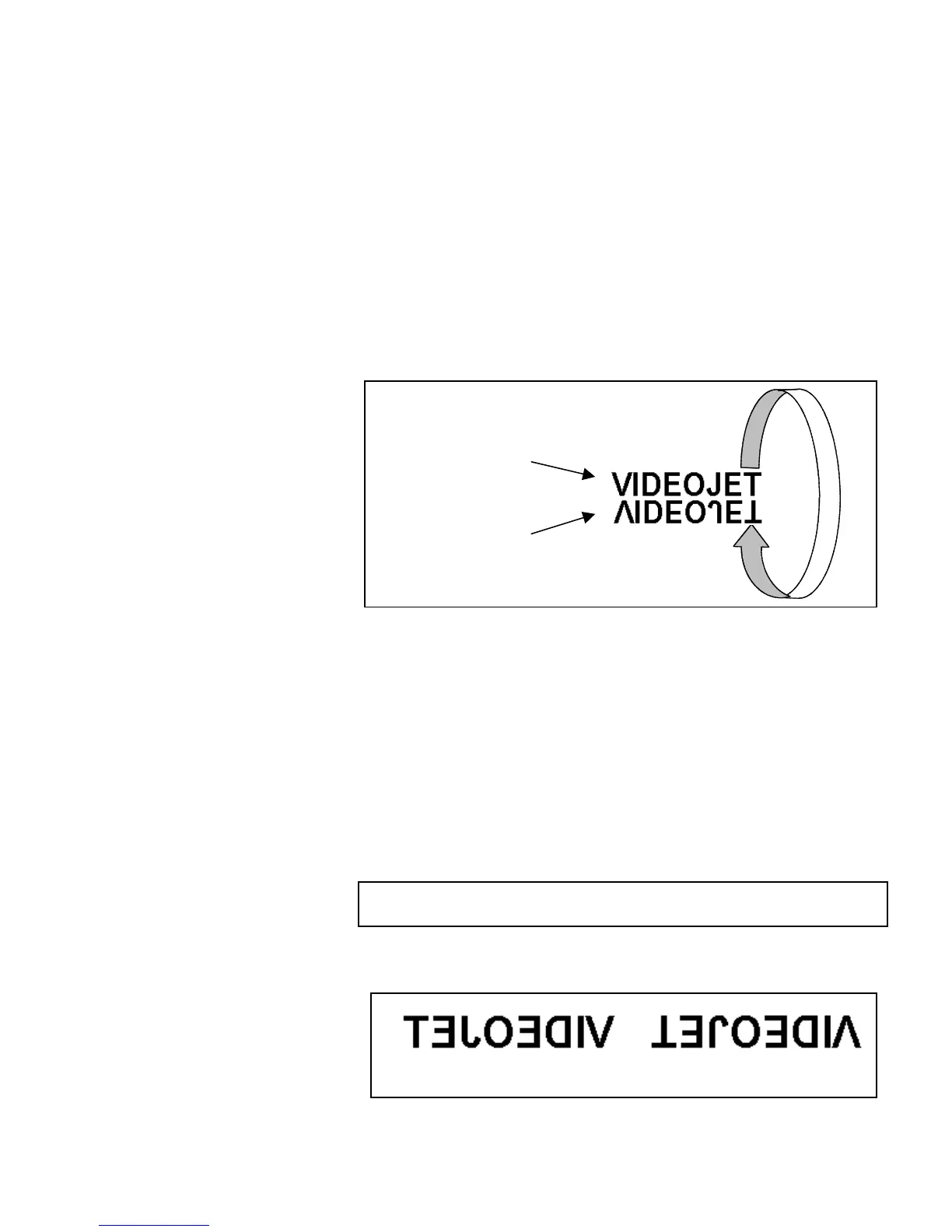
This procedure explains how to invert an entire message. Inverting
a message rotates each character 180 degrees forward, producing
an “upside–down” message. Refer to Figure 6-12 for an example.
Inverted messages are typically used when the printhead has been
positioned upside down in relation to the product, or the product is
upside down, but you do not wish to print upside down. This
enables the message to be printed in the proper direction on the
product.
This setting will override any change made to invert the character
individually (from Frame <01 CHAR>). Refer to
Invert a
Character
on page 6-14 for further information.
Figure 6-12. Inverting the Message - Example
Procedure
1.
Load the desired (existing) message into the printer or create a
new message and load it into the printer.
2.
Begin in Frame <03 PRINT>. Refer to Figure 6-10 on
page 6-16.
3.
View the current setting above <INVERT MESSAGE>. Is it
set to <ON>?
•
If NO, press F3 to change the setting to <ON>. This will
invert the entire message.
•
If YES, the message is already set to be inverted.
NOTE:The message will not appear inverted in the display
screen, however it will be inverted when printed.
Reversed and Inverted
Message
Figure 6-13 shows an example of a message which is reversed,
then inverted.
Figure 6-13. Reversed and Inverted Message
ormal Message
eversed Message
Reversed Message
Reversed Message,
Inverted


 To Next Page