or
• Move the cursor to the DUR field, press [CHG], use the jog/shuttle to
increment/decrement the duration, then press [OK]. (Note that the jog
cannot be used unless the shuttle is in Pause.)
Changing the VCR Port or MX-1 Color
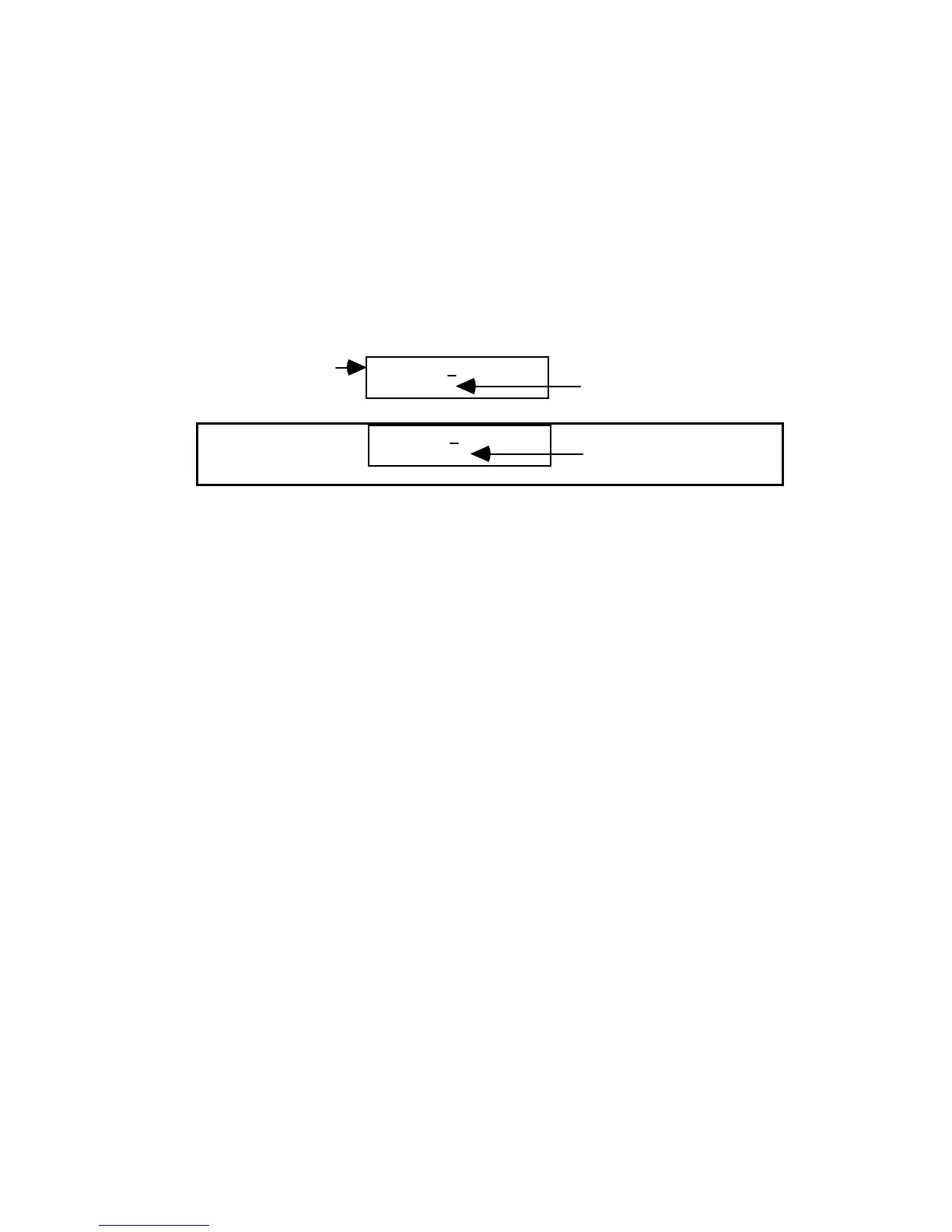
To change the source, use the arrow keys to move to the VCR Port field, then
press [CHG] repeatedly until the desired source is displayed. The choices are A,
B, C, D and COL. COL (color) applies to Videonics MX-1 users only and is used
to specify that an MX-1 background color will be used.
002 DUR 00:00:30.00
SRC D
Event Number
VCR Port
002 DUR 00:00:30.00
SRC COL=0
If COL, MX-1 Color to use
If COL is selected, you are also given a choice of which color to use. To change
the choice for color, move the cursor to the color value field (0 above), press
[CHG] and type the value. The values are the same as those used with the MX-1:
0=Black, 1=White, 2=Gray, 3=Red, 4=Yellow, 5=Green, 6=Bright Blue, 7=Light
Blue, 8=Purple, 9=User-defined.
Changing the Event Number
To change the Event Number, use the arrow keys to move the cursor to the Event
Number field, press [CHG] to activate the numeric keys, then type in the desired
number (or use the jog/shuttle and press [OK]).
The number may be any three-digit value from 001 through 999. If there is
already another event with the number you enter, Edit Suite will beep and
redisplay the old event number that was assigned.



 To Next Page