Need help?
Do you have a question about the Videostrong Mecool and is the answer not in the manual?
Details the HDMI connector, LED indicator, and Micro USB port of the TV stick.
Explains the USB Y-Cable, its connectors, and the IR receiver function.
Explains the functions of each button on the voice remote control for user interaction.
Step-by-step instructions for physically connecting the TV stick to a television via HDMI.
Guides on connecting the Mecool TV stick to a wireless network for internet access.
Instructions for signing into a Google account for app access and services.
Steps to change the system language via Settings > Device Preferences > Language.
Instructions on how to update the device's firmware using the OTA update feature.
Procedure for performing a factory data reset, warning about data erasure.
Compliance information regarding FCC RF exposure guidelines and safe operating distances.
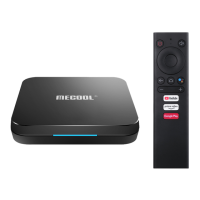
The Mecool Android TV Stick is a compact and versatile device designed to transform any television with an HDMI port into a smart TV, offering access to a wide range of streaming content, apps, and Google services. This user-friendly stick allows you to stream your favorite movies and TV shows directly from your television, providing a convenient and integrated entertainment experience.
At its core, the Mecool Android TV Stick functions as a media streaming device powered by the Android TV operating system. It connects directly to an HDMI port on your television, enabling it to display content and run applications. The stick is designed to provide a seamless streaming experience, allowing users to access popular services like YouTube, Netflix, and Google Play, among others. It supports wireless connectivity, detecting available networks in your area to establish an internet connection, which is essential for streaming and app functionality.
The device comes with a dedicated voice remote control, enhancing its usability. This remote allows for intuitive navigation through menus and content, and its voice control feature enables users to search for content, launch apps, and control playback using spoken commands. The integration of Google Assistant further expands its capabilities, allowing for smart home control, information retrieval, and more, all through voice commands.
The Mecool Android TV Stick also supports various input and output options to facilitate its operation. It features a Micro USB port for power and data, an HDMI plug for connecting to the TV, and an LED indicator to display its operational status. The included USB Y-Cable offers flexibility, providing a Micro USB connector to link with the TV Stick and a USB power connector for connecting to a power adapter. Additionally, an IR receiver is incorporated into the USB Y-Cable, enabling the TV stick to be controlled by its remote even when the stick itself might be out of direct line of sight or in an IR mode.
Setting up the Mecool Android TV Stick is straightforward. Users begin by plugging the TV Stick into an available HDMI port on their television. If the physical space around the HDMI port is limited, an HDMI extension cable is provided to ensure a proper fit. Once connected to the TV, the device requires power, which is supplied via a micro-USB cable connected to an included power adapter, which then plugs into an A/C power outlet.
After powering on the TV and selecting the correct HDMI input source, the TV stick will display a remote control pairing screen. Before this, users need to insert two AAA batteries into the voice remote control. The remote is designed for ease of use, featuring dedicated buttons for power, mute, volume control, navigation (up, down, left, right), selection, and return. It also includes quick one-click access buttons for popular streaming services like YouTube, Prime Video, and Google Play, as well as a shortcut key to the Home Page and a button for Google Assistant. A microphone on the remote facilitates voice commands, and an indicator light provides visual feedback.
To fully utilize the device's features, connecting to a wireless network is crucial. The TV Stick automatically detects available Wi-Fi networks, and users can select their network and enter the password to establish a connection. For optimal wireless performance, it is recommended to avoid placing the TV Stick in an enclosed cabinet, as this can interfere with signal strength. If signal issues persist, using the HDMI extender can help improve the connection.
Signing into a Google Account is another essential step, as it unlocks access to Google Assistant, the Google Play Store for downloading apps, and personalized recommendations. The device's Android TV interface is designed to be intuitive, making it easy to navigate through different apps, settings, and content libraries.
The Mecool Android TV Stick includes several features to ensure its smooth operation and longevity. System settings allow users to manage various aspects of the device, including changing the system language. This can be accessed through "Settings" > "Device Preferences" > "Language," providing flexibility for users in different regions.
Firmware updates are crucial for maintaining optimal performance, security, and access to new features. The device supports over-the-air (OTA) updates. Users can initiate an update by running the update app and selecting "OTA update." The device will then detect and install the latest available firmware version. It is important to note that users should not power off the device during the updating process to prevent data corruption or damage. Furthermore, the manual advises against downloading any third-party software for upgrades, emphasizing that upgrades should only be performed through official OTA channels or by contacting the seller to ensure the integrity of the genuine system.
In cases where the device experiences persistent issues or if a user wishes to reset the device to its original state, a factory data reset option is available. This can be accessed via "Settings" > "Device Preferences" > "About" > "Factory Reset." Users are cautioned that performing a factory reset will erase all data on the device, returning it to its default settings.
Troubleshooting guidelines are provided in the manual to help users resolve common issues without needing professional assistance. These guidelines cover problems such as no power, no picture, no sound, remote control unresponsiveness, and issues with USB flash drives. The advice includes checking cable connections, adjusting volume, replacing remote batteries, and restarting the device. Users are strongly advised against attempting to open or repair the TV stick themselves, as this could void the warranty and poses a risk of electric shock. If problems cannot be resolved using the provided troubleshooting steps, users are directed to contact their dealer for assistance.
The device also adheres to FCC guidelines regarding RF exposure, ensuring that it is safe for use. It is designed to be installed and operated with a minimum distance of 20cm between the radiator and the user's body. The device and its antenna(s) must not be co-located or operated in conjunction with any other antenna or transmitter, ensuring compliance with regulatory standards.
 General
| Category | TV Tuner |
|---|---|
| RAM | 2GB |
| ROM | 16GB |
| Ethernet | 10/100M |
| Audio Output | HDMI |
| Power Supply | 5V/2A |
| Connectors | HDMI, USB, Ethernet, AV |
| Video Decoder | H.265 |
| HDR | HDR10 |
| Supported Video Formats | MPG, MPEG, DAT, AVI, MOV, ISO, MP4, RM |
| Supported Audio Formats | MP3, AAC, WMA, RM, FLAC, Ogg |
| Supported Image Formats | JPEG, PNG, BMP, GIF |
| DRM Support | Widevine L1 |
| Model | Mecool |

 To Next Page