11 12
TO ADJUST THE VOLUME – before placing your
smartphone in the viewer, you can use either the
physical volume buttons on the phone or go to
SETTINGS in the app.
IF THE AR ICONS DON’T APPEAR WHEN YOU
LOOK AT THE REEL – move the viewer closer to the
reel (less than 10 inches).
NOTE: AR icons work best when looking straight
down at the reel, and in a well-lit room.
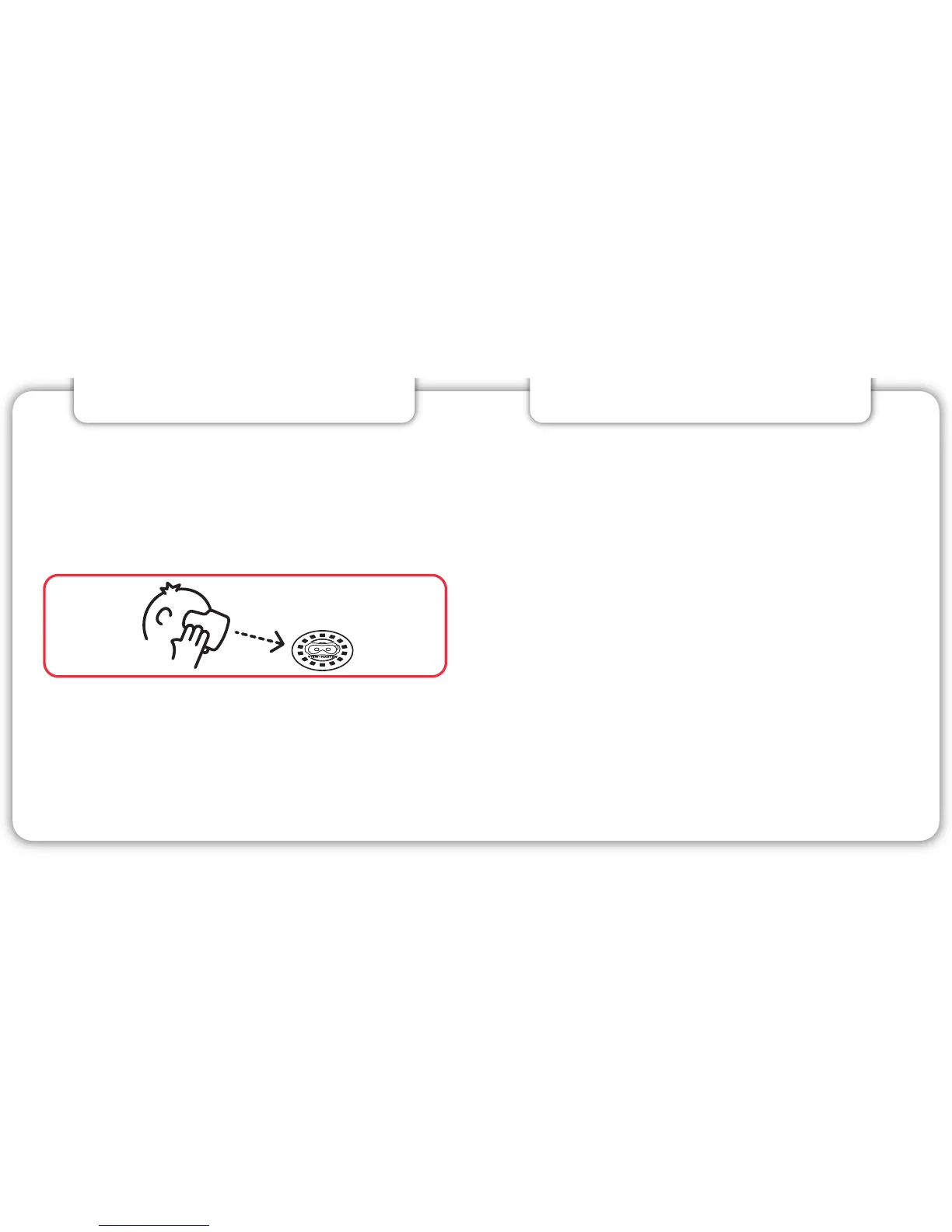
IF THE TINTED WINDOW POPS FROM THE
VIEWER – orient the window so the View-Master®
icon is positioned at the top then push the window
into the back of the viewer until it snaps into place.
IF THE 3D EFFECT IS BLURRY –
Use the Focus
Wheel. If this does not work, open the View-Master®
Deluxe VR Viewer and re-center your device. Also, be
sure you have followed the instructions under “Viewer
Profile” in this booklet and scanned the QR code.
25cm (10 inches)
•
Make sure a View-Master® Experience app is launched.
• Place the preview reel on a flat surface.
• Look through the viewer at the reel from a distance
of 10 inches or less.
• Digital icons will appear above the reel. This eect
is called Augmented Reality, or AR.
Select which experience you want to explore by looking
at the appropriate AR icon and pulling the lever.
Now it’s time to see the world in a whole new way. Enjoy!
6. USING THE PREVIEW REEL
For additional help visit www.view-master.com/troubleshooting
TROUBLESHOOTING



 To Next Page