EasyManua.ls Logo

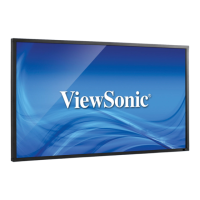
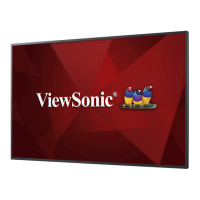
ViewSonic CDP4260-L - User Manual

ViewSonic CDP4260-L
52 pages
Print Icon
To Next Page IconTo Next Page
Loading...
CDP4260-L/CDP4262-L/CDX4652-L/
CDP5560-L/CDP5562-L
LCD Monitor
User Guide
Model No. VS15673/VS15674/VS15662/VS15663/VS15664
IMPORTANT: Please read this User Guide to obtain important information on installing
and using your product in a safe manner, as well as registering your product for future
service. Warranty information contained in this User Guide will describe your limited
coverage from ViewSonic Corporation, which is also found on our web site at http://
ZZZYLHZVRQLFFRPLQ(QJOLVKRULQVSHFL¿FODQJXDJHVXVLQJWKH5HJLRQDOVHOHFWLRQ
box in the upper right corner of our website. “Antes de operar su equipo lea cu
idadosamente las instrucciones en este manual”

Table of Contents

Other manuals for ViewSonic CDP4260-L

Questions and Answers

  • T
    teresa81Sep 2, 2025
    Why does my ViewSonic CDP4260-L Monitor have after-images?
    • M
      Matthew CoxSep 2, 2025
      If after-images are visible on your ViewSonic Monitor after it's powered off, it may be due to a still picture being displayed for an extended period. To prevent this, avoid displaying still images for prolonged durations, as it can cause a permanent after-image.
  • M
    Michael DunnAug 31, 2025
    Why is there interference on my ViewSonic Monitor?
    • W
      William LucasAug 31, 2025
      If you are experiencing interference or audible noise with your ViewSonic Monitor, it may be caused by surrounding electrical appliances or fluorescent lights. Try moving the display to another location to see if the interference is reduced.
  • J
    Joseph SantiagoAug 29, 2025
    Why is there no sound on my ViewSonic Monitor?
    • R
      Randall AtkinsonAug 29, 2025
      If you can see a picture on your ViewSonic Monitor but hear no sound, first ensure that both the video and sound input cables are correctly connected. If the cables are correctly connected, check if the volume is turned down. Press the [VOL UP] or [VOL DOWN] button to adjust the volume. Also, make sure that [MUTE] is not turned on; if it is, switch it off using the [MUTE] button. Finally, ensure that external speakers are connected and the volume is set to an audible level.
  • M
    Mitchell RoweAug 27, 2025
    How to adjust screen size on ViewSonic CDP4260-L?
    • B
      Benjamin FrazierAug 27, 2025
      If the display image on your ViewSonic monitor doesn't fill up the full size of the screen, the zoom mode may not be correctly set. Use the Zoom mode or Custom zoom function in the Screen menu to fine-tune display geometry and time frequency parameter.
  • N
    nhernandezAug 26, 2025
    Why doesn't my ViewSonic CDP4260-L Monitor image fill the screen?
    • G
      guzmandianaAug 27, 2025
      If the display image on your ViewSonic Monitor doesn’t fill up the full size of the screen, the zoom mode may not be correctly set. Use the Zoom mode or Custom zoom function in the Screen menu to fine tune display geometry and time frequency parameter.
  • J
    joshuaburkeAug 25, 2025
    What to do if the ViewSonic Monitor picture is distorted?
    • L
      Lorraine LarsonAug 25, 2025
      If the picture on your ViewSonic Monitor is distorted with abnormal patterns, ensure the signal cable is firmly attached. If the issue persists, check that the input signal is within the display's capabilities by verifying its specifications.
  • B
    Billy WhiteAug 22, 2025
    What to do if I can hear sound but no picture on my ViewSonic CDP4260-L Monitor?
    • W
      wgonzalezAug 22, 2025
      If you can hear sound but see no picture on your ViewSonic Monitor, the source signal cable may be improperly connected. Make sure that both video inputs and sound inputs are correctly connected.

Summary

Product Compliance and Safety

Regulatory Compliance Statements

Statements for FCC, Canada, CE, and R&TTE regulations.

Safety Precautions and Ergonomics

Essential safety guidelines, usage tips, and ergonomic recommendations for optimal user health and comfort.

Getting Started and Installation

Unpacking and Installation Guide

Instructions for unpacking, package contents, and initial setup.

Mounting and Ventilation Requirements

Guidance on stand/wall mounting and ensuring proper airflow.

Input;Output Terminal Overview

Identification and description of all display connectors.

Monitor Controls and Operation

Parts and Control Panel Functions

Identification of physical components and control panel layout.

Remote Control Guide

Detailed instructions for using the remote control and its functions.

Display Configuration and Features

Connecting External Equipment

Steps for connecting video, audio, and PC sources.

OSD Menu and Picture Settings

Navigating OSD, adjusting picture, screen, and audio parameters.

PIP and Configuration Settings

Setting up Picture-in-Picture and various configuration menus.

Advanced Display Options

Tiling, screen saver, power saving, and other advanced features.

Network and LAN Control

Setting up network connectivity and browser control.

Input Modes and Signal Compatibility

Supported resolutions and formats for various video inputs.

Maintenance, Troubleshooting, and Specifications

Cleaning and Troubleshooting

Procedures for cleaning and resolving common issues.

Technical Specifications

Detailed technical data and model-specific information.

RS232 Command Interface

Commands for controlling the display via RS232.

Support and Warranty Information

Customer Support Contacts

Contact details for technical assistance.

Warranty Terms and Conditions

Coverage, exclusions, and service procedures.

ViewSonic CDP4260-L Specifications

General IconGeneral
Screen Size42 inches
Resolution1920 x 1080
Contrast Ratio4000:1
Response Time8 ms
Panel TypeVA
Aspect Ratio16:9
Speakers10W x 2
Brightness450 cd/m²
Viewing Angle178°/178°
ConnectivityHDMI, DVI, VGA, DisplayPort
VESA Mount400 x 400 mm

Related product manuals