EasyManua.ls Logo

ViewSonic VP2458 - User Manual

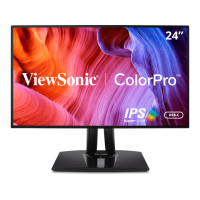
ViewSonic VP2458
74 pages
Print Icon
To Next Page IconTo Next Page
Loading...
VP2458
Monitor
User Guide
Model No. VS17557
P/N: VP2458
IMPORTANT: Please read this User Guide to obtain important information on installing and using your product in
a safe manner, as well as registering your product for future service. Warranty information contained in this User
Guide will describe your limited coverage from ViewSonic® Corporation, which is also found on our web site at
http://www.viewsonic.com in English, or in specific languages using the Regional selection box in the upper right
corner of our website. “Antes de operar su equipo lea cu idadosamente las instrucciones en este manual”

Questions and Answers

  • T
    Tanya GutierrezAug 18, 2025
    How to fix a ViewSonic Monitor with no power?
    • B
      bmendezAug 18, 2025
      If your ViewSonic monitor isn't turning on, ensure that the monitor is turned on by pressing the Power button. Verify the power cord is correctly and securely connected to the monitor and check the power outlet by plugging in another electrical device to see if it's supplying power.
  • D
    David AndrewsAug 21, 2025
    How to adjust the brightness on ViewSonic VP2458 if the screen is too light or dark?
    • E
      Elizabeth LewisAug 21, 2025
      If the screen image on your ViewSonic monitor is too light or dark, adjust the brightness and contrast settings via the OSD Menu. Alternatively, you can reset the monitor to its factory settings.
  • J
    Jonathan GarciaAug 23, 2025
    What to do if my ViewSonic Monitor has power but no image?
    • J
      Jennifer OsborneAug 23, 2025
      If your ViewSonic monitor has power but no image, ensure the video cable connecting the monitor to the computer is properly and securely connected. Also, check for any broken pins in the video cable connector. Try adjusting the brightness and contrast settings, and make sure the correct input source is selected.
  • Q
    qchoiAug 26, 2025
    Why does my ViewSonic Monitor have wrong colors?
    • T
      tracy44Aug 26, 2025
      If your ViewSonic monitor displays wrong or abnormal colors, check the video cable to ensure it is properly and securely connected, especially if any colors (red, green, or blue) are missing. Try connecting the monitor to another computer to see if the issue persists. If you have an older graphics card, contact ViewSonic® for a non-DDC adapter.
  • S
    Scott SweeneyAug 27, 2025
    What causes the screen image to cut in and out on my ViewSonic VP2458 Monitor?
    • H
      hgonzalesAug 27, 2025
      If the screen image on your ViewSonic monitor cuts in and out, make sure the correct input source is selected. Check the video cable connector for bent or broken pins, and ensure the video cable connecting the monitor to the computer is properly and securely connected.
  • K
    Karen PorterAug 30, 2025
    Why is there no image on my ViewSonic Monitor when an external device is connected?
    • J
      Jordan HunterAug 30, 2025
      If you're not seeing an image on your ViewSonic monitor after connecting an external device, ensure the power is on. Adjust the brightness and contrast via the OSD Menu. Check the connecting cable to make sure it is properly and securely connected, and inspect the cable connector for loose or broken pins, which could cause an improper connection.
  • I
    ikelleySep 1, 2025
    How do I fix a blurred screen image or text on my ViewSonic Monitor?
    • A
      ajacksonSep 2, 2025
      To fix a blurred screen image or text on your ViewSonic monitor, adjust the resolution to the correct Aspect Ratio. If that doesn't work, reset the monitor to factory settings.
  • M
    Michael ReedSep 4, 2025
    What to do if the OSD Menu does not appear on the ViewSonic VP2458?
    • B
      Brian WelchSep 4, 2025
      If the OSD Menu does not appear on your ViewSonic monitor or the OSD controls are inaccessible, check whether the OSD Menu is locked by pressing and holding the 2 and 3 key for 10 seconds. You can also try turning off the monitor, unplugging the power cord, plugging it back in, and then turning on the monitor. As another option, reset the monitor to factory settings.
  • P
    Paula NunezSep 6, 2025
    How to center the screen correctly on a ViewSonic VP2458?
    • A
      Andrew WintersSep 6, 2025
      To center the screen correctly on your ViewSonic monitor, adjust the horizontal and vertical controls via the OSD Menu. Check the Aspect Ratio, and if needed, reset the monitor to factory settings.
  • S
    Sarah HansonSep 8, 2025
    Why are USB devices not working when connected to my ViewSonic Monitor?
    • D
      Derek HendricksSep 8, 2025
      If USB devices connected to your ViewSonic monitor are not working, ensure the USB cable is connected properly. Try changing to another USB port (if applicable). Some USB devices require a higher electric current, so connect the device directly to the computer.

Summary

Safety Precautions

Introduction

Package Contents

Lists the items included in the monitor package.

Product Overview

Provides a visual overview of the monitor's front and rear views.

Initial Setup

Installing the Stand

Step-by-step guide for attaching the monitor stand to the base.

Wall Mounting

Instructions and specifications for mounting the monitor on a wall using VESA standards.

Using the Security Slot

Explains how to use a security cable to prevent theft.

Making Connections

Connecting to Power

Instructions for connecting the monitor to a power source.

Connecting External Devices

Guides on connecting the monitor to computers via HDMI, DisplayPort, USB, and VGA.

Using the Monitor

Height Adjustment

Adjusts the monitor's height along the stand.

Tilt Angle Adjustment

Tilts the monitor forwards or backwards for desired viewing.

Screen Orientation Adjustment (Monitor Pivot)

Rotates the monitor 90° from landscape to portrait orientation.

Swivel Angle Adjustment

Swivels the monitor left or right for optimal viewing angles.

Turning the Device On;Off

Instructions for powering the monitor on and off using the power button.

Using the Control Panel Keys

Explains how to use the control panel keys to navigate menus.

Hot Keys

Configuring the Settings

General Operations

Describes the basic steps to navigate and change monitor settings via OSD.

Advanced Features and Settings

Colorbration

Information about hardware color calibration using the ViewSonic Colorbration application.

Auto Pivot

Explains automatic screen orientation adjustment based on monitor position.

Firmware Update

Instructions for updating the monitor's firmware using a USB connection.

Appendix

Specifications

Detailed technical specifications of the monitor, including dimensions and power.

Regulatory and Service Information

Compliance, safety statements, warranty, and customer service contact details.

Glossary

Troubleshooting

Maintenance

General Precautions

Important safety guidelines to follow when maintaining the monitor.

Cleaning the Screen

Instructions on how to safely clean the monitor's screen.

Cleaning the Case

Instructions on how to safely clean the monitor's exterior case.

Disclaimer

Statement regarding the use of cleaning agents and liability for damage.

Limited Warranty

What the warranty covers

Details what is covered under the ViewSonic limited warranty.

How long the warranty is effective

Specifies the duration of the warranty for parts and labor.

Who the warranty protects

Clarifies that the warranty is valid for the first consumer purchaser only.

What the warranty excludes and does not cover

Lists conditions and damages not covered by the warranty.

Mexico Limited Warranty

What the warranty covers

Details what is covered under the Mexico limited warranty.

How long the warranty is effective

Specifies the duration of the warranty for parts and labor in Mexico.

Who the warranty protects

Clarifies that the warranty is valid for the first consumer purchaser only.

What the warranty excludes or does not cover

Lists conditions and damages not covered by the Mexico warranty.

ViewSonic VP2458 Specifications

General IconGeneral
Colorblack
Screen Typeled
Tiltableyes
Wall Mount100mm x 100mm
Touch Screenno
Webcamno
OS Compatibilitylinux, mac, windows
Screen Size24 inches
Panel Typeips
Aspect Ratio16:9
Resolution1920 x 1080
Native Resolution1920 x 1080
Refresh Rate75hz
Horizontal Viewing Angle178 degrees
Vertical Viewing Angle178 degrees
Response Time7 milliseconds
Brightness250 candela per square meter
Contrast Ratio20, 000, 000:1
Synchronizationnot applicable
Horizontal Scan Rate90 kilohertz
HDRno
Built-In Speakersno
Interface Connectors1 x displayport 1.2, 1 x vga
HDMI Ports1
Display Port Inputs1
Voice Assistantno
Power Saving Mode0.5 watts
Power Consumption19.5 watts
Depth with Stand8.5 inches
Height with Stand16.7 inches
Width with Stand21.2 inches
Depth without Stand1.9 inches
Height without Stand12.2 inches
Net Weight without Stand12.1 pounds

Related product manuals