EasyManua.ls Logo

ViewSonic VP2785-4K - User Manual

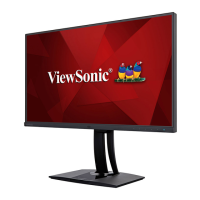
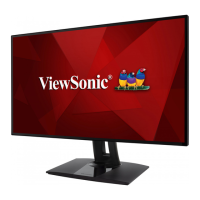
ViewSonic VP2785-4K
99 pages
Print Icon
To Next Page IconTo Next Page
Loading...
VP2785-4K
LCD Monitor
User Guide
Model No. VS16881
P/N: VP2785-4K
IMPORTANT: Please read this User Guide to obtain important information on installing and using your product in
a safe manner, as well as registering your product for future service. Warranty information contained in this User
Guide will describe your limited coverage from ViewSonic® Corporation, which is also found on our web site at
http://www.viewsonic.com in English, or in specific languages using the Regional selection box in the upper right
corner of our website. “Antes de operar su equipo lea cu idadosamente las instrucciones en este manual”

Table of Contents

Questions and Answers

  • C
    charlesharrisonSep 9, 2025
    How to center the screen on my ViewSonic VP2785-4K?
    • M
      miranda76Sep 9, 2025
      If the screen isn’t centered correctly on your ViewSonic monitor, adjust the horizontal and vertical controls via the OSD Menu. Check the Aspect Ratio. You can also reset the monitor to factory settings.
  • M
    Michael FranklinAug 23, 2025
    What to do if my ViewSonic VP2785-4K has power but no image?
    • G
      Gregory MontgomeryAug 23, 2025
      If your ViewSonic monitor has power but no image is displayed, ensure the video cable connecting the monitor to the computer is properly and securely connected. Also, inspect the video cable connector for bent or broken pins. Try adjusting the brightness and contrast settings, and make sure the correct input source is selected.
  • M
    Marcus AlexanderAug 25, 2025
    Why no image on ViewSonic VP2785-4K?
    • B
      Brian ParkAug 25, 2025
      If there is no image on your ViewSonic monitor, make sure all the wires are fully connected and not loose. Ensure the power is on. Check the video cable connector for bent or broken pins. Increase the brightness and contrast via the OSD Menu.
  • K
    Kenneth KimAug 26, 2025
    How to adjust brightness on ViewSonic VP2785-4K Monitor when the screen is too light or dark?
    • M
      martineznicholasAug 26, 2025
      If the screen image on your ViewSonic monitor is too light or dark, adjust the brightness and contrast settings. Alternatively, reset the monitor to factory settings.
  • W
    wilsonjessicaAug 27, 2025
    Why does my ViewSonic Monitor screen image cut in and out?
    • D
      Daniel PerezAug 27, 2025
      If your ViewSonic monitor screen image cuts in and out, verify that the video cable connecting the monitor to the computer is properly and securely connected. Ensure the correct input source is selected. Check the video cable connector for broken or bent pins.
  • T
    Tammy RamirezAug 29, 2025
    Why does my ViewSonic VP2785-4K Monitor have wrong colors?
    • R
      Richard SmallAug 29, 2025
      If your ViewSonic monitor displays wrong or abnormal colors, and any colors (red, green, or blue) are missing, check the video cable to ensure it is properly and securely connected. Also, try connecting the monitor to another computer.
  • R
    Regina Terry DDSSep 18, 2025
    Why are some menus not selectable in the OSD of my ViewSonic Monitor?
    • A
      amanda30Sep 18, 2025
      If some menus aren’t selectable in the OSD of your ViewSonic monitor, reset the monitor to factory settings.
  • C
    Connie BrockSep 18, 2025
    Why does the screen on my ViewSonic VP2785-4K Monitor appear yellow?
    • E
      ejacksonSep 18, 2025
      If the screen on your ViewSonic monitor appears yellow, make sure the “Blue Light Filter” is Off.
  • V
    Victoria GarciaSep 7, 2025
    How to unlock OSD on ViewSonic VP2785-4K Monitor?
    • L
      lambchristopherSep 8, 2025
      If the OSD controls on your ViewSonic monitor are inaccessible, check whether the OSD Menu is locked. If it is, touch and hold the 2 and 3 keys for 10 seconds. Alternatively, turn off the monitor, unplug the power cord, plug it back in, and then turn the monitor back on.
  • L
    Lindsay WatsonSep 4, 2025
    Why is the “Presence Sensor” function not working on my ViewSonic Monitor?
    • C
      Carol JordanSep 5, 2025
      If the “Presence Sensor” function is not working on your ViewSonic monitor, ensure the Presence Sensor is not OFF. Ensure the monitor height is positioned higher than 16 cm.

Summary

Safety Precautions

Introduction

Package Contents

Lists all items included in the monitor package for setup and use.

Product Overview

Provides a visual and textual explanation of the monitor's front and rear components.

Initial Setup

Installing the Stand

Step-by-step guide on how to attach the monitor stand securely to the display.

Wall Mounting

Using the Security Slot

Making Connections

Connecting to Power

Instructions on how to safely connect the monitor to a power source.

Connecting External Devices

Details on how to connect various input sources like HDMI, DisplayPort, etc.

Using the Monitor

Height Adjustment

Instructions for adjusting the monitor's vertical position to the desired height.

Tilt Angle Adjustment

Details how to tilt the monitor forward or backward for optimal viewing angles.

Screen Orientation Adjustment (Monitor Pivot)

Guide on rotating the monitor from landscape to portrait mode.

Turning the Device On;Off

Using the Control Panel Keys

Quick Menu

Accessing the quick menu via control panel keys for common settings.

Hot Keys

Configuring the Settings

General Operations

Basic steps to navigate and adjust settings using the OSD menu.

OSD Menu Tree

Advanced Features and Settings

HDR10 (High-Dynamic-Range)

Explains HDR10 technology and how to enable it for enhanced video content.

KVM

Functionality to control multiple computers with one keyboard/mouse via the monitor.

Multi-picture

Allows display of up to four split windows from different inputs.

Firmware Update

Instructions for updating the monitor's firmware for optimal performance.

Specifications

Glossary

Troubleshooting

No power

Solutions for when the monitor does not turn on.

No image on screen

Troubleshooting steps for a blank or black screen when the monitor is on.

Color;Image quality issues

Solutions for incorrect colors, brightness, blurriness, or intermittent display.

Control panel;OSD issues

Steps to resolve issues with non-responsive monitor controls or OSD menu.

Maintenance

General Precautions

Important safety measures to follow before cleaning or maintaining the monitor.

Cleaning the Screen

Instructions on how to safely clean the monitor screen to remove dust and particles.

Cleaning the Case

Guidance on how to clean the monitor's exterior casing.

Regulatory and Service Information

Compliance Information

Addresses regulatory requirements and statements related to product compliance.

FCC Compliance Statement

Details the device's compliance with FCC rules for digital devices.

Industry Canada Statement

Statement regarding compliance with Industry Canada regulations.

CE Conformity for European Countries

Information on the device's compliance with EU EMC and Low Voltage Directives.

Declaration of RoHS2 Compliance

Product Disposal at End of Product Life

Copyright Information

Customer Service

Limited Warranty

What the warranty covers

Details the scope of ViewSonic's warranty for product defects.

How long the warranty is effective

Specifies the duration of the warranty period for parts and labor.

What the warranty excludes and does not cover

Lists conditions and damages not covered by the product warranty.

Mexico Limited Warranty

What the warranty covers

Details the scope of ViewSonic's warranty for product defects in Mexico.

How long the warranty is effective

Specifies the duration of the warranty period for parts and labor in Mexico.

What the warranty excludes or does not cover

Lists conditions and damages not covered by the product warranty in Mexico.

ViewSonic VP2785-4K Specifications

General IconGeneral
DVI portNo
USB hub version3.2 Gen 1 (3.1 Gen 1)
Built-in USB hubYes
DisplayPort version1.2a
Headphone connectivity3.5 mm
USB upstream port typeUSB Type-B, USB Type-C
USB Type-A downstream ports quantity3
USB Type-C downstream ports quantity1
Panel typeAH-IPS
Color depth10 bit
Pixel pitch0.1554 x 0.1554 mm
Screen shapeFlat
Backlight typeW-LED
Display diagonal27 \
Anti-glare screenAlways gives an optimal view, even in direct sunlight.
Adobe RGB coverage99 %
Display technologyLED
Native aspect ratio16:9
Vertical scan range24 - 120 Hz
Maximum refresh rate60 Hz
Horizontal scan range15 - 130 kHz
NTSC coverage (typical)97.08 %
Viewable size, vertical336 mm
sRGB coverage (typical)100 %
Contrast ratio (dynamic)20000000:1
Display number of colors1.073 billion colors
Display diagonal (metric)68.85 cm
Viewable size, horizontal597 mm
Display brightness (typical)350 cd/m²
CertificationUL, cUL, FCC-B, Mexico CoC, CB , CE, WEEE, RoHS, ErP, REACH
Product colorBlack
Country of originChina
Market positioningBusiness
Pivot angle0 - 180 °
Tilt angle range-5 - 21 °
Cable lock slot typeKensington
Number of OSD languages14
Panel mounting interface100 x 100 mm
AC input voltage100 - 240 V
AC input frequency50 - 60 Hz
Power consumption (standby)0.3 W
Power consumption (typical)67 W
Power consumption (PowerSave)45 W
Operating temperature (T-T)0 - 40 °C
Operating relative humidity (H-H)20 - 90 %
Cables includedAC, Mini DisplayPort, USB
Package typeBox
Package depth268 mm
Package width720 mm
Package height460 mm
Package weight10100 g
Harmonized System (HS) code85285210
Weight and Dimensions IconWeight and Dimensions
Depth (with stand)215 mm
Width (with stand)612 mm
Height (with stand)546 mm
Weight (with stand)6400 g
Depth (without stand)57 mm
Height (without stand)363 mm
Weight (without stand)3920 g

Related product manuals