EasyManua.ls Logo

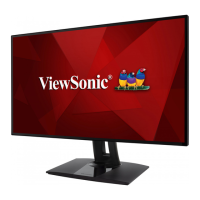
ViewSonic VP2786-4K - User Manual

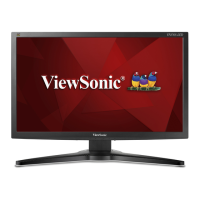
ViewSonic VP2786-4K
82 pages
Print Icon
To Next Page IconTo Next Page
Loading...
VP2786-4K
Display
User Guide
Model No. VS18993
P/N: VP2786-4K
IMPORTANT: Please read this User Guide to obtain important information on installing and using your product in
a safe manner, as well as registering your product for future service. Warranty information contained in this User
Guide will describe your limited coverage from ViewSonic® Corporation, which is also found on our web site at
http://www.viewsonic.com in English, or in specific languages using the Regional selection box in the upper right
corner of our website.

Questions and Answers

  • M
    Michelle WarrenAug 19, 2025
    What to do if my ViewSonic VP2786-4K has power but no image?
    • U
      uhallAug 19, 2025
      If your ViewSonic Monitor shows no image even when powered on, ensure the video cable is properly connected to both the monitor and the computer. Also, try adjusting the brightness and contrast settings. Lastly, verify that the correct input source is selected.
  • C
    crawfordchristinaAug 21, 2025
    How to troubleshoot a ViewSonic VP2786-4K that has no power?
    • D
      duncanbethanyAug 21, 2025
      If your ViewSonic Monitor has no power, first, make sure you have turned it on using the power button. Next, check that the power cord is securely connected to both the monitor and the power outlet. Finally, test the power outlet with another electrical device to ensure it's working.
  • D
    Diane YoungAug 23, 2025
    Why does the screen image on my ViewSonic Monitor cut in and out?
    • G
      Gloria AlexanderAug 23, 2025
      If the screen image on your ViewSonic Monitor cuts in and out, ensure the correct input source is selected. Check the video cable connector for any bent or broken pins, which could cause a bad connection. Also, make sure the video cable is properly and securely connected to both the monitor and the computer.
  • T
    Tamara StephensonAug 26, 2025
    Why are the colors on my ViewSonic VP2786-4K Monitor wrong?
    • D
      Daniel McdonaldAug 26, 2025
      If you notice wrong or abnormal colors on your ViewSonic Monitor, start by checking the video cable to ensure it is properly and securely connected. Loose or broken pins in the cable connector could cause an improper connection, leading to missing colors such as red, green, or blue. You can also connect the monitor to another computer to test if the issue persists. If you have an older graphics card, contact ViewSonic® for a non-DDC adapter.
  • D
    Darryl TrevinoAug 28, 2025
    How to fix a ViewSonic VP2786-4K screen that is too light or dark?
    • D
      Douglas HuntAug 28, 2025
      If the screen image on your ViewSonic Monitor is too light or dark, adjust the brightness and contrast settings via the OSD Menu. If that doesn't resolve the issue, try resetting the monitor to its factory settings.
  • K
    Kevin HowardAug 30, 2025
    How do I fix a blurred screen image on my ViewSonic VP2786-4K?
    • C
      carolinegarciaAug 30, 2025
      If the screen image on your ViewSonic Monitor is blurred, adjust the resolution to the correct Aspect Ratio. If the issue persists, reset the monitor to factory settings.
  • P
    pflemingSep 1, 2025
    What to do if no image appears on my ViewSonic VP2786-4K when an external device is connected?
    • P
      Peter LuceroSep 1, 2025
      If the external device is connected to your ViewSonic Monitor, but no image appears on the screen, make sure the power is on. Adjust brightness and contrast via the OSD Menu. Also, check the connecting cable and make sure it is properly and securely connected; loose or broken pins in the cable connector could cause an improper connection.
  • R
    Richard SnyderSep 3, 2025
    What to do if the OSD Menu on my ViewSonic VP2786-4K doesn't appear?
    • E
      elliottkristinaSep 3, 2025
      If the OSD Menu does not appear on your ViewSonic Monitor or the OSD controls are inaccessible, first check whether the OSD Menu is locked. If it is not locked, turn off the monitor, unplug the power cord, plug it back in, and then turn on the monitor. As a last resort, reset the monitor to factory settings.
  • M
    Matthew RamseySep 6, 2025
    Why are some menus not selectable in the OSD of my ViewSonic Monitor?
    • T
      Thomas HarrisSep 6, 2025
      If some menus aren’t selectable in the OSD of your ViewSonic Monitor, try adjusting the ViewMode or the input source. If that does not work, reset the monitor to factory settings.
  • C
    cruztracySep 8, 2025
    How to center the screen correctly on my ViewSonic VP2786-4K Monitor?
    • D
      Daniel WestSep 8, 2025
      If the screen on your ViewSonic Monitor isn’t centered correctly, adjust the horizontal and vertical controls via the OSD Menu. Also, check the Aspect Ratio. If the issue persists, reset the monitor to factory settings.

Summary

Safety Precautions

Introduction

Package Contents

List of items included with the monitor.

Product Overview

Identification of monitor's front and rear views, including ports and controls.

Initial Setup

Installing the Stand

Step-by-step instructions for attaching the monitor stand.

Wall Mounting

Guide and specifications for mounting the monitor on a wall.

Using the Security Slot

How to secure the monitor using a locking device and cable.

Making Connections

Connecting to Power

Steps to connect the monitor to a power outlet.

Connecting External Devices

Guides for connecting video sources (HDMI, DP) and peripherals (USB, Audio).

Using the Monitor

Adjusting the Viewing Angle

Instructions for adjusting height, tilt, pivot, and swivel.

Turning the Device On;Off

Procedures for powering the monitor on and off.

Using the Joy Key

Startup Menu

Accessing the monitor's quick menu via the Joy Key.

Main Menu Navigation

Navigating to the main OSD menu using the Joy Key.

Hot Keys

Configuring the Settings

General Operations

Basic navigation and interaction with the OSD menu.

OSD Menu Structure

Overview of the OSD menu structure and options.

Detailed Menu Options

Explanations of various OSD menu settings like Input, Color Mode, ViewMode.

Advanced Features and Settings

HDR (High-Dynamic-Range)

How to enable and use the HDR function for enhanced contrast and detail.

KVM Functionality

Controlling two computers with one keyboard/mouse via PBP mode.

Auto Pivot Feature

Automatic screen orientation adjustment based on monitor position.

Colorbration+

Dual Color Settings

Multi-Picture Modes

PBP (Picture-by-Picture)

PIP (Picture-in-Picture)

Backstage Lighting

Firmware Update

Appendix

Specifications

Technical details and performance characteristics of the monitor.

Glossary of Terms

Troubleshooting Guide

Maintenance Procedures

General Precautions

Important precautions for handling and maintaining the monitor.

Screen Cleaning

Proper methods for cleaning the monitor screen.

Case Cleaning

Proper methods for cleaning the monitor's outer casing.

Regulatory and Service Information

Compliance Information

Regulatory compliance statements, including FCC, IC, and CE.

RoHS2 Compliance Declaration

Compliance with hazardous substances restrictions for the European Union.

Indian Hazardous Substances Restriction

Compliance with hazardous substances regulations in India.

Product Disposal Guidelines

Information on environmentally responsible product disposal.

Copyright Information

Customer Service

Limited Warranty

Mexico Limited Warranty

ViewSonic VP2786-4K Specifications

General IconGeneral
Screen shapeFlat
Backlight typeLED
Display diagonal27 \
Anti-glare screenYes
Adobe RGB coverage100 %
Display technologyLCD
Native aspect ratio16:9
Maximum refresh rate60 Hz
NTSC coverage (typical)108 %
Contrast ratio (dynamic)20000000:1
Contrast ratio (typical)1300:1
Display number of colors1.07 billion colors
Digital vertical frequency24 - 120 Hz
Digital horizontal frequency15 - 204 kHz
Display brightness (typical)350 cd/m²
NVIDIA G-SYNC-
Product colorBlack
Market positioningGraphics design
DisplayPort version1.4
USB Type-A downstream ports quantity4
Number of USB Type-B upstream ports quantity1
Pivot angle90 - 90 °
Tilt angle range3 - 21 °
Height adjustment130 mm
Cable lock slot typeKensington
Panel mounting interface100 x 100 mm
AC input voltage100 - 240 V
Power supply typeInternal
Energy efficiency scaleA to G
Power consumption (max)70 W
Power consumption (standby)0.5 W
Power consumption (typical)67 W
Operating temperature (T-T)0 - 40 °C
Operating relative humidity (H-H)20 - 90 %
Package depth225 mm
Package width692 mm
Package height505 mm
Package weight13200 g
Sustainability certificatesCE, ENERGY STAR, ErP, REACH, RoHS, WEEE
Weight and Dimensions IconWeight and Dimensions
Depth (with stand)232 mm
Width (with stand)613 mm
Height (with stand)569.11 mm
Weight (with stand)8300 g
Depth (without stand)55 mm
Height (without stand)358 mm
Weight (without stand)4900 g

Related product manuals