EasyManua.ls Logo

ViewSonic VS17425 - User Manual

ViewSonic VS17425
63 pages
Print Icon
To Next Page IconTo Next Page
Loading...
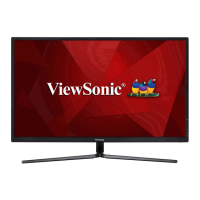
VX3211-4K-mhd
LCD Monitor
User Guide
Model No. VS17425
P/N: VX3211-4K-MHD
IMPORTANT: Please read this User Guide to obtain important information on installing and using your product in
a safe manner, as well as registering your product for future service. Warranty information contained in this User
Guide will describe your limited coverage from ViewSonic® Corporation, which is also found on our web site at
http://www.viewsonic.com in English, or in specific languages using the Regional selection box in the upper right
corner of our website. “Antes de operar su equipo lea cu idadosamente las instrucciones en este manual”

Questions and Answers

  • R
    Richard TuckerAug 19, 2025
    How to troubleshoot power issues on my ViewSonic Monitor?
    • T
      Taylor MillerAug 19, 2025
      If your ViewSonic Monitor isn't powering on, ensure it's turned on via the power button. Check that the power cord is correctly and securely plugged into both the monitor and the power outlet. To verify the outlet is working, plug another device into it.
  • S
    Shannon CastanedaAug 21, 2025
    What to do if my ViewSonic Monitor has power but no image?
    • A
      Anthony BellAug 21, 2025
      If your ViewSonic Monitor has power but no image, ensure the video cable is properly and securely connected to both the monitor and the computer. Also, adjust the brightness and contrast settings. Finally, verify that the correct input source is selected.
  • J
    joseph70Aug 23, 2025
    Why does the screen image cut in and out on my ViewSonic Monitor?
    • N
      Nicholas DicksonAug 25, 2025
      If the screen image on your ViewSonic Monitor cuts in and out, first ensure the correct input source is selected. Inspect the video cable connector for bent or broken pins. Also, make sure the video cable is properly and securely connected to both the monitor and the computer.
  • D
    Deborah Martin DDSAug 26, 2025
    Why are the colors wrong on my ViewSonic VS17425?
    • J
      Jonathan WoodAug 26, 2025
      If your ViewSonic Monitor displays wrong or abnormal colors, and any colors are missing (red, green, or blue), check the video cable to ensure it is properly and securely connected. You can also connect the monitor to another computer to test it. If you're using an older graphics card, contact ViewSonic® for a non-DDC adapter.
  • K
    Katie RobersonAug 28, 2025
    How to fix a ViewSonic Monitor screen that is too light or dark?
    • J
      jeffreygreenAug 28, 2025
      If the screen image on your ViewSonic Monitor is too light or dark, adjust the brightness and contrast settings via the OSD Menu. Alternatively, reset the monitor to its factory settings.
  • K
    kennethestradaAug 30, 2025
    How to fix a blurred screen image on my ViewSonic VS17425?
    • B
      Brittany ValenciaAug 30, 2025
      If the screen image on your ViewSonic Monitor is blurred, adjust the resolution to the correct Aspect Ratio. You can also reset the monitor to factory settings.
  • S
    sandy73Sep 1, 2025
    How to troubleshoot no audio output on ViewSonic VS17425 Monitor?
    • C
      Courtney CarrollSep 1, 2025
      If there's no audio output from your ViewSonic Monitor, and you are using headphones, check that the mini stereo jack is connected. Ensure the volume isn't muted or set to 0. Also, verify the Audio Input setting.
  • H
    Hayley GomezSep 3, 2025
    What to do if the OSD Menu doesn't appear on my ViewSonic VS17425 Monitor?
    • C
      Cynthia BridgesSep 3, 2025
      If the OSD Menu does not appear or the OSD controls are inaccessible on your ViewSonic Monitor, check if the OSD Menu is locked by pressing and holding the 2 and 3 key for 10 seconds. You can also try turning off the monitor, unplugging the power cord, plugging it back in, and then turning it on. As another option, reset the monitor to factory settings.
  • P
    Patricia HessSep 5, 2025
    How to center the screen correctly on my ViewSonic VS17425?
    • A
      Amanda DuncanSep 5, 2025
      If the screen isn’t centered correctly on your ViewSonic Monitor, adjust the horizontal and vertical controls via the OSD Menu. Also, check the Aspect Ratio and reset the monitor to factory settings.
  • J
    jennifer68Sep 8, 2025
    Why are USB devices not working when connected to my ViewSonic Monitor?
    • K
      kwhiteSep 8, 2025
      If USB devices connected to your ViewSonic Monitor do not work, ensure the USB cable is connected properly. Try changing to another USB port if applicable. If the device requires a higher electric current, connect it directly to the computer.

Summary

Safety Precautions

Introduction

Package Contents

Lists items included in the monitor package.

Product Overview

Details the front and rear views of the monitor.

Initial Setup

Wall Mounting

Provides dimensions for wall mount kits and installation notes.

Using the Security Slot

Explains how to use a security slot locking device to prevent theft.

Making Connections

Connecting to Power

Step-by-step guide for connecting the monitor to a power outlet.

HDMI Connection

Details how to connect the monitor using an HDMI cable.

DisplayPort Connection

Details how to connect the monitor using a DisplayPort cable.

Audio Connection

Explains how to connect headphones or a sound bar via the audio out port.

Using the Monitor

Adjusting the Viewing Angle

Guide on how to tilt the monitor for optimal viewing.

Turning the Device On;Off

Instructions on how to power the monitor on and off.

Control Panel Key Functions

Explains how to use control panel keys, Quick Menu, and Hot Keys.

Configuring the Settings

General Operations

Step-by-step guide for navigating OSD menus.

Input Select

How to select the input source for the monitor.

Audio Adjust

Instructions for adjusting volume and mute settings.

ViewMode Menu

Explanation of different preset viewing modes.

Color Adjust Menu

Guide to adjusting color settings like contrast and hue.

Manual Image Adjust Menu

Instructions for adjusting image quality settings.

Setup Menu

Guide to system settings like language and OSD configuration.

Advanced Features and Settings

HDR10 (High-Dynamic-Range)

Explanation of HDR10 functionality and setup.

Multi-picture

Information on using split-screen modes like PIP.

PIP (Picture-in-Picture)

Details on how to configure Picture-in-Picture settings.

Appendix

Specifications

Technical specifications of the LCD panel and input signals.

Glossary

Troubleshooting

Power and Display Issues

Solutions for power, blank screen, and intermittent display problems.

Color and Image Quality

Troubleshooting steps for color distortion, brightness, blurriness, and centering.

OSD and Control Panel Problems

Solutions for inaccessible OSD menus and unresponsive control panel keys.

Connectivity and Audio Issues

Resolving problems with no audio, USB devices, or external device connections.

Maintenance

General Precautions

Important safety precautions before performing maintenance.

Cleaning the Screen

Instructions for safely cleaning the monitor screen.

Cleaning the Case

Instructions for safely cleaning the monitor's exterior case.

Regulatory and Service Information

Compliance Statements

Includes FCC, Industry Canada, and CE conformity statements.

RoHS2 and Hazardous Substances

Details RoHS2 compliance and Indian hazardous substance restrictions.

Product Disposal and Copyright

Information on end-of-life disposal and copyright notices.

Copyright Information

Customer Service

Limited Warranty

What the warranty covers

Explanation of what the warranty protects against.

How long the warranty is effective

Duration of the warranty period.

What the warranty excludes and does not cover

List of conditions and damages not covered by the warranty.

Mexico Limited Warranty

What the warranty covers

Coverage details for the Mexico limited warranty.

How long the warranty is effective

Duration of the warranty in Mexico.

What the warranty excludes or does not cover

Items excluded from the Mexico warranty coverage.

Contact Information for Sales & Authorized Service

ViewSonic VS17425 Specifications

General IconGeneral
Screen Size27 inches
Panel TypeIPS
Aspect Ratio16:9
Resolution1920 x 1080
Contrast Ratio1000:1 (typical)
Response Time5 ms
ConnectivityHDMI, VGA

Related product manuals