EasyManua.ls Logo

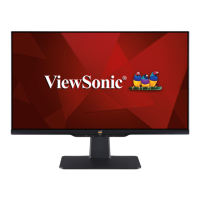
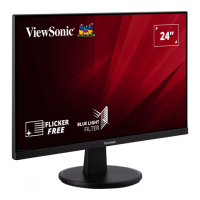
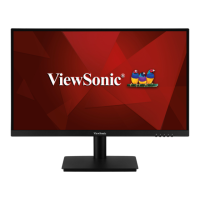
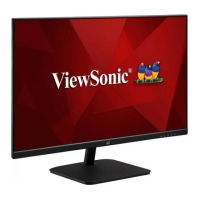
ViewSonic VS18231 - User Manual

ViewSonic VS18231
46 pages
Print Icon
To Next Page IconTo Next Page
Loading...
IMPORTANT: Please read this User Guide to obtain important information on installing and using your product in
a safe manner, as well as registering your product for future service. Warranty information contained in this User
Guide will describe your limited coverage from ViewSonic® Corporation, which is also found on our web site at
http://www.viewsonic.com in English, or in specific languages using the Regional selection box in the upper right
corner of our website.
VA2732-H
VA2732-MH
Display
User Guide
Model No. VS18231
P/N: VA2732-H | VA2732-MH

Questions and Answers

  • L
    laurajohnsonAug 31, 2025
    Why does my ViewSonic Monitor have wrong colors?
    • H
      hoffmanbelindaAug 31, 2025
      If any colors (red, green, or blue) are missing, check the video cable to ensure it is properly and securely connected. Loose or broken pins in the cable connector could cause an improper connection. You can also connect the monitor to another computer to test if the issue persists. If you have an older graphics card, contact ViewSonic® for a non-DDC adapter.
  • R
    Robert BeckerSep 9, 2025
    Why will my ViewSonic monitor not adjust?
    • J
      Jeanne PhillipsSep 9, 2025
      To adjust your ViewSonic monitor, ensure there are no obstructions near or on it and that there is adequate spacing.
  • E
    Eric DuncanAug 29, 2025
    How to fix a blurred screen image on ViewSonic VS18231 Monitor?
    • R
      Rhonda LiAug 30, 2025
      To resolve a blurred screen image on your ViewSonic monitor, adjust the resolution to the correct Aspect Ratio and reset the monitor to factory settings.
  • D
    David HendersonSep 23, 2025
    Why USB devices connected to ViewSonic VS18231 do not work?
    • R
      rlongSep 23, 2025
      If USB devices connected to your ViewSonic Monitor do not work, ensure the USB cable is properly connected. Try changing to another USB port, if available. Note that some USB devices require a higher electric current and should be connected directly to the computer.
  • J
    Jasmine SimpsonSep 10, 2025
    How do I center the screen on my ViewSonic Monitor?
    • D
      David RichardsonSep 12, 2025
      Adjust the horizontal and vertical controls via the OSD Menu. Check the Aspect Ratio. If needed, reset the monitor to factory settings.
  • J
    Jamie BakerSep 14, 2025
    What to do if the OSD Menu does not appear on the ViewSonic VS18231 Monitor?
    • A
      adamsdanaSep 14, 2025
      If the OSD Menu does not appear on the screen or the OSD controls are inaccessible on your ViewSonic monitor, check whether the OSD Menu is locked. If it is not locked, turn off the monitor, unplug the power cord, plug it back in, and then turn on the monitor. As a last resort, reset the monitor to factory settings.
  • J
    Joseph HillSep 22, 2025
    Why aren’t some menus selectable in the OSD on my ViewSonic VS18231?
    • S
      Shannon AndersonSep 22, 2025
      If some menus aren’t selectable in the OSD of your ViewSonic monitor, adjust the ViewMode or the input source. If that doesn't work, reset the monitor to factory settings.
  • T
    tknoxAug 27, 2025
    Why is there no image on my ViewSonic Monitor when an external device is connected?
    • A
      Andrew LyonsAug 27, 2025
      Make sure the Power is On. Adjust brightness and contrast via the OSD Menu. Check the connecting cable and make sure it is properly and securely connected. Loose or broken pins in the cable connector could cause an improper connection.
  • T
    Thomas BrooksAug 26, 2025
    How to adjust screen brightness on ViewSonic VS18231 Monitor?
    • S
      Scott WrightAug 26, 2025
      Adjust the brightness and contrast settings via the OSD Menu. Alternatively, you can reset the monitor to its factory settings.
  • D
    Dustin ParkAug 25, 2025
    What causes the screen image to cut in and out on ViewSonic VS18231?
    • D
      danielletannerAug 26, 2025
      Make sure the correct input source is selected. Check for bent or broken pins in the video cable connector. Ensure the video cable connecting the monitor to the computer is properly and securely connected.

ViewSonic VS18231 Specifications

General IconGeneral
BrandViewSonic
ModelVS18231
CategoryMonitor
LanguageEnglish

Related product manuals