EasyManua.ls Logo

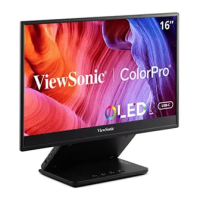
ViewSonic VX1655-4K-OLED - User Manual

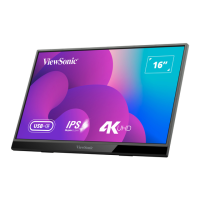
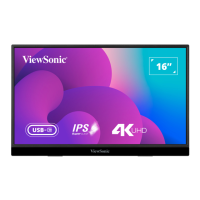
ViewSonic VX1655-4K-OLED
46 pages
Print Icon
To Next Page IconTo Next Page
Loading...
VX1655-4K-OLED
Display
User Guide
Model No. VS19591
P/N: VX1655-4K-OLED
IMPORTANT: Please read this User Guide to obtain important information on installing and using your product in
a safe manner, as well as registering your product for future service. Warranty information contained in this User
Guide will describe your limited coverage from ViewSonic® Corporation, which is also found on our web site at
http://www.viewsonic.com in English, or in specific languages using the Regional selection box of our website.

Questions and Answers

  • G
    Glenn KimAug 19, 2025
    How to fix no power on ViewSonic VX1655-4K-OLED?
    • S
      Stephanie WalkerAug 19, 2025
      If your ViewSonic monitor displays no power, make sure you have turned on the monitor by pressing the Joy Key. Also, ensure the power cord is properly and securely connected to both the monitor and the power outlet. To verify the outlet is supplying power, plug another electrical device into it.
  • D
    Dustin MccarthyAug 21, 2025
    How to adjust brightness on ViewSonic VX1655-4K-OLED?
    • R
      Rodney ClaytonAug 21, 2025
      If the screen image on your ViewSonic monitor is too light or dark, adjust the brightness and contrast settings via the OSD Menu. If that doesn't resolve the issue, try resetting the monitor to its factory settings.
  • A
    Austin BrownAug 25, 2025
    How to fix blurred screen image on ViewSonic VX1655-4K-OLED?
    • L
      Laura EstradaAug 25, 2025
      If the screen image on your ViewSonic monitor appears blurred, adjust the resolution to the correct Aspect Ratio. If the issue persists, reset the monitor to factory settings.
  • R
    Randy SantiagoAug 26, 2025
    Why does my ViewSonic VX1655-4K-OLED Monitor have wrong colors?
    • J
      Johnny LunaAug 26, 2025
      If your ViewSonic monitor displays wrong or abnormal colors, begin by checking the video cable to ensure it's properly and securely connected. Loose or broken pins in the cable connector could cause an improper connection. If issues persist, try connecting the monitor to another computer. For older graphics cards, consider contacting ViewSonic® for a non-DDC adapter.
  • D
    Donald GreenAug 28, 2025
    Why does the ViewSonic VX1655-4K-OLED Monitor screen image cut in and out?
    • A
      Angela RobbinsAug 28, 2025
      If your ViewSonic monitor screen image cuts in and out, start by ensuring the correct input source is selected. Then, check the video cable connector for bent or broken pins, as this could cause a poor connection. Also, make sure the video cable connecting the monitor to the computer is properly and securely connected.
  • A
    Andrew GreeneAug 30, 2025
    Why does ViewSonic VX1655-4K-OLED screen appear yellow?
    • E
      emilykelleyAug 30, 2025
      If your ViewSonic monitor screen appears yellow, make sure the “Blue Light Filter” is turned Off.
  • A
    Austin MartinezSep 1, 2025
    How to center the screen correctly on ViewSonic VX1655-4K-OLED?
    • A
      ambernortonSep 1, 2025
      If the screen isn’t centered correctly on your ViewSonic monitor, adjust the horizontal and vertical controls via the OSD Menu. Also, check the Aspect Ratio. If problems persist, reset the monitor to factory settings.
  • C
    Christopher RussoSep 3, 2025
    What to do if external device is connected, but no image appears on ViewSonic VX1655-4K-OLED Monitor?
    • C
      Christina MillerSep 3, 2025
      If the external device is connected to your ViewSonic monitor, but no image appears on the screen, make sure the Power is On. You may also need to adjust brightness and contrast via the OSD Menu. Also, check the connecting cable and make sure it is properly and securely connected; loose or broken pins in the cable connector could cause an improper connection.
  • J
    jtaylorSep 5, 2025
    What to do if power is on, but no image appears on ViewSonic Monitor?
    • D
      David WalkerSep 5, 2025
      If your ViewSonic monitor shows no image even when powered on, ensure the video cable is securely connected to both the monitor and computer. You might also need to adjust the brightness and contrast settings or verify that the correct input source is selected.
  • T
    Timothy SullivanSep 7, 2025
    What to do if OSD Menu does not appear on ViewSonic VX1655-4K-OLED Monitor?
    • R
      Robert ContrerasSep 7, 2025
      If the OSD Menu does not appear on your ViewSonic monitor screen or the OSD controls are inaccessible, first check whether the OSD Menu is locked. If not, turn off the monitor, unplug the power cord, plug it back in, and then turn on the monitor. Alternatively, reset the monitor to factory settings.

Summary

Safety Precautions

Initial Setup

Making Connections

Connecting to Power

Explains different configurations for powering the monitor.

Connecting External Devices

Power Delivery

Power Supply Detection

Explains how the monitor detects power sources and adjusts brightness.

Power Delivery - Further Information

Turning the Device On;Off

Configuring the Settings

Appendix

Specifications

Detailed technical specifications of the monitor's hardware and capabilities.

Troubleshooting

Limited Warranty

Mexico Limited Warranty

ViewSonic VX1655-4K-OLED Specifications

General IconGeneral
Display diagonal16 \
Display brightness400 cd/m²
Display technologyOLED
Native aspect ratio16:9
Contrast ratio (dynamic)80000000:1
Display number of colors1.07 billion colors
Viewing angle, horizontal170 °
Digital vertical frequency40 - 75 Hz
Digital horizontal frequency15 - 160 kHz
Tuner typeNo
USB portYes
USB port typeUSB Type-C
Headphone outputs1
USB ports quantity2
Headphone connectivity3.5 mm
RMS rated power0.8 W
Power source typeAC
Power consumption (standby)0.5 W
Power consumption (typical)25 W
Product typePortable monitor
Product colorBlack
Tilt angle range15 - 43 °
Package depth77 mm
Package width412 mm
Package height391 mm
Package weight1700 g
Cables includedAC, USB Type-C to USB Type-C, HDMI to Mini-HDMI
Weight and Dimensions IconWeight and Dimensions
Depth16 mm
Width352 mm
Height223 mm
Weight680 g

Related product manuals