EasyManua.ls Logo

ViewSonic VX1655 - User Manual

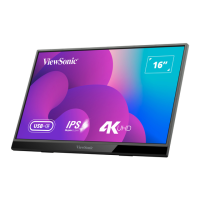
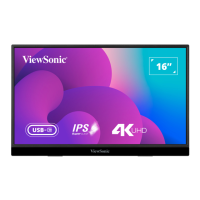
ViewSonic VX1655
48 pages
Print Icon
To Next Page IconTo Next Page
Loading...
VX1655
Display
User Guide
Model No. VS19589
P/N: VX1655
IMPORTANT: Please read this User Guide to obtain important information on installing and using your product in
a safe manner, as well as registering your product for future service. Warranty information contained in this User
Guide will describe your limited coverage from ViewSonic® Corporation, which is also found on our web site at
http://www.viewsonic.com in English, or in specific languages using the Regional selection box of our website.

Questions and Answers

  • R
    Randy LawsonAug 19, 2025
    How to turn on ViewSonic Monitor?
    • J
      Jack GrantAug 19, 2025
      First, ensure the monitor is turned on by pressing the Joy Key. Then, check that the power cord is properly and securely connected to both the monitor and the power outlet. To verify the outlet is working, plug another electrical device into it.
  • C
    Christopher WoodardAug 21, 2025
    How to adjust brightness on ViewSonic Monitor?
    • E
      Eric SanfordAug 22, 2025
      Adjust the brightness and contrast settings via the OSD Menu. If that doesn't resolve the issue, reset the monitor to factory settings.
  • J
    Jennifer LyonsAug 23, 2025
    What to do if ViewSonic Monitor has power but no image?
    • K
      Kimberly MooreAug 23, 2025
      First, ensure the video cable connecting the monitor to the computer is properly and securely connected. If the connection is fine, adjust the brightness and contrast settings. Finally, make sure the correct input source is selected.
  • R
    reidcharlesAug 26, 2025
    Why does my ViewSonic Monitor screen image cut in and out?
    • B
      Benjamin PottsAug 26, 2025
      First, make sure the correct input source is selected. Then, check the video cable connector for bent or broken pins. Also, verify that the video cable connecting the monitor to the computer is properly and securely connected.
  • A
    Angela Banks MDAug 28, 2025
    Why does my ViewSonic VX1655 have wrong colors?
    • W
      wendy07Aug 28, 2025
      Check the video cable to ensure it is properly and securely connected, as loose or broken pins in the cable connector can cause this issue. You can also connect the monitor to another computer to test if the issue persists.
  • R
    robert12Aug 30, 2025
    What to do if external device connected but no image on ViewSonic VX1655 Monitor?
    • F
      Francisco WilkinsonAug 30, 2025
      Ensure the power is on. Adjust brightness and contrast via the OSD Menu. Check the connecting cable and make sure it is properly and securely connected.
  • M
    Mary AndersonSep 1, 2025
    How to fix a blurred screen image on ViewSonic VX1655 Monitor?
    • B
      Brandon MosesSep 1, 2025
      Adjust the resolution to the correct Aspect Ratio. If the image remains blurred, reset the monitor to factory settings.
  • E
    Erika LewisSep 3, 2025
    Why are USB devices not working on my ViewSonic VX1655 Monitor?
    • J
      Jamie SnowSep 3, 2025
      Make sure the USB cable is connected properly. If it is, try changing to another USB port, if available. Some USB devices require a higher electric current; in this case, connect the device directly to the computer.
  • D
    Douglas YangSep 5, 2025
    What to do if ViewSonic VX1655 control panel keys do not work?
    • K
      Kenneth PerezSep 5, 2025
      Press only one key at a time. If the keys still do not work, restart the computer.
  • P
    Patrick BrownSep 7, 2025
    How to fix no audio output on ViewSonic monitor?
    • T
      Tina BrownSep 8, 2025
      If you are using headphones, make sure the mini stereo jack is properly connected. Also, ensure that the volume is not muted and is not set to 0. Finally, check the Audio Input setting.

Summary

Safety Precautions

Initial Setup

Making Connections

Connecting to Power Sources

Details on powering the monitor via USB Type C, Type A, or adapter.

Connecting to External Devices

Device Connectivity Options

Guides for connecting devices using USB Type C, Mini HDMI, and audio ports.

Power Delivery Features

Using the Monitor

Monitor Power and Control Key Functions

How to turn the monitor on/off and use the Joy Key for controls.

Configuring Settings

Navigating Display Settings

Steps to access and navigate Quick Menu, Main Menu, and OSD Tree.

Appendix: Specifications

Product Specifications

Detailed technical specifications of the monitor.

Troubleshooting Common Issues

Resolving Power and Display Problems

Solutions for no power, no image, and color issues.

Maintenance and Care

Customer Service and Warranty

ViewSonic VX1655 Specifications

General IconGeneral
Display diagonal16 \
Display brightness250 cd/m²
Display technologyLED
Native aspect ratio16:9
Contrast ratio (dynamic)80000000:1
Contrast ratio (typical)800:1
Display number of colors262144 colors
Viewing angle, horizontal170 °
Digital vertical frequency48 - 60 Hz
Digital horizontal frequency15 - 83 kHz
Product typePortable monitor
Product colorBlack
Tilt angle range0 - 86 °
Tuner typeNo
USB port typeUSB Type-C
Headphone connectivity3.5 mm
RMS rated power0.8 W
Number of speakers2
Power source typeAC
Power consumption (typical)11 W
Package weight1800 g
Cables includedAC, USB Type-C to USB Type-C, HDMI to Mini-HDMI
Weight and Dimensions IconWeight and Dimensions
Depth21 mm
Width355 mm
Height224 mm
Weight770 g

Related product manuals