EasyManua.ls Logo

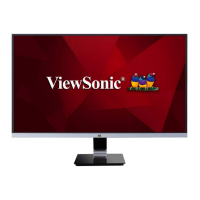
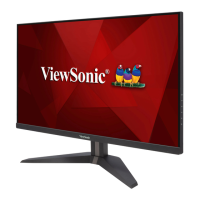
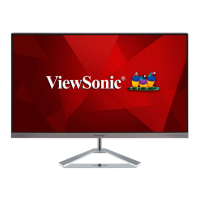
ViewSonic VX2728 - User Manual

ViewSonic VX2728
46 pages
Print Icon
To Next Page IconTo Next Page
Loading...
IMPORTANT: Please read this User Guide to obtain important information on installing and using your product in
a safe manner, as well as registering your product for future service. Warranty information contained in this User
Guide will describe your limited coverage from ViewSonic® Corporation, which is also found on our web site at
http://www.viewsonic.com in English, or in specific languages using the Regional selection box in the upper right
corner of our website.
VX2728
Display
User Guide
Model No. VS19277
P/N: VX2728

Questions and Answers

  • A
    Amanda TrujilloAug 19, 2025
    How to troubleshoot no power on my ViewSonic VX2728?
    • J
      James DanielsAug 19, 2025
      First, ensure that you have turned on the ViewSonic Monitor using the Power button. Next, verify that the power cord is correctly and securely connected to both the monitor and the power outlet. To confirm the outlet is functioning, plug another electrical device into it.
  • K
    Kenneth Robinson Jr.Aug 21, 2025
    How to adjust brightness on ViewSonic Monitor if the screen is too dark?
    • A
      Alyssa AndersonAug 21, 2025
      If the screen image on your ViewSonic Monitor is too light or dark, adjust the brightness and contrast settings via the OSD Menu. If that doesn't work, reset the monitor to factory settings.
  • D
    Derek WongAug 25, 2025
    What to do if my ViewSonic VX2728 has power but no image?
    • K
      Kayla KaiserAug 25, 2025
      If your ViewSonic Monitor has power but no image, first ensure the video cable connecting the monitor to the computer is properly and securely connected. If the connection is correct, adjust the brightness and contrast settings. Also, verify that the correct input source is selected.
  • A
    adamchavezAug 26, 2025
    How to resolve wrong colors on ViewSonic VX2728 Monitor?
    • H
      Heather GuzmanAug 26, 2025
      If your ViewSonic Monitor displays wrong or abnormal colors, and if any colors (red, green, or blue) are missing, check the video cable to ensure it is properly and securely connected, as loose or broken pins in the cable connector could cause an improper connection. You can also connect the monitor to another computer to test.
  • J
    John JacksonAug 28, 2025
    What to do if external device connected but no image on ViewSonic Monitor?
    • W
      Wendy HicksAug 28, 2025
      If you've connected an external device to your ViewSonic Monitor but no image appears, first ensure the power is on. Then, adjust the brightness and contrast via the OSD Menu. Also, check the connecting cable and make sure it is properly and securely connected, as loose or broken pins in the cable connector could cause an improper connection.
  • A
    Ashley RayAug 30, 2025
    Why USB devices don't work when connected to my ViewSonic VX2728?
    • E
      elizabeth19Aug 30, 2025
      If USB devices connected to your ViewSonic monitor do not work, make sure the USB cable is connected properly. If it is, try changing to another USB port (if applicable). Some USB devices require a higher electric current, so connect the device directly to the computer.
  • D
    davidwilsonSep 1, 2025
    How to fix blurred screen image on ViewSonic VX2728?
    • R
      Raymond GordonSep 1, 2025
      If the screen image on your ViewSonic Monitor is blurred, adjust the resolution to the correct Aspect Ratio. If adjusting the aspect ratio doesn't solve the problem, reset the monitor to factory settings.
  • A
    Andrea VasquezSep 3, 2025
    How to fix no audio output on ViewSonic VX2728?
    • R
      rogerscaseySep 3, 2025
      If there is no audio output from your ViewSonic Monitor, ensure the mini stereo jack is connected properly if you're using headphones. Also, make sure that the volume is not muted or set to 0. Finally, check the Audio Input setting.
  • R
    Richard LongSep 5, 2025
    Why does the screen image cut in and out on my ViewSonic VX2728?
    • S
      stevencooperSep 5, 2025
      If the screen image on your ViewSonic Monitor cuts in and out, first make sure the correct input source is selected. Then, check the video cable connector for bent or broken pins, which could cause an improper connection. Also, ensure the video cable connecting the monitor to the computer is properly and securely connected.
  • M
    michelle91Sep 7, 2025
    What to do if OSD Menu doesn't appear on ViewSonic VX2728?
    • J
      Jill BerrySep 8, 2025
      If the OSD Menu does not appear or the OSD controls are inaccessible on your ViewSonic Monitor, check whether the OSD Menu is locked. If it is not locked, turn off the monitor, unplug the power cord, plug it back in, and then turn on the monitor. If the issue persists, reset the monitor to factory settings.

Summary

Introduction

Package Contents

Lists the items included in the monitor package, such as power cord and video cable.

Product Overview

Provides front and rear views of the monitor and details its I/O ports.

Initial Setup

Installing the Stand

Step-by-step instructions for attaching the monitor stand to the display.

Wall Mounting

Guidelines and specifications for mounting the monitor on a wall using VESA kits.

Using the Security Slot

Instructions on how to use a security slot locking device to prevent theft.

Making Connections

Connecting to Power

Procedure for connecting the monitor to a power source and outlet.

Connecting External Devices

Illustrates how to connect external devices like computers using HDMI or DisplayPort.

Using the Monitor

Adjusting Monitor Viewing Angle

Instructions on how to tilt the monitor forwards or backwards for optimal viewing.

Monitor Power On;Off

Steps for powering the monitor on and off using the power button.

Monitor Quick Menu Functions

Explains how to access and use the Quick Menu for common settings like ViewMode and Volume.

Monitor Control Panel Hot Keys

Details on using control panel keys to access special functions like OSD lock/unlock.

Configuring the Settings

Configuring Monitor Settings

Guide on navigating and adjusting settings within the On-Screen Display (OSD) Menu.

Monitor OSD Menu Structure

Provides a detailed structure of the OSD menu options and their parameters.

Appendix

Monitor Technical Specifications

Technical specifications of the monitor, including display, input signal, and power details.

Monitor Glossary of Terms

Defines common terms used in the manual for LCD display models.

Monitor Troubleshooting Guide

Lists common problems with the monitor and their possible solutions.

Maintenance

Monitor Maintenance Precautions

Important safety guidelines and handling advice for maintaining the monitor.

Cleaning the Monitor Screen

Instructions on how to safely clean the monitor screen with appropriate materials.

Cleaning the Monitor Case

Procedure for cleaning the monitor case using a soft, dry cloth.

Regulatory and Service Information

Regulatory Compliance Information

Details regulatory compliance statements, including FCC and CE conformity.

RoHS2 Compliance Declaration

States compliance with the RoHS2 Directive regarding hazardous substances.

Indian Hazardous Substances Restriction

Information regarding hazardous substances restrictions in India.

End-of-Life Product Disposal

Guidance on environmentally responsible disposal of the product.

Customer Service

Limited Warranty

Warranty Coverage Details

Details the scope of ViewSonic's warranty for material and workmanship defects.

Warranty Period Duration

Specifies the warranty duration for parts, light source, and labor.

Warranty Exclusions and Limitations

Lists conditions and damages that are not covered by the warranty.

Obtaining Warranty Service

Provides instructions on how to obtain warranty service and necessary documentation.

Warranty Damage Exclusions

Defines the limitations of ViewSonic's liability for product damages and losses.

ViewSonic VX2728 Specifications

General IconGeneral
Screen Size27 inches
Aspect Ratio16:9
VESA Mount100 x 100 mm
Resolution1920 x 1080 (Full HD)
ConnectivityHDMI
Viewing Angle178º (H) / 178º (V)
Color Support16.7 million colors

Related product manuals