synchronously until you remove them from the group.
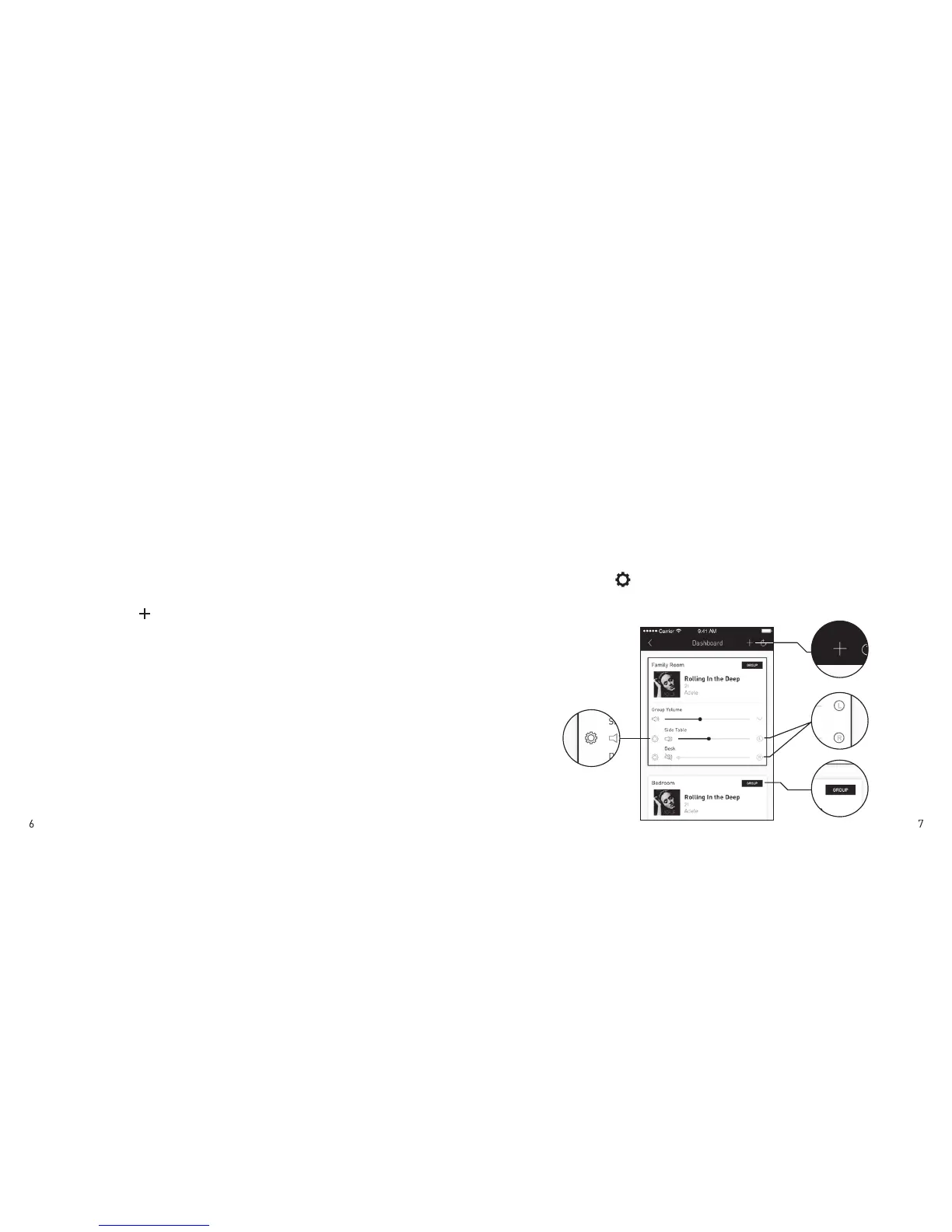
· Left/Right/Stereo Channel
Speakers are set to stereo mode by default (left + right
channel). When speakers are grouped, you can assign
left or right channel for each speaker within the group
to simulate surround sound. Tap the button to the right
of the volume slider under the speaker name to change
between L (left), R (right), or LR (stereo).
3. Speaker Settings
· Tap the button next to the volume adjuster. You can
rename your speaker or restore it to factory settings.
Speaker Settings
L/R Stereo Channel
Groupin
Speakers
Setup new speakers
L
R
DASHBOARD
After setting up your speaker you will be taken to the
dashboard. The dashboard lets you control all Villo speakers
that are connected to your Wi-Fi network. Here you can:
1. Setup new speakers
· Tap the button on the top right and follow the on
screen prompts to connect a new Villo speaker to your
Wi-Fi network.
2. Multi-room Music
If you have multiple Villo speakers on your network,
you can group them together for a rich, synchronized
playback experience.
· Grouping Speakers
After connecting 2 or more Villo speakers to your
network, tap the Group button on the top right corner
of any speaker and select speakers to add/remove
from the group. Speakers in the same group will play
the Villo app on your device. The App will take you through
step-by-step to setup your Villo speaker in minutes. If you are
unable to setup your speaker, refer to the trouble-shooting
section of this manual.


 To Next Page