5
3. QR CODE
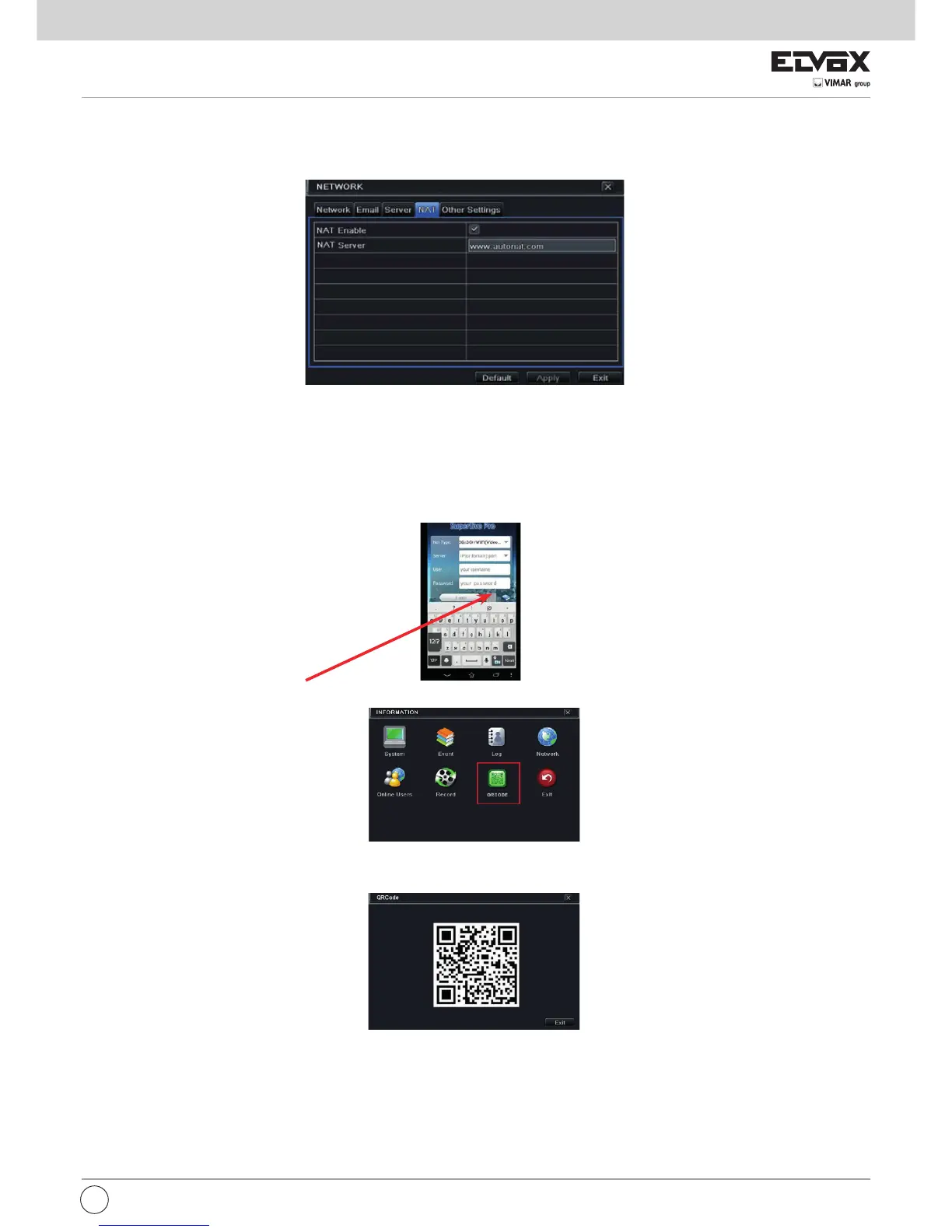
Enabling NAT service
1 - Go to Main Menu Setup Network NAT Interface (4.6.5).
2 - Enable NAT and input the NAT Server (The default NAT Server is www.autonat.com).
3 - Click “Apply” to save the settings.
Fig 3-1 Network Conguration-NAT
EN
Go to Main Menu Information QRCODE tab. Refer to Fig 3.1.A.
Instalation application on smartphone
App installation on smartphone search for “SUPERLIVE PRO” App on your mobile market and install It
Conguration
Press the QR CODE button (red arrow on below picture) to get ready for the scan
Fig 3.1.A Information Conguration
In this interface, you can scan the QRCODE through the mobile phone. Refer to Fig 3.1.B.
Fig 3.1.B Information Conguration
As soon as the scan is done, the MAC Address of the DVR/NVR appear on the “Server” eld on Superlive PRO Input on SUPERLIVE PRO the user and
password of the DVR/NVR
Default:
User: admin
Password: 123456
Press the “login” button on SUPERLIVE PRO and the mobile phone is connected to the DVR/NVR


 To Next Page