Overview
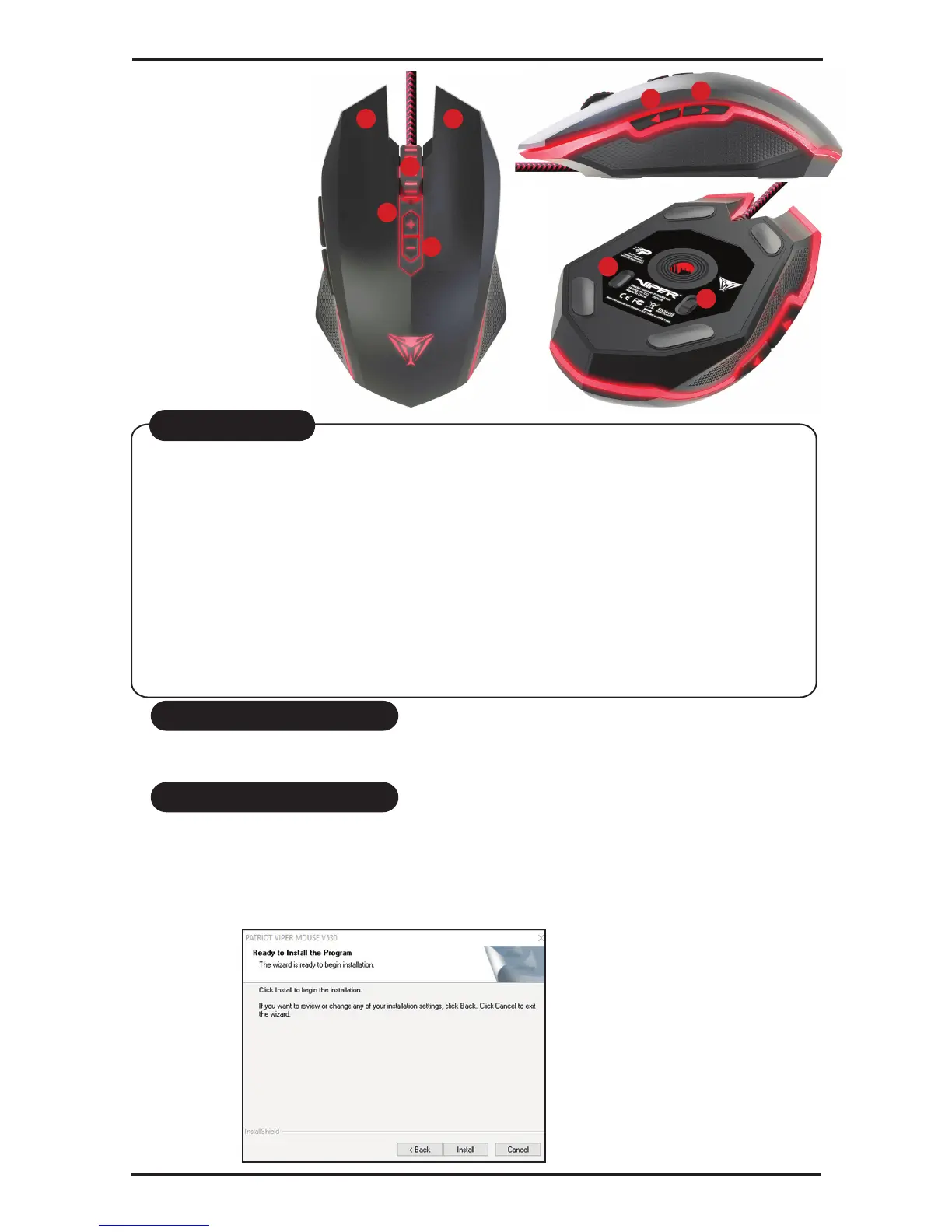
1. Left Mouse Button
2. Right Mouse Button
3. Scroll Wheel
4. Mouse Button 4
5. Mouse Button 5
6. Increase DPI
7. Decrease DPI
8. LED on/off
9. Reset Button
1 2
4
5
8
9
3
6
7
DPI Settings
1. Press buttons 6 and 7 to change between DPI settings.
2. DPI setting is indicated by the color of the LED lighting
in Constant lighting mode.
Default DPI settings are:
*500 DPI is RED
*1000 DPI is BLUE
*1500 DPI is GREEN
*2000 DPI is YELLOW
*3000 DPI is TEAL
*4000 DPI is PURPLE
3. User can change default DPI settings with Viper V530 Mouse software.
DPI Settings
Hardware Installation
Software Installation
Connect the V530 Mouse to the computer’s USB port.
Wait 5-10 seconds for the mouse to be recognized by the computer.
Please download the V530 Mouse software from http://patriotmemory.com,
under downloads from the V530 product page.
Software Installation Instructions
Once downloaded, double click on the software to start the installation. Follow
the onscreen instructions to nish the process.



 To Next Page