To create a user prole, follow the steps outlined above to custom color keys,
and select and assign macro scripts. You may also adjust the report rate or re-
sponse times to your preference. Click Apply to save them to the keyboard’s
memory.
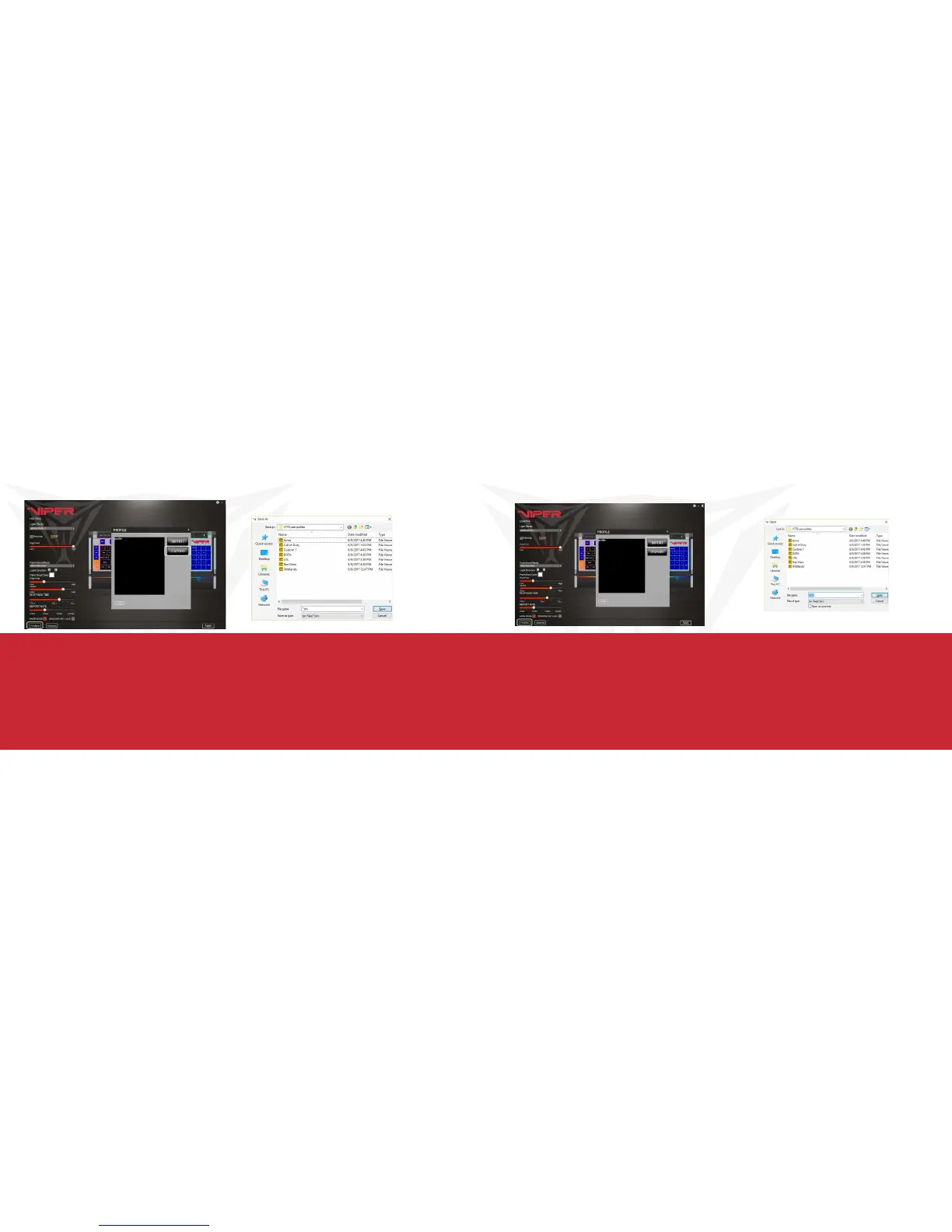
To save a user profile, click on the Profiles button in the lower left corner, then
click on the EXPORT button to access a folder you create on your PC’s storage
device.
Name the profile and Save.
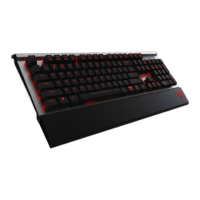
To load a saved profile to the keyboard, simply click on Profiles in the lower left
corner, and click IMPORT.
Double click on the profile you wish to load from your user profile folder and hit
Open.
Once the selected profile has loaded onto the PROFILE window of the IMPORT/
EXPORT screen, hit Apply. The profile is now loaded onto the keyboard memory.


 To Next Page