EasyManua.ls Logo

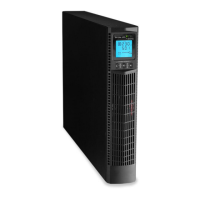
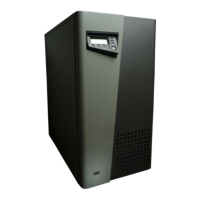
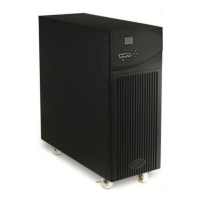
Vision SPIRIT II G - User Manual

Vision SPIRIT II G
33 pages
Print Icon
To Next Page IconTo Next Page
Loading...
User Manual
Vision Spirit II G
6-10KVA
PF0.9 – 1/1 phase
True online double conversion UPS

Questions and Answers

  • A
    Amanda CrawfordAug 18, 2025
    What to do if my Vision SPIRIT II G UPS beeps and shows 'output overload'?
    • S
      Susan NovakAug 18, 2025
      If the Vision UPS beeps twice every second and the LCD displays “output overload”, it indicates that the UPS is overloaded. To resolve this, disconnect some of the connected loads.
  • D
    Danny MillsAug 21, 2025
    What to do if Vision SPIRIT II G UPS shows 'output short circuit'?
    • R
      robertwileyAug 21, 2025
      If the Vision UPS has a fault indicator on and the LCD shows “output short circuit”, it means there is a short circuit in the output. You should eliminate the short circuit and then restart the UPS.
  • N
    Nicholas GonzalezAug 23, 2025
    What to do if Vision SPIRIT II G UPS shows 'battery fault'?
    • R
      Randy SawyerAug 23, 2025
      If the Vision UPS displays a fault indicator and the LCD shows “battery fault”, it could be due to several reasons: * The battery circuit breaker might be off or have a poor connection. * The battery connection might be reversed. * The battery itself could be defective. To address this: 1. Switch on the breaker and check the battery connections. 2. Check the battery polarity. 3. If the problem persists, contact your distributor to replace the battery.
  • P
    patricia66Aug 26, 2025
    Why does my Vision SPIRIT II G UPS have abnormal backup time?
    • J
      Jeffrey WilsonAug 26, 2025
      If the Vision UPS is experiencing an abnormal backup time, it could be due to: * The battery not being fully charged. * The battery being bad. To solve this: 1. Charge the battery for 8 hours when AC is normal, then test the backup time again. 2. If the issue persists, contact the distributor to replace the battery.
  • G
    gaymatthewAug 27, 2025
    What to do if Vision SPIRIT II G UPS shows over-temperature?
    • T
      tpughAug 28, 2025
      If the Vision UPS has a long beep, a fault indicator on, and the LCD shows over-temperature, it indicates that the UPS is overheating. To resolve this: 1. Check if air is blowing out from the fans. 2. Remove any objects obstructing the UPS. 3. Wait until the UPS cools down, and then restart it.
  • D
    derrick01Aug 30, 2025
    Why is the AC indicator blinking on my Vision SPIRIT II G UPS?
    • R
      Ryan SmithAug 30, 2025
      If the AC indicator is blinking on your Vision UPS, it means the input AC is beyond the normal range. Pay attention to the backup time if the UPS is in battery mode.
  • K
    Kristin DavisSep 1, 2025
    What does it mean if my Vision SPIRIT II G UPS shows rectifier/inverter/auxiliary power/output fault?
    • W
      wesley66Sep 1, 2025
      If you hear long beeps, see a fault indicator on, and the LCD shows “rectifier fault”, “inverter fault”, “auxiliary power fault” or “output fault” on your Vision UPS, it indicates a fault inside the UPS. Contact the distributor for assistance.
  • W
    William EstradaSep 3, 2025
    What to do if my Vision SPIRIT II G UPS doesn’t start?
    • D
      Dr. Joanne HicksSep 3, 2025
      If the Vision UPS doesn’t start after pressing the On button, it could be due to: * Insufficiently long press of the ON button. * Overload. To resolve this: 1. Press and hold the On button for 1 second. 2. Disconnect all loads and restart the UPS.
  • B
    Brian SimonSep 6, 2025
    What to do if Vision SPIRIT II G UPS shows 'charger fault'?
    • W
      Wendy ConleySep 6, 2025
      If the Vision UPS has a fault indicator on and the LCD shows “charger fault “, it means the charger is defective. Contact the distributor for assistance.
  • M
    Michael SanchezSep 8, 2025
    What to do if my Vision SPIRIT II G makes abnormal sound or smell?
    • J
      Jason HicksSep 8, 2025
      If the Vision UPS is making abnormal sounds or smells, it indicates a fault inside the UPS. Shut down the UPS immediately and contact the distributor.

Summary

Safety Instruction

Prohibition

High risk of electric shock, unauthorized access prohibited, and considerations for connecting specific equipment.

Safety Notice

Precautions for output, disconnection, grounding, operating environment, ventilation, liquid, and fire extinguishers.

1 Production Introduction

1.1 Application

Details the UPS applications for computer centers, network management, auto control, and telecom systems.

1.2 Product range

Lists product models, capacities (6kVA, 10kVA), and remarks on internal or external batteries.

1.3 System principle diagram

Explains the system's ability to work in single unit or parallel for enhanced reliability.

1.4 Features

Highlights intelligent online sine wave, high frequency, double conversion, DSP technology, and network management.

1.5 Product overview

Provides an overview of the UPS including product view, LCD operation, display, and rear panel instructions.

2 Installation

2.1 Unpack checking

Instructions for checking the UPS upon unpacking, including appearance and accessories.

2.2 Installation procedure

Detailed steps and notes for installing the UPS, including placement, environment, and power configuration.

2.3 Connection of parallel system

Guidelines for connecting multiple UPS units in parallel for increased capacity or redundancy.

3 Operation

3.1 Working modes

Describes the different operating modes of the UPS: AC, Bypass, Battery, and ECO modes.

3.2 Operation

Details the procedures for powering on, setting parameters, starting, shutting down, and powering off the UPS.

3.3 Working Mode and transferring

Explains how the UPS transitions between modes due to overload, temperature, or short circuits.

3.4 UPS monitoring

Refers to instructions for monitoring the UPS via provided software.

3.5 LCD operation menu

Guides on navigating the LCD menu for alarm, running parameters, and settings.

4 Maintenance

4.1 Fan maintenance

Instructions for checking and maintaining the UPS cooling fans.

4.2 Battery maintenance

Guidance on maintaining the UPS batteries, including temperature, discharge, and charging.

4.3 Visual checking

Advice on visually inspecting the UPS for good ventilation.

4.4 UPS status checking

How to check the UPS status, including faults, bypass, and battery modes.

4.5 Function checking

Procedures for performing function checks on UPS buttons, indicators, and battery testing.

5 Trouble shooting

Appendix 1 - USB communication port definition

Appendix 2 - RS232 communication port definition

Appendix 3 - Specification

Appendix 4 - Option

Appendix 5 - UPS message table

Operational Status and Mode(s)

Lists UPS operational statuses, modes, and associated LED indicators.

Alarm Information

Details UPS alarms, buzz patterns, and corresponding LED indications for fault diagnosis.

Vision SPIRIT II G Specifications

General IconGeneral
Output voltage220/230/240 VAC
Output frequency50/60 Hz
Operating Temperature0-40 °C
Nominal input voltage230V
Input Frequency50/60Hz
Typical recharge time4 hours
Battery Recharge Time4 hours
CommunicationUSB
Communication InterfaceUSB
TopologyLine Interactive

Related product manuals