12
13. WIFI/APP USAGE
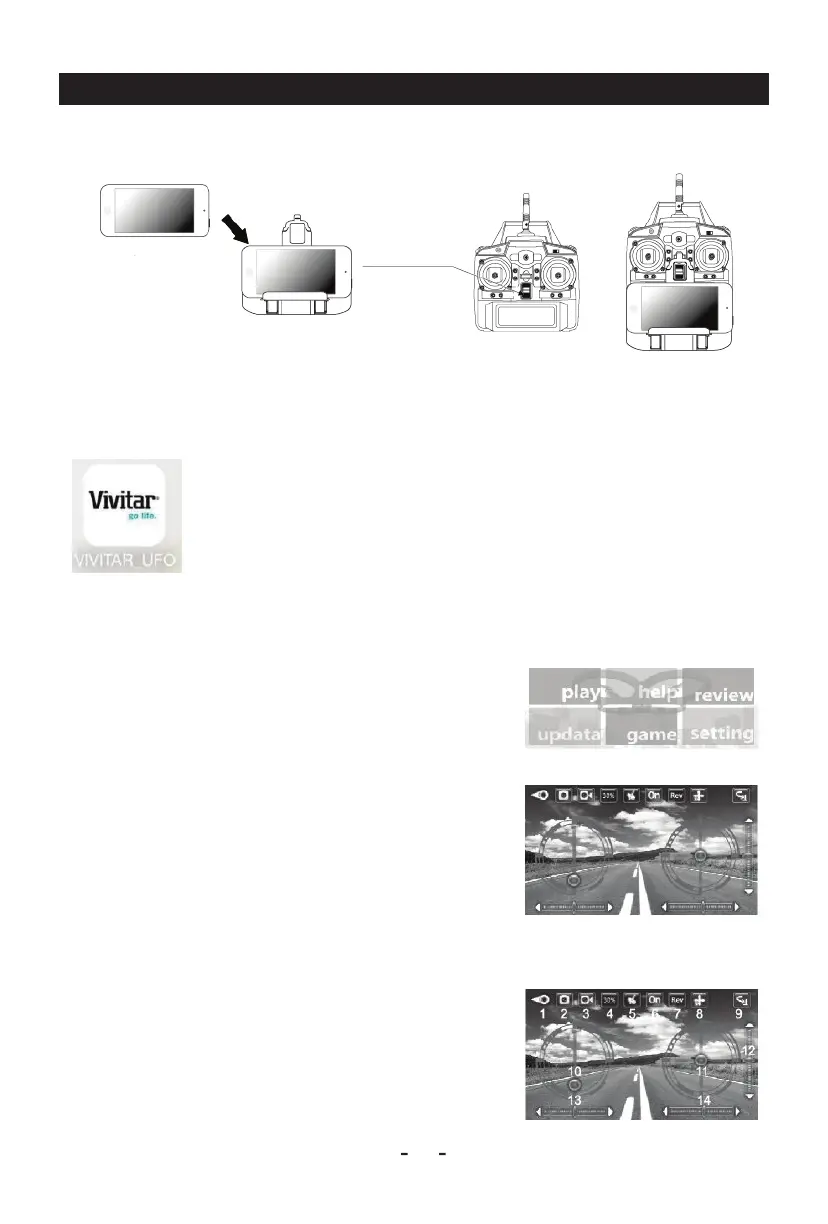
1. Use the Included Mobile Phone Holder to Connect Your Phone to the Remote
2. Download the VIVITAR-UFO app.
3. Using Wifi to Connect the Aircraft to Your Phone
4. Control Interface Display Screen
Go to the App Store or Google Play store and search for the Vivitar-UFO app. Follow the installation
instructions to proceed to download the app.
-Power on your aircraft. LED lights will illuminate to indicate that it is powered on.
-On your mobile phone find the Wifi Settings menu. Select the network labeled
VIVITAR-UFO-xxxxxx in order to sync your aircraft with your phone.
-Open the VIVITAR-UFO application on your phone. Press the “play” option on
the start interface in order to open the control interface.
1. Return to Menu
2. Photograph
3. Perturbation
4. Speed Selection
5. Gravity Sensor Control Mode
6. Show/Hide Control Interface
7. Rotate Screen
8. Headless Mode
9. Key roll
10. Throttle
11. Directional Control Stick
12. Forward/Back Trim
13. Rudder Trim
14. Left/Right Trim
Slide your phone into the
included phone holder.
Connect the phone holder to the remote
control so that it fits in place.
Start Interface
Control Interface


 To Next Page