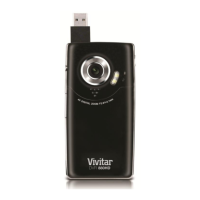
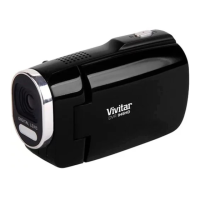
To change the active camera mode, make sure the camera is powered ON and press the MODE
button on the top left of the LCD Panel.
When in Video Capture Mode, this icon will display on the top-left corner of the LCD display
When in Photo Capture Mode, this icon will display on the top-left corner of the LCD display
When in Playback Mode, this icon will display on the top-left corner of the LCD display
Navigating the Menus
Each camera mode has a set of menus specific to that mode.
1) Press the MENU button to open the menus for the current mode.
2) Press the LEFT or RIGHT button to scroll between the various menus for the current mode.
3) Press the UP or DOWN button to highlight the desired menu selection.
Alternatively, push the Zoom button UP or DOWN to highlight the desired menu selection.
4) Press the SET button to confirm and select the highlighted menu option.
5) If the selection can be remembered by the camera, a selection icon will appear to the right of
the selected menu option. Changes made to these options will remain as is until you decide to
change them again at a later time.
6) Some menu options are single-use functions that are not remembered by the camera and do not
display this icon when selected.
7) At any time you can press the MODE button to exit the menus and return to the previous screen.


 To Next Page