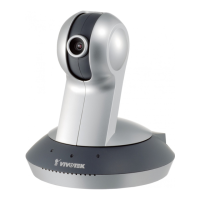
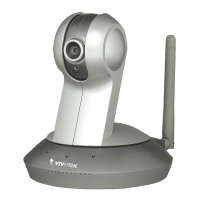
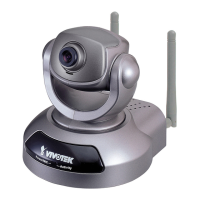
EN - 10
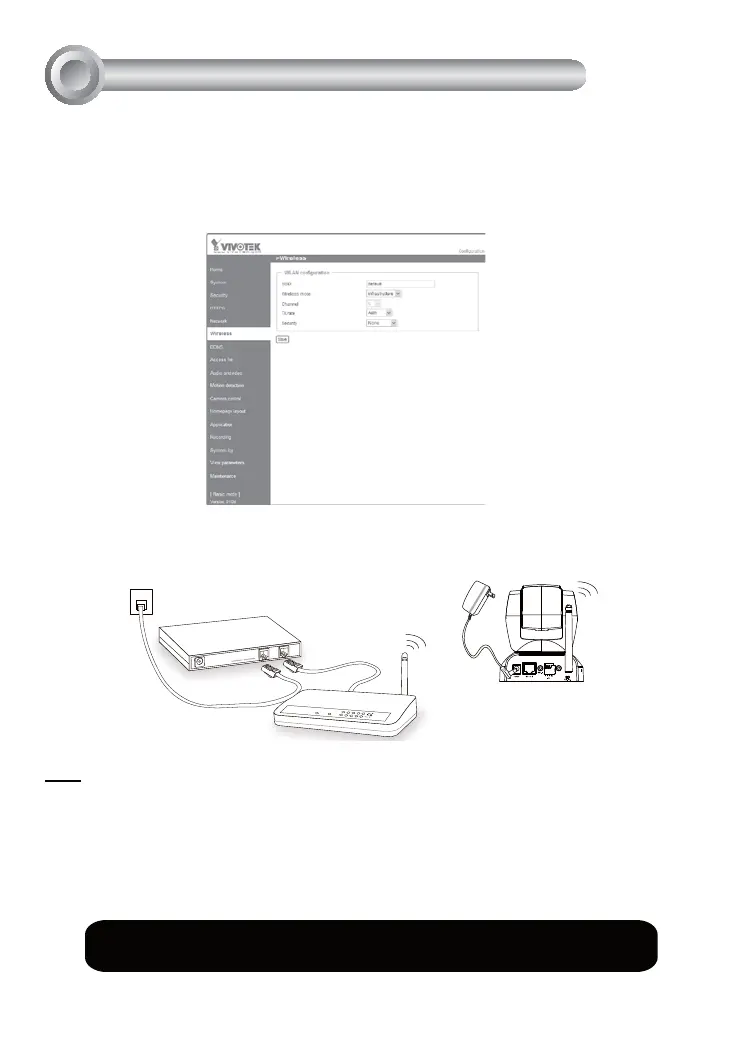
1. Check the SSID currently set on your wireless access point (AP).
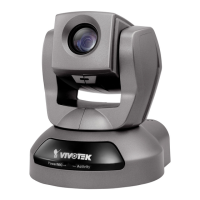
2. Go to PZ7112 / PZ7122's Configuration > Advanced mode > Wireless.
3. Type in the SSID consistent with the setting on your AP.
4. Select the Wireless mode as "Infrastructure".
5. Click Save. The Network Camera starts to reboot.
Note
1. SSID, abbreviated from Service Set Identifier, is the name assigned to the wireless
network. The PZ7112 / PZ7122's factory SSID setting is set to "default".
2. Select "Ad-Hoc" wireless mode if you want the PZ7112 / PZ7122 to communicate
without using an AP or wireless router.
ee
POWER
COLLISION
LINK
RECEIVE
PARTITION
1
2
3
4
5
ADSL/Cable/Hub
AP
AV Out
For further setup, please refer to user's manual on the software CD.
Configure the Wireless Connection
(PZ7112 / PZ7122 only)
7
PZ7112 / PZ7122
6. Wait for the live image is reloaded to your browser. Then, unplug the power cable and
Ethernet cable from the Network Camera.
7. Replug the power cable to the camera. The Network Camera now operates in wireless
mode.


 To Next Page