VIVOTEK
102 - User's Manual
2. Adjust the shooting area to the desired position using the PTZ keypad, the FOV indicators, or mouse
clicks on the live screen. To begin the mouse control, click on the two interactive windows. Due to the
highly-sensitive mouse control, the PTZ control buttons can help ne-tune to an optimal location.
3. After you selected an area of interest, enter a name for the new position, which can contain up to forty
alphabetic and numeric characters.
4. Click Add to enable the settings. The preset positions will be listed on the User preset locations. (To
add more positions you wish, please repeat steps 1~3.)
5. Select the preset positions by their checkboxes.
6. Click on the move button (>>)
to move positions to the Patrol locations window.
7. You may select some or all of the imported positions as the stop points during the tour.
8. Select a preset position when you need to move to a specic place on screen.
Select a preferred Dwell time or move the preset positions for consecutively displaying views of
multiple positions. The speeds and the dwell time of each position on a Regional view window are
shown below:
9. Click on the Save button to preserve your conguration.
To remove a preset position from the list, select it and click Remove. You can re-arrange the order of
the position hop on the list using the
buttons.
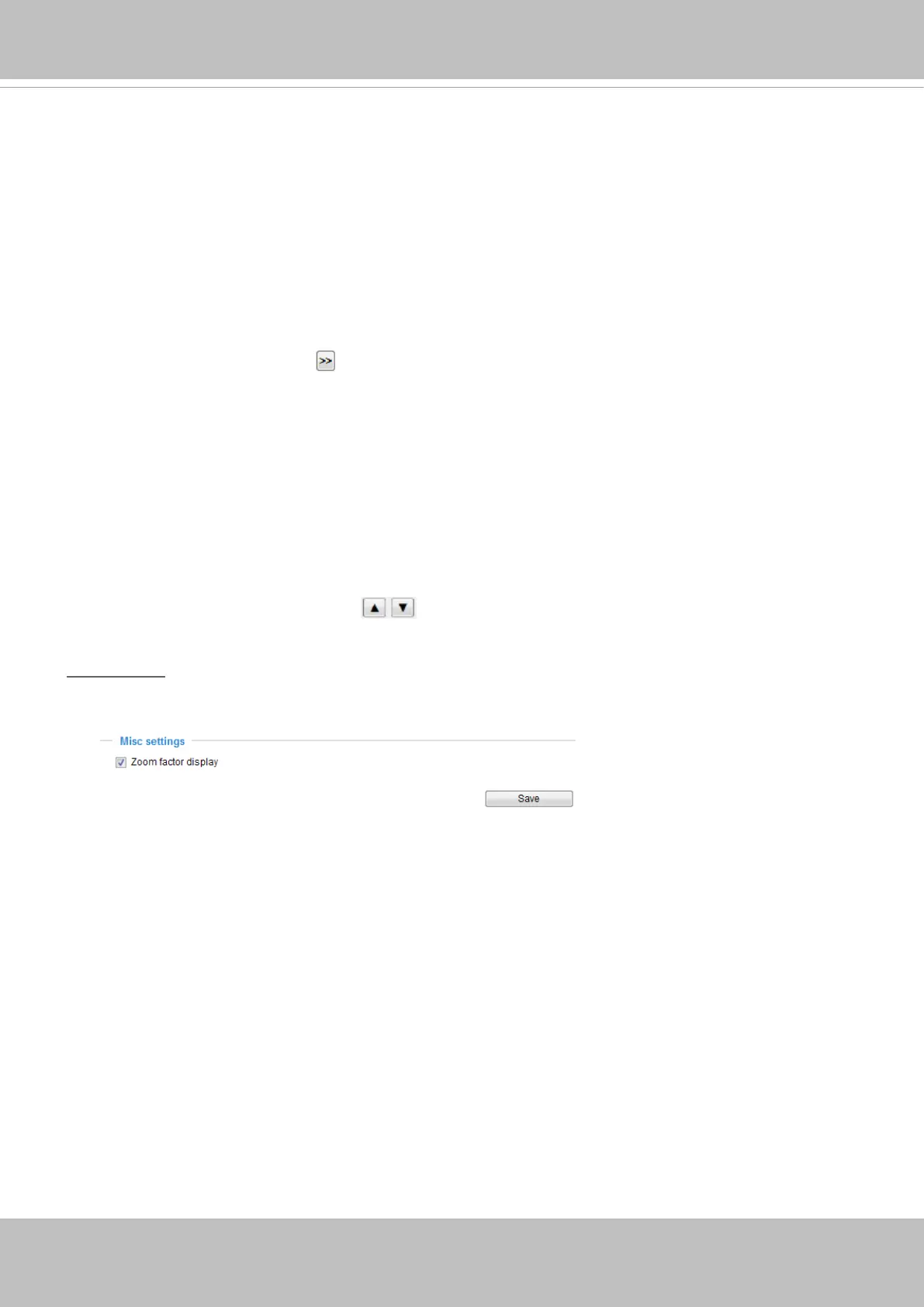
Misc settings
Use this checkbox to display or hide the zoom ratio indicator on the screen. You can use your
mousewheel to zoom in or zoom out on a live view window.


 To Next Page