VIVOTEK
44 - User's Manual
Image settings
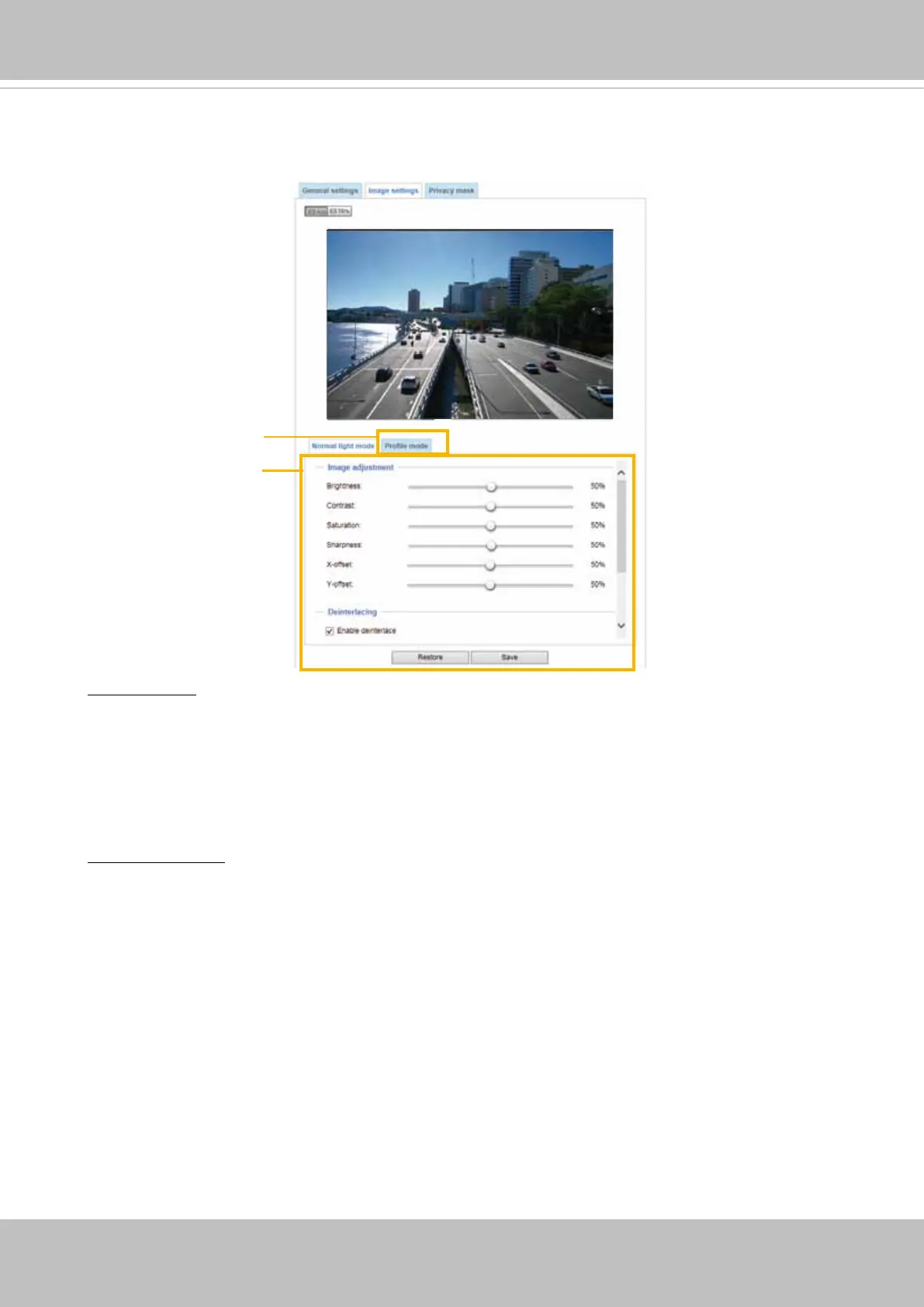
On this page, you can tune the imaging parameters.
White balance: Adjust the value for the best color temperature.
■ You may follow the steps below to adjust the white balance to the best color temperature.
1. Place a sheet of paper of white or cooler-color temperature color, such as blue, in front of the
lens, then allow the Network Camera to automatically adjust the color temperature.
2. Click the Fix current value and conrm the setting while the white balance is being measured.
■ You may also manually tune the color temperature by pulling the RGain and BGain slide bars.
Image Adjustment
■ Brightness: Adjust the image brightness level, which ranges from
0% to 100%
.
■ Contrast: Adjust the image contrast level, which ranges from 0% to 100%.
■ Saturation: Adjust the image saturation level, which ranges from 0% to 100%.
■ Sharpness:
Adjust the image sharpness level, which ranges from
0% to 100%
.
Sensor Setting 2:
For special situations
Sensor Setting 1:
For normal situations
■ X-offset: Adjust the image to the proper position horizontally.
■ Enable deinterlace: Select the Spatial mode or Blend mode in the drop-down list. The Blend
mode blends two odd and even elds, mixing pixels from up and below, and interpolate to form a
frame, while the Spatial mode use motion information to adaptively decide the pixel values from
4 elds, by looking at frames forward and backward. The Spatial mode provides the best image
quality on both the static and motion frames with the trade-off of higher CPU usage.
■ Y-offset: Adjust the image to the proper position vertically.



 To Next Page