4Using the USB Media Player
Preparing Your USB Drive to Play USB Media
To display S media, you must rst save your photos onto a S
thumb drive:
• The S thumb drive must be formatted as AT32.
• iles on the S thumb drive must end in a supported le
extension ( .jpg or .jpeg).
• The player is not designed to play media from external hard
drives, MP3 players, cameras, or smartphones
Displaying USB Media
To display your S media:
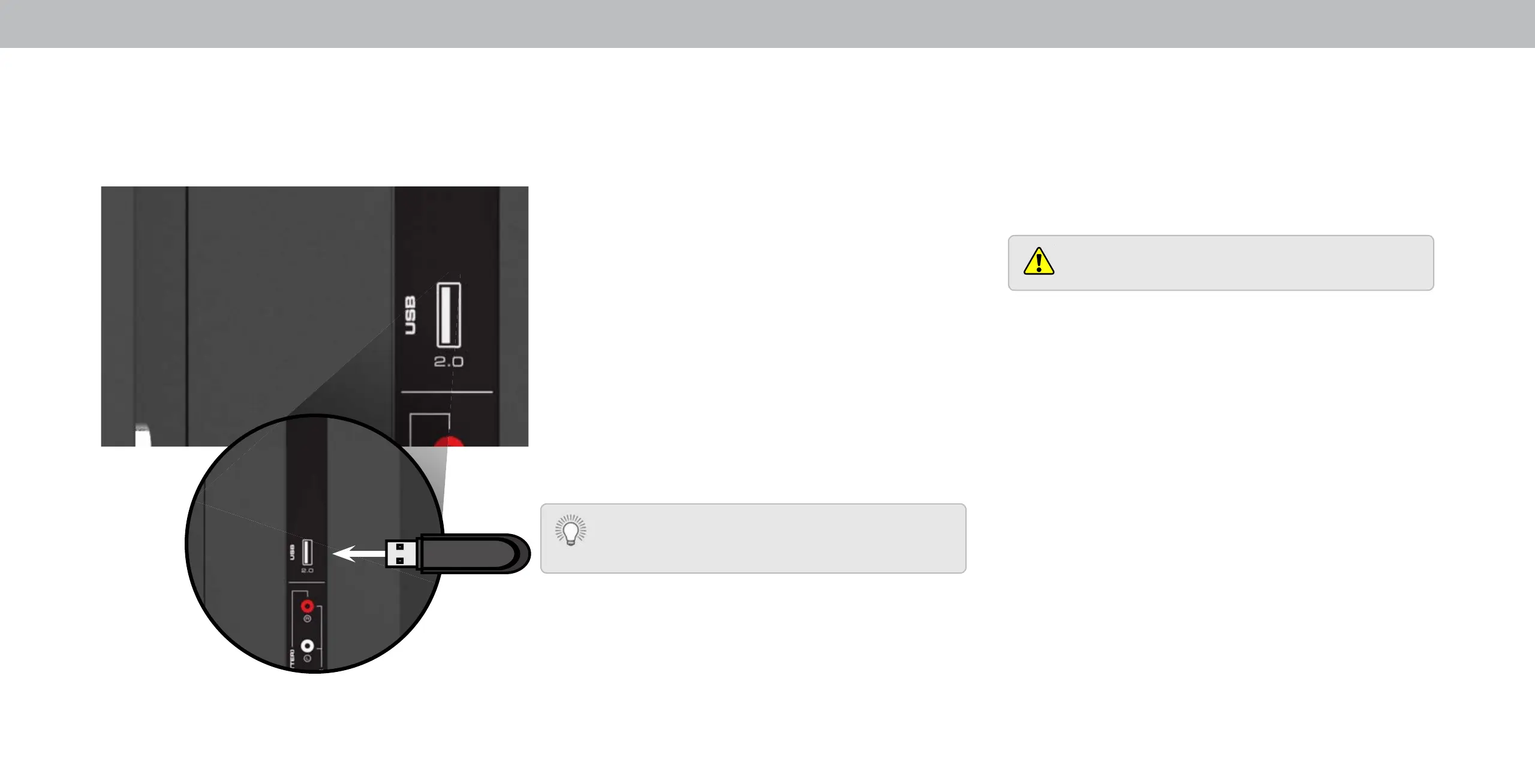
1. Connect your S thumb drive to the S port on the side of
the TV.
2. se the Arrow buttons to highlight the Yes and press OK. (The
highlighted App is in the center of the dock.)
3. se the Arrow buttons to highlight the S drive from the list
and press OK.
4. se the Arrow buttons to highlight Photo and press OK.
. se the Arrow buttons to highlight the le you want to display.
Press OK. The photos display.
ou can display your photos in fullscreen. Select the
photo, press OK, then highlight Fullscreen and press
OK.
Removing the USB Drive from the TV
To safely remove your S drive from the TV:
1. Turn o the TV.
2. Disconnect your S thumb drive from the S port on the
side of the TV.
Do not remove the S thumb drive while the TV is on.
Doing so may damage the drive.
Using the USB Media Player
The S Media Player allows you to connect a S thumb drive to
your TV to view photos
ote:
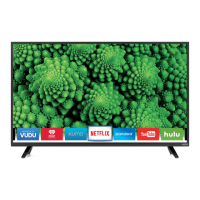
The image shown here is for illustrative purposes only and may be subject to change.
The actual number of ports and their locations may vary, depending on the model.
38


 To Next Page