5
19
M3D420SR/M3D421SR/M3D460SR/M3D550SR
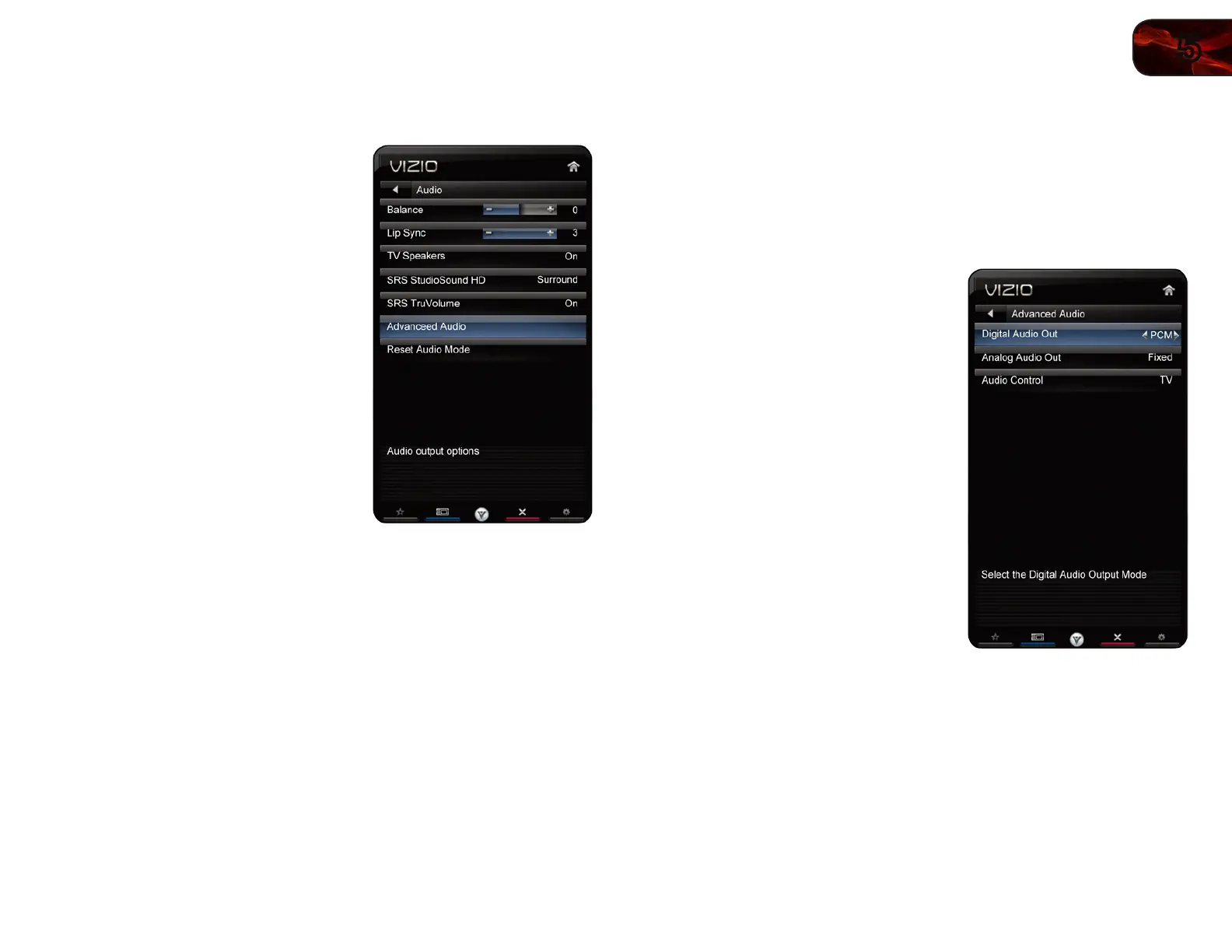
Adjusting the Audio Settings
To adjust the audio settings:
1. Press the MENU button on the remote.
The on-screen menu is displayed.
2. Use the Arrow buttons on the remote
to highlight Audio and press OK. The
Audio Settings menu is displayed.
3. Use the Arrow buttons to highlight
the setting you wish to adjust, then
press Left/Right Arrow to change the
setting:
• Balance-Adjuststheloudnessof
theaudiooutputfromtheleftand
rightspeakers.
• LipSync-Adjuststhesynchroni-
zationbetweenthedisplayimage
andtheaccompanyingaudio
track.
• TVSpeakers-Turnsthebuilt-in
speakersonoroff.
• SRSStudioSoundHD-StudioSoundHD™isafeature-rich
surroundsoundsolutionwhichdeliversanimmersivesurroundsound
experiencefromtheTV’sinternalspeakers.Additionally,StudioSound
HDcompletestheentertainmentexperiencebymaintainingasteady
volumewhilewatchingprogrammingandmovies,providingdeep,rich
bass,anddeliveringcrispdetailsandclear,intelligibledialog.Select
SurroundorStandard.
• SRSTruVolume-TruVolume™intelligentlynormalizesvolume
uctuationsduetotelevisioncommercialsorchannelchanges.Select
OnorOff.
• AdvancedAudio-See
AdjustingtheAdvancedAudioSettingson
page19
.
• EqualizerSettings-Adjuststheboostorattenuationofdifferent
frequencies.ChangetheequalizerpresetsbyselectingFlat,Rock,Pop,
Classical,orJazz.Tochangetheequalizersettingsyourself,highlight
EQModeandpressOK.(ThissettingisonlyavailablewhenSRS
StudioSoundHDissettoStandard.)
• ResetAudioMode-Restorestheaudiosettingstothefactory
defaults.See
ResettingtheAudioSettingsonpage20
.
4. When you have finished adjusting the audio settings, press the EXIT button
on the remote.
AdjustingtheAdvancedAudioSettings
To adjust the advanced audio settings:
1. From the Audio Settings Menu, use the
Arrow buttons to highlight Advanced
Audio, then press OK. The Advanced
Audio menu is displayed.
2. Use the Arrow buttons to highlight
the setting you wish to adjust, then
press Left/Right Arrow to change the
setting:
• DigitalAudioOut-Changesthe
typeofprocessingfortheOptical
outputwhenconnectedtoahome
theateraudiosystem.SelectDolby
Digital,PCM,orOff.
• AnalogAudioOut-Setsthe
volumecontrolpropertiesforthe
analogRCA(red/white)connectors
whenconnectedtoahometheater
audiosystem.SelectVariable
tocontroltheexternalspeakers’
volumefromtheTV’svolume
controls,orselectFixedtocontrol
theexternalspeakers’volume
fromyourhometheatersystem
controls.
• AudioControl-
3. When you have finished adjusting the advanced audio settings, press the
EXIT button on the remote.


 To Next Page