EasyManua.ls Logo

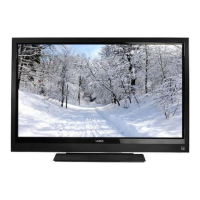
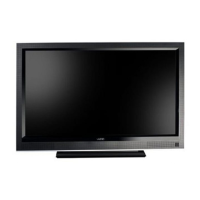
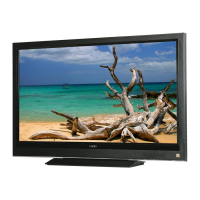
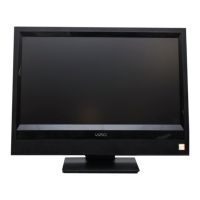
Vizio VO32L - User Manual

Vizio VO32L
82 pages
Print Icon
To Next Page IconTo Next Page
Loading...
VIZIO VO32L FHDTV10A User Manual
Version 10/17/2008 1
www.VIZIO.com
Dear VIZIO Customer,
Congratulations on your new VIZIO VO32L FHDTV10A High Definition
LCD Television purchase. Thank you for your support. For maximum
benefit of your set, please read these instructions before making any
adjustments, and retain them for future reference. We hope you will
experience many years of enjoyment from your new VIZIO VO32L
FHDTV10A High Definition Television.
For assistance, please call (877) 698-4946 or e-mail us at
techsupport@vizio.com.
To purchase or inquire about accessories and installation services for
your VIZIO LCD HDTV, please visit our website at
www.vizio.com or
call toll free at (888) 849-4623.
We recommend you register your VIZIO VO32L FHDTV10A either at our
website
www.VIZIO.com or fill in your registration card and mail it in.
For peace of mind and to protect your investment beyond the standard
warranty, VIZIO offers on-site extended warranty service plans. These
plans give additional coverage during the standard warranty period. Visit
our website or call us to purchase a plan.
Write down the serial number located on the back of your VO32L
FHDTV10A.
__ __ __ __ __ __ __ __ __ __ __ __ __
Purchase Date _____________________
VIZIO is a registered trademark of VIZIO, Inc. dba V, Inc.
HDMI logo and “High Definition Multimedia Interface” are registered trademarks of HDMI Licensing LLC.
Manufactured under license from Dolby Laboratories.
Dolby and the double-D symbol are trademarks of Dolby Laboratories.
THE TRADEMARKS SHOWN HEREIN ARE THE PROPERTY OF THEIR RESPECTIVE OWNERS; IMAGES USED ARE FOR
ILLUSTRATION PURPOSES ONLY. BRAVO, VIZIO AND THE V LOGO AND WHERE VISION MEETS VALUE AND OTHER VIZIO
TRADEMARKS ARE THE INTELLECTUAL PROPERTY OF VIZIO INC. PRODUCT SPECIFICATIONS ARE SUBJECT TO
CHANGE WITHOUT NOTICE OR OBLIGATION. © 2008 VIZIO INC. ALL RIGHTS RESERVED.

Table of Contents

Other manuals for Vizio VO32L

Questions and Answers

  • M
    Mary McdanielSep 23, 2025
    Why does my Vizio LCD TV have pixels that are always dark or colored?
    • L
      Laura MendezSep 23, 2025
      Your Vizio LCD HDTV is manufactured using an extremely high level of precision technology, however, sometimes some pixels of your LCD HDTV may not display. Pixel defects within industry specifications are inherent to this type of product and do not constitute a defective product.
  • E
    emilyleblancAug 23, 2025
    What to do if I cannot see a picture on my Vizio VO32L LCD TV?
    • P
      Paul LongAug 23, 2025
      If you cannot see a picture on your Vizio LCD TV, ensure that the power cord is plugged into a grounded electrical outlet and that the power button is turned on. Also, verify that the selected input source is connected to a working input source. If your TV is connected to your computer in RGB or HDMI mode, press any key on your keyboard to 'wake' your computer.
  • P
    Patrick HarperAug 25, 2025
    How to fix a Vizio VO32L LCD TV with no power?
    • S
      Stacy BowmanAug 26, 2025
      If your Vizio LCD TV has no power, ensure the power button is ON (look for the White VIZIO Logo). Also, check that the AC power cord is securely connected to the AC socket. To verify the outlet is working, plug another electrical device into it.
  • P
    pwilliamsAug 27, 2025
    Why is my Vizio VO32L LCD TV remote control not working?
    • D
      Daniel WhitneyAug 27, 2025
      If your Vizio LCD TV remote control isn't working, first ensure the batteries are inserted correctly and are not weak. Also, make sure you have selected 'TV' on the remote.
  • H
    hlopezAug 27, 2025
    How to troubleshoot no sound on Vizio VO32L?
    • J
      Jacqueline RiveraAug 27, 2025
      If there is no sound on your Vizio LCD TV, check your audio connections and press the MUTE button on the remote to ensure mute is off. Check your audio settings to ensure your TV audio is not set to SAP, min, or speakers off. Press the Volume + (Up) key on your remote. Also, verify that headphones are not connected.
  • R
    Richard Parks PhDSep 17, 2025
    How to improve image quality issues on Vizio VO32L LCD TV?
    • G
      George TorresSep 17, 2025
      For best image quality on your Vizio LCD TV, view HD wide screen programs where possible. If HD content is not available, view 'Standard Definition' from a digital source. Standard, analog TV will always be noticeably inferior to HD because your digital flat panel TV has video that is many times better than old TVs, so you can see interference and deficiencies you did not know you had.
  • S
    Susan YoungSep 14, 2025
    How to fix abnormal picture patterns on Vizio LCD TV?
    • F
      fhallSep 14, 2025
      If the picture on your Vizio LCD TV has abnormal patterns, make sure that the input source cable is attached securely and correctly to the back of your TV. Also, ensure that the video input source is within the range of your TV by comparing the video input source’s specifications with your TV specifications.
  • A
    Albert AcostaSep 15, 2025
    How to adjust screen size on Vizio VO32L so that the display image covers the entire screen?
    • T
      Thomas GardnerSep 15, 2025
      If the display image does not cover the entire screen on your Vizio LCD TV, and if you are using RGB mode, make sure that H Size and V Position in the On Screen Display (OSD) are set correctly. If you are using TV, AV-C (Composite), AV-S (S-Video) or Component with 480i input, follow instructions in page 53 to obtain the desired screen mode.
  • B
    Beverly ZimmermanSep 6, 2025
    How to adjust the screen size on my Vizio LCD TV?
    • H
      Heather HernandezSep 6, 2025
      If the display image does not cover the entire screen on your Vizio LCD TV: * If you are using RGB mode, make sure that H Size and V Position in the On Screen Display (OSD) are set correctly. * If you are using TV, AV-C (Composite), AV-S (S-Video) or Component with 480i input, follow instructions in page 51 to obtain the desired screen mode.
  • J
    jonesjillianSep 3, 2025
    Why does my Vizio VO32L LCD TV picture have abnormal patterns?
    • J
      Joe GonzalezSep 3, 2025
      If the picture on your Vizio LCD TV has abnormal patterns, ensure that the input source cable is attached securely and correctly to the back of your TV. Also, make sure that the video input source is within the range of your TV by comparing the video input source’s specifications with your TV specifications.

Summary

Important Safety Instructions

Antenna Connection and Grounding

External Television Antenna Grounding

Guidelines for grounding antenna/cable systems for surge protection.

Rear Panel Connections Guide

Digital Video Inputs (HDMI, RGB PC)

Connecting digital sources like computers and set-top boxes.

Analog Video Inputs (Component, AV;S-Video)

Connecting analog video sources like DVD players and VCRs.

Audio Outputs (Optical, Analog)

Connecting audio to external devices or sound systems.

Antenna;Cable Input (DTV;TV)

Connecting broadcast signals via antenna or cable.

VIZIO Remote Control Operations

Remote Control Button Functions

Explains the function of each button on the remote control.

Input Source Selection

Connecting External Equipment

Choosing the Right Video Connection Type

Compares different connection types for optimal display quality.

Coaxial (RF) Cable Connections

Connecting Antenna;Digital Cable for DTV

Steps to connect an antenna or digital cable for DTV reception.

Connecting HDTV Set-Top Boxes

Using HDMI Input for HDTV Set-Top Boxes

Optimal connection for HDTV set-top boxes using HDMI.

Connecting HDTV Set-Top Boxes with DVI

Connecting HDTV Set-Top Boxes with Component Video

Connecting Your DVD Player

Using HDMI Input for DVD Players

Best connection method for DVD players using HDMI.

Connecting DVD Players with DVI Output

Connecting DVD Players with Component Video

Connecting an External Receiver;Amplifier

Optical Audio Output Connection

Connecting a PC Computer

Setting Up to Watch Television

Basic LCD HDTV Initial Setup

Initial steps for powering on and setting up the TV.

Selecting the Input Source

Fine Tuning TV Display Settings

Watching a TV Program

Advanced HDTV Adjustment (OSD)

Using the On-Screen Display (OSD) Menu

Overview of the OSD menu for adjusting TV settings.

DTV;TV Picture Adjustments

Picture Mode Selection

Choosing predefined picture modes like Standard, Movie, Game.

Backlight Adjustment

Adjusting the screen's backlight level for brightness.

Basic Picture Adjustment Controls

Brightness and Contrast Settings

Adjusting black and white levels for optimal picture clarity.

Color Adjustment

Adjusting the intensity of colors in the picture.

Advanced Picture Settings

Tint and Sharpness Adjustment

Fine-tuning hue and edge definition for picture clarity.

Advanced Picture Features

Color Enhancement and Adaptive Luma

Improving picture reproduction and dark scene detail.

Contrast Ratio and Color Temperature

Adjusting contrast and color warmth for vivid scenes.

Audio Fine-Tuning Features

Equalizer and Balance Adjustment

Adjusting audio frequencies and left/right sound balance.

Advanced Audio Options

Tuner Setup and Configuration

Tuner Mode and Auto Search for Channels

Selecting broadcast signal type and scanning for channels.

System Setup and Language Options

PIP Mode Configuration

Picture Position and Size Adjustment

Parental Control Features

Parental Control Setup and Password

Restricting channel and program viewing with a password.

Content Rating and Blocking

Movie and Canadian Rating Systems

Regional Rating Systems

Password and Unrated Content Management

System Reset and HDMI Input Adjustments

System Reset Options (Initial Setup, Factory Defaults)

Returning the TV to initial setup or factory default settings.

HDMI and Video Input Settings

Video Input Configuration

PC Input and Video Parental Controls

PC Input Picture Adjustments

PC Color Temperature Settings

PC Input Picture Fine-Tuning

PC Input Configuration

Maintenance and Troubleshooting

Troubleshooting Common TV Problems

Troubleshooting Specific Issues

Image Display and Audio Problems

Problems with screen coverage, missing pictures, or distorted images.

Picture Quality and Signal Issues

Troubleshooting sound problems, pixel defects, and signal noise.

Telephone and Technical Support

Limited Product Warranty Details

Warranty Coverage and Service Procedures

Details on VIZIO's one-year warranty for parts, labor, and service.

Warranty Exclusions and Limitations

Lists conditions and damages not covered by the limited warranty.

Warranty Policies and Customer Responsibilities

On-Site Warranty Repair Procedure

Process for on-site repair service for larger displays.

Product Repair and Replacement Procedures

Warranty Replacement Procedures

Procedures for warranty replacement of displays.

Mail-In Warranty Repair Procedure

Process for mail-in repair service for smaller displays.

Vizio VO32L Specifications

General IconGeneral
BrandVizio
ModelVO32L
CategoryLCD TV
LanguageEnglish

Related product manuals