EasyManua.ls Logo

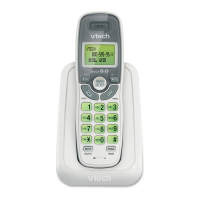
VTech 6031 - User Manual

VTech 6031
51 pages
Print Icon
To Next Page IconTo Next Page
Loading...
www.vtechphones.com
i
This manual has all the feature operations and troubleshooting necessary to install
and operate your new VTech telephone. Please review this manual thoroughly to
ensure proper installation and operation of this innovative and feature rich VTech
product. For support, shopping, and everything new at VTech, visit our website at
www.vtechphones.com. In Canada, please visit www.vtechcanada.com.
Congratulations
on purchasing your new VTech product.
Before using this telephone, please read the
Important safety instructions
on page 30 of this manual.
The ENERGY STAR
R
program (www.energystar.gov) recognizes and encourages
the use of products that save energy and help protect our environment. We are
proud to mark this product with the ENERGY STAR
R
label indicating it meets
the latest energy efficiency guidelines.

Other manuals for VTech 6031

Questions and Answers

  • R
    Ryan DeanJul 29, 2025
    How to fix a VTech Cordless Telephone that is not working?
    • M
      Mikayla ChavezJul 29, 2025
      If your VTech Cordless Telephone isn't working at all, here’s what you can do: 1. Ensure the battery is correctly installed and charged. For best performance, keep the handset on the base when not in use. 2. Verify the power adapter is securely plugged into an outlet not controlled by a switch. 3. Check that the telephone line cord is firmly connected to both the base and the wall jack. 4. Try unplugging the unit for 15 seconds, then plug it back in and wait up to a minute for synchronization. 5. Charge the handset for at least 16 hours. 6. Remove and re-insert the battery, or replace it if necessary. 7. Test the wall jack with a working telephone. If that phone doesn't work, the issue is with your wiring or local service; contact your telephone company.
  • S
    stevenleonardAug 2, 2025
    Why does my VTech Cordless Telephone have noise or interference?
    • M
      michael95Aug 2, 2025
      If you experience noise, interference, or call cut-outs while using your VTech Cordless Telephone, try these steps: * Move closer to the telephone base. * Relocate the base and other appliances to different outlets. * Keep the phone away from electronic devices like routers, computers, and microwaves (especially when the microwave is in operation). * If using a modem or surge protector, try plugging the phone into a different location. * Move the base to a higher location for better reception. * If you have DSL, ensure DSL filters are installed at every telephone jack. * To check if the issue is with your phone or the service, plug a corded phone into the jack. If the problem persists, contact your local telephone company.
  • M
    Michelle ChurchAug 7, 2025
    What to do if my VTech 6031 Cordless Telephone beeps and doesn't work?
    • C
      cantuwendyAug 7, 2025
      If your VTech Cordless Telephone handset beeps and isn't working as expected, try the following: * Ensure the power cord is securely connected to the telephone base. * Plug the base into a different electrical outlet that is not controlled by a wall switch. * Move the handset closer to the base, as it may be out of range. * Reset the base by unplugging it for 15 seconds, then plugging it back in. Allow up to one minute for the handset and base to synchronize.
  • C
    Christina MorenoAug 10, 2025
    How to fix the charge light on my VTech Cordless Telephone?
    • W
      William RoachAug 11, 2025
      If the charge light on your VTech Cordless Telephone is off, try these steps: * Clean the charging contacts on both the handset and base using a pencil eraser or a dry, non-abrasive cloth monthly. * Ensure that both the power adapter and telephone line cords are correctly and securely plugged in. * Unplug the power adapter, wait 15 seconds, and then plug it back in. Allow up to one minute for the handset and base to reset.
  • S
    Scott Morales PhDAug 15, 2025
    What to do if my VTech 6031 shows 'Low Battery'?
    • D
      David JonesAug 15, 2025
      If your VTech Cordless Telephone displays 'Low Battery', take these steps: * Place the handset in the telephone base to recharge. * Remove and reinstall the battery, use the phone normally until fully discharged, then recharge for 16 hours. * If the problem persists, the battery may need replacement.
  • S
    Sandra FrenchAug 20, 2025
    Why can't I dial out on my VTech Cordless Telephone?
    • J
      Jessica WardAug 20, 2025
      If you cannot dial out with your VTech Cordless Telephone, consider the following: * Ensure there is a dial tone before dialing. Allow a second or two for the handset to synchronize with the base. * Verify the telephone is set to the correct dial type (pulse or tone) for your area. * Eliminate background noise from TVs, radios, or other appliances, or try muting the handset before dialing. You can also try dialing from another room. If other phones in your home have the same problem, the issue may be with your wiring or local service. Contact your local telephone company.
  • A
    Adam NunezAug 23, 2025
    Why is my VTech Cordless Telephone battery not charging?
    • A
      Alexandra WallerAug 23, 2025
      If your VTech Cordless Telephone battery isn't charging, ensure the following: * The handset is correctly placed in the base and the CHARGE light is on. * Remove and reinstall the battery in the handset, then charge for 16 hours. If the charge light is off, consult the section addressing that issue. It may be necessary to replace the battery.

Summary

Installation Guide

Parts Checklist

Lists all items included in the telephone package for warranty service.

Install Handset Battery

Instructions on how to insert and charge the handset battery.

Telephone Base Installation

Steps for connecting the telephone base to the wall jack and power.

Desk;Table Bracket Installation

How to attach the bracket for desk or table placement of the base.

Dial Type Setting

Setting the phone to pulse or tone dialing based on service.

DSL Service Connection

Instructions for connecting the phone when DSL service is used.

Telephone Settings

Handset Layout Overview

Identifies and describes the buttons and features on the handset.

Telephone Base Layout

Identifies and describes the lights on the telephone base.

Setting Date and Time

Steps to set the current date and time on the telephone.

Setting Ring Melody

How to select and play different ring melodies for the handset.

Adjusting Ring Volume

How to adjust the handset ringer volume to five different levels.

Battery Low Tone Alert

How to enable or disable the low battery beep alert.

Out of Range Tone Setting

How to turn the out-of-range alert tone on or off.

Key Tone Setting

How to enable or disable audible beeps for button presses.

Editing Handset Name

How to assign a custom name to the handset.

Display Language Selection

How to change the language for screen displays between English and Spanish.

Dial Type Configuration

How to change the dial type from tone to pulse or vice versa.

Clearing Voicemail Indicators

How to turn off the NEW VOICEMAIL message and light indicators.

Resetting to Default Settings

How to reset handset or base to factory default settings.

Basic Operation

Making, Answering, and Ending Calls

Instructions for initiating, receiving, and terminating phone calls.

Speakerphone and Mute Functions

How to use the speakerphone and mute the microphone during calls.

Call Waiting Handling

How to handle incoming calls when already on a call.

Finding the Handset

How to locate a misplaced handset using the base unit.

Advanced Operation

Directory Management

Features for storing, reviewing, and searching phone numbers.

Character Chart for Names

Keypad mapping for entering characters when naming entries.

Storing Directory Entries

Steps to add a new contact number and name to the directory.

Dialing From Directory Entries

How to select and dial a stored number from the directory.

Editing Directory Entries

How to modify existing entries in the phone directory.

Deleting Directory Entries

How to remove single or all entries from the phone directory.

About Caller ID Service

Explanation of how Caller ID works and its requirements.

Call Log Features

Information about the call log and how to review incoming call history.

Dialing From Call Log

How to redial numbers directly from the call log.

Storing Call Log Entries

How to save a number from the call log into the directory.

Deleting Call Log Entries

Instructions for removing single or all entries from the call log.

Redial List Operations

Features for reviewing and storing numbers from the redial list.

Dialing From Redial List

How to make calls directly from the redial list.

Deleting Redial Entries

How to remove single or all entries from the redial list.

Indicators and Messages

Indicator Lights and Icons

Explains the meaning of indicator lights and handset icons.

Handset Display Messages

Lists and explains various messages that appear on the handset display.

Call Log Display Messages

Explains messages related to call log entries.

Battery Information

Important Safety Instructions

Troubleshooting

Phone Not Working; Low Battery

Solutions for when the phone is not working or shows low battery.

Charging and Indicator Problems

Solutions for battery charging issues and the CHARGE light.

Dial Tone and Connection Issues

Solutions for issues with no dial tone or handset connection errors.

Ringing and Interference Issues

Solutions for when the phone doesn't ring and interference problems.

Operating Range and Maintenance

Understanding Operating Range

Factors affecting cordless phone range and display messages.

Telephone Maintenance

Guidelines for cleaning and protecting the telephone.

About Telephones and Warranty

Cordless Telephone Considerations

Information on privacy, electrical power, and battery types.

Limited Warranty Details

Explains what the limited warranty covers and its duration.

Regulatory Compliance

FCC Part 15 and Part 68

Compliance information for FCC rules regarding digital devices and terminal attachments.

Industry Canada and RBRC Seal

Compliance with Canadian regulations and battery recycling program information.

Technical Specifications

VTech 6031 Specifications

General IconGeneral
BrandVTech
Model6031
TypeCordless Telephone
Number of Handsets1
FrequencyDECT 6.0
Caller IDYes
Standby TimeUp to 5 days
Handset SpeakerphoneYes
Call WaitingYes
Backlit DisplayYes

Related product manuals