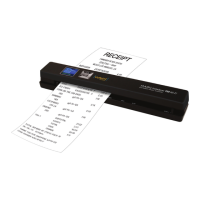
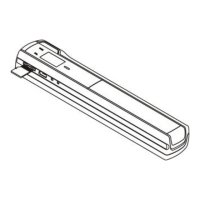
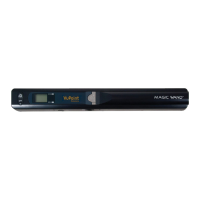
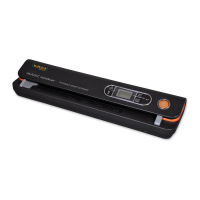
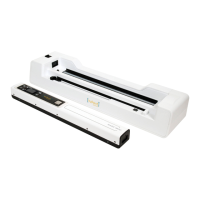
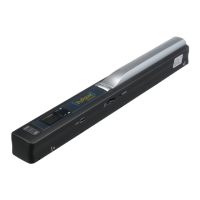
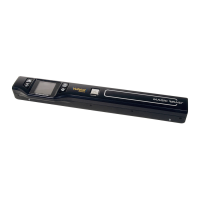
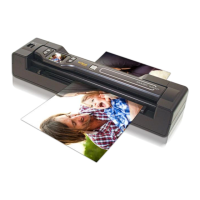
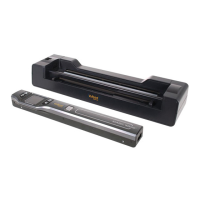
PDSWF-ST44-VP Manual
1. Key features
• Scan color & monochromatic (mono) images, documents, books and magazines
• 300/600/900 dpi scan resolution
• Directly save files in JPG or PDF format to microSD card
• Supports microSD/ microSDHC card up to 32GB
• Transfer files via Wi-Fi® connection
• Driver-free for Windows® XP, Windows® Vista™, Windows® 7 and Mac OS® 10.4 or above
(direct plug-in, driver installation not required)
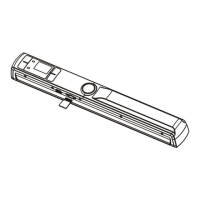
2. Functional parts
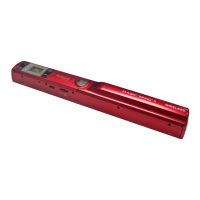
Part Function
1 Battery cover Open to store 2x AA alkaline batteries
2 Power/Scan
Power On/ Off: Press and hold this key for 2 seconds to turn power
on or off. When the scanner is on, press this button to start
scanning, press this button again to stop
3 Format button Format the microSD card will delete all data from memory card
4 Color/Mono
Select Color/Mono scan option
Color/Mono mode icon will be displayed on status LCD
5 LCD screen Scanning status display
6 Error LED indicator Indicates scan error or over speed
7 WIFI LED indicator Indicates Wi-Fi® status
8 Scan LED indicator Shows the scanning status; ready for scan
9 Wi-Fi® switch Slide to turn Wi-Fi® on/off
10 DPI
Scan resolution setting for High(900dpi) / Medium(600dpi) /
Low(300dpi); High/Medium/Low resolution mode icon will be
displayed on status LCD
11 JPG/PDF
Select scan file format with JPG/PDF button, JPG/PDF mode icon
will be displayed on status LCD
12 Time set Press this button to enter Time and Date setting mode
13 USB interface
Connect to a computer via USB cable provided to view
and transfer files
14 microSD card slot microSD card storage location
3. Explanation of the status icons
Item Function Description
1 File Format JPG/PDF
2 SD card indicator Photos will be stored in microSD card
3 Battery indicator Battery is full Empty battery
4 Scan Color COLOR/MONO
5 Counting Indicator Shows scanned files in the microSD card
6 Scan resolution HI:900 dpi / MI:600 dpi / LO:300 dpi
4. LED light indications
LED indication Status Description
SCAN GREEN LED
ON Scanning in progress
OFF Scanning is ready or completed
Wi-Fi®
BLUE LED
OFF Wi-Fi® is off
ON Wi-Fi® is initializing
Flashes every 3 sec. Wi-Fi® is enabled or ready for connection
Flashes rapidly Data is transferring via Wi-Fi® mode
ERROR
RED LED
ON Scanning too fast
OFF No error
5. Using the scanner
5.1 Installing the battery
1. Open the battery cover by sliding the battery compartment downwards then lift up as
indicated by the arrow in the diagram below.
2. Insert 2x AA alkaline batteries into the battery compartment.
3. Turn on the scanner by pressing the [POWER] button for 2 seconds.
5.2 Inserting a microSD memory card (not included)
To operate the scanner, you must insert a microSD card (not supplied) to record and store your
pictures. Insert the microSD meory card:
1 Turn ON the scanner.
2 Insert the microSD card into the microSD card slot (with metal side facing up). Gently press in
until card is latched and clicked into place.
3 The SD card indicator
must appear on the LCD screen.
NOTE: Do not force the card into the slot; forcing may damage both the scanner and the microSD
card. Align the microSD card position (as marked) and try again.
5.2 Time and Date setting
1. Press [TIME SET] button once to enter time setting mode by using a thin, blunt object, such
as the end of a paperclip to access the button. The LCD status display screen will show “1
##” (step 1) for the year. “##” is a set of number that would be changed to correspond to the
actual time/date setting. The numbers 1-5 in front of “##” indicates each step in the settings.
2. Press the [JPG/PDF] or [DPI] button to select the current Year.
3. Press [SCAN] button once to confirm setting.
4. Repeat step 2 and 3 to continue the Time and Date setting process
Indicator Setting
1 ## Year
2 ## Month
3 ## Date
4 ## Hour
5 ## Minute
5. After setting the Minute, “5##”, press the [TIME SET] button again to complete the Time and
Date setting.
NOTE: Holding [TIME SET] button is for approx. 10 seconds will reset the Wi-Fi® settings.
5.4 Formatting the microSD memory card
NOTE: All content on the microSD card will be erased during formatting.
1. Insert a microSD card into the scanner with metal side facing up.
2. Turn on the scanner by pressing the [Power/Scan] button for 2 seconds.
3. Press the format button. An “F” will display on the LCD status display screen.
4. Press the [SCAN] button once to format the microSD card.
5. The SD card indicator will flash until the formatting process is complete.
5.5 Setting the resolution
Press the [DPI] button to select High / Medium / Low resolution. High/Medium/Low resolution icon
will be displayed on status LCD.
5.6 Setting the scan mode
Press the [JPG/PDF] button to select JPG/PDF mode. JPG/PDF icon will be displayed on status
LCD.
5.7 Setting the color/mono mode
Press the [COLOR/MONO] button to select scan type Color/Monochromatic mode. Color/Mono
icon will be displayed on status LCD.
5.8 Calibrating the scanner
NOTE: Perform calibration only when white balance needs adjustment
1. With the dry cleaning cloth provided, clean the scanning lens located on the bottom of the
scanner.
2. Turn on the scanner by pressing the [POWER] button. Place the scanner on the white area of
the White Balance Calibration paper provided.
3. Press and hold the [COLOR/MONO] button. While holding the [COLOR/MONO] button,
press the [POWER] button and then release both buttons to enter into auto-calibration mode.
SD symbol
will flash and then stop. “GREEN” and “RED” LED light will turn on.
4. Do not move the scanner. Wait until the “RED” LED turns off. “GREEN” LED will stay on.
5. With only the “GREEN” LED light on, start scanning the white paper by sliding the scanner
across the paper until the “GREEN” LED light turns off. (Slide the scanner backwards if
necessary).
6. Press and hold the [POWER] button to power off the scanner. Calibration is complete.
5.9 Scanning a document
NOTE: To scan, make sure your scanner is not connected to the computer or in Wi-Fi® mode.
1. Turn on scanner by pressing the [Power/Scan] button for 2 seconds.
2. Hold the document firmly with one hand on a flat surface.
3. Place the scanner on the edge of the paper approximately 5/8 to 3/4 of an inch onto the page
to ensure the whole document can be scanned. Make sure to keep the scanning area in
between the scanning width indicators marked on the side of the scanner.


 To Next Page
 General