10
APP INTERACTION BUTTONS
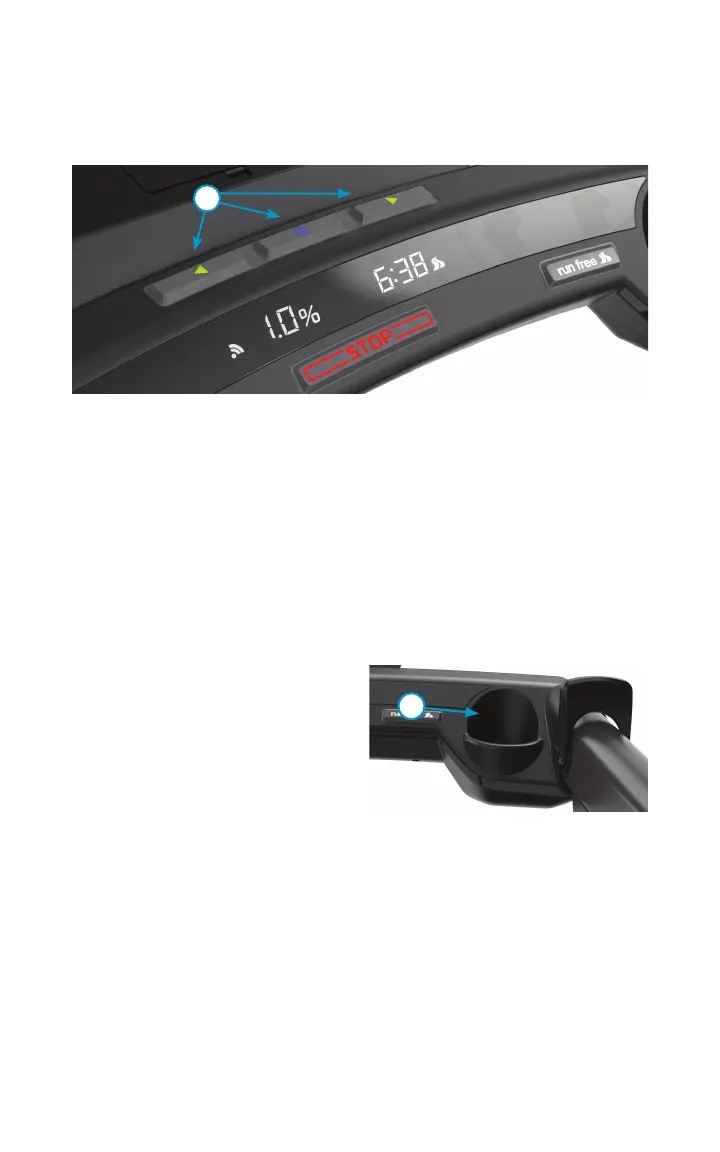
The three App Interaction Buttons (9) sit on top of the console and provide a customized
way for you to interact with the app that you connect to the KICKR RUN. You can
customize the function of the buttons depending on the functionality in the app.
AUTOMATIC LEVELING
When you first power on the KICKR RUN, it will automatically adjust the linear actuators
to level the surface of KICKR RUN horizontally. This helps with uneven surfaces and to
prevent the KICKR RUN from shifting while in use.
TERRAIN MODE
KICKR RUN has another unique feature that leverages the two linear actuators and
provides a lateral tilting capability. When Terrain Mode is enabled, KICKR RUN will
automatically adjust the side-to-side camber offering variability in the running surface.
This is similar to what you would experience outdoors.
Note: This is controlled through a setting in the connected app you may be using.
BOTTLE HOLDERS
KICKR RUN is equipped with two standard-
sized water bottle holders (10) nestled in
the console near the paddles. Use caution
when removing and reinserting the bottles
to not accidentally bump the paddles.
LAPTOP/TABLET SHELF
KICKR RUN is equipped with a shelf in front of the console that can hold a laptop,
tablet, or phone. It can accommodate up to a 17-inch device that weighs no more
than 15 lbs.
• When using a laptop you will need to use the included strap to secure the laptop to
the shelf.
• When using a phone or tablet you will need to remove the included holder from the
compartment in the middle of the shelf. Next, you will need to attach the holder to
the shelf. Finally, secure your tablet or phone to the holder. For more information,
please visit our support site https://support.wahoofitness.com/.
9
10


 To Next Page