EasyManua.ls Logo

Waldorf QUANTUM - User Manual

Waldorf QUANTUM
231 pages
Print Icon
To Next Page IconTo Next Page
Loading...
USER MANUAL

Other manuals for Waldorf QUANTUM

Question and Answer IconNeed help?

Do you have a question about the Waldorf QUANTUM and is the answer not in the manual?

Summary

Foreword

Control Features & Connections

Front Panel

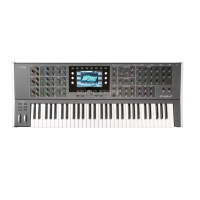
Details the physical layout and controls on the front panel of the Waldorf Quantum synthesizer.

Rear Panel Connections

Explains the various input and output jacks and ports located on the rear panel of the Quantum.

The Wheel Section

Describes the function and operation of the pitch bend and modulation wheels.

About this Manual

General Safety Guidelines

Setup and Connections

Setup

Provides instructions on placing the Quantum on a stable surface before connecting.

Connections

Details how to connect the Quantum to audio equipment and computers via various ports.

Basic Operation

Master Volume

Explains how to control the overall output volume of the Quantum, affecting main and headphone outputs.

The Quantum Mode Pages

Describes the available mode pages accessed via panel buttons or the touchscreen display.

The Touchscreen Display

Explains the overview, navigation, and control functions of the Quantum's touchscreen display.

Loading Programs

Details the different methods for loading sound programs and presets into the Quantum.

Editing Parameters

Explains how to access and edit sound parameters using front panel controls and the touchscreen display.

Saving Programs

Guides users on how to save edited sound programs and presets, including naming and bank selection.

The Sound Layers

Explains the dual sound mode, allowing simultaneous playback of two sounds as layered or split sounds.

Sound Parameter

Overview of Functions

Introduces the various sound-shaping components and the audio signal flow within the Quantum.

Oscillator Section

Details the three oscillators and their various models like Wavetable, Waveform, and Resonator.

The Wavetable Oscillator

Explains wavetable synthesis principles and parameters for the Wavetable oscillator.

The Waveform Oscillator

Describes the standard oscillator model for creating analog waveforms and its parameters.

The Resonator

Explains the concept of the Resonator oscillator and its panel parameters.

The Kernel Synthesis Mode

Introduces Kernel synthesis, a modular approach to combining up to six audio kernels for sound design.

Oscillator Mixer (OSC MIX) Section

Explains how to control the volumes of the three oscillators and their mixer settings.

Glide Section

Details the Glide effect, also known as Portamento, for continuous pitch sliding between notes.

Dual Analog Filter Section

Describes the two analog lowpass filters, their modes, and panel parameters like Cutoff and Resonance.

Digital Former Section

Explains the digital filters and signal enhancer effects, including Drive and Bit Crusher.

Envelopes Section

Details the six programmable envelopes for sound shaping, including ADSR parameters.

LFO Section

Introduces the six low-frequency oscillators (LFOs) used for modulation purposes, explaining their parameters.

Komplex Modulator Section

Describes the Komplex Modulator as a complex LFO with two curves for morphing atmospheres and sound textures.

The Effects Section

Explains the five effect units, their types, basic parameters, and deeper editing options.

Additional Modes

Perform Mode Page

Explains how to access and use the Perform display page for live performance setups.

Favorites Tab

Describes the Favorites tab for setting up 20 sound programs per Set for faster selection during live performance.

Autoplay Tab

Introduces the arpeggiator and step sequencer features found within the Autoplay display page.

The Arpeggiator

Explains how the Arpeggiator splits chords into individual notes and repeats them rhythmically.

The Step Sequencer

Details the programmable step sequencer, allowing definition of note length, velocity, and pitch for up to 32 steps.

The Parameter Sequencer

Introduces the parameter sequencer for parameter modulation purposes, similar to the step sequencer.

The Pad Trigger Mode

Explains how the 4x4 pads in the display can be used for sequential playback based on algorithm parameters.

XY Pad Tab

Describes the XY pad for two-dimensional control based on selected modulation parameters.

Notes Tab

Explains how to assign individual notes to the 16 display pads for note mode.

Scale Tab

Details how to enter scale mode, where notes are assigned according to scale types and root pitches.

Chords Tab

Explains how to enter chord mode, assigning specific chord types to display pads.

Layer Mode Page

Covers settings for two sound layers, audio output routing, Unisono, and Glide functions.

Levels Tab

Explains the dual sound mode and how two sounds can be played simultaneously as layered or split sounds.

Input Volume

Determines the input volume for an external audio signal for the selected layer.

Input Routing

Explains how to determine the signal flow for incoming audio signals.

Layer Volume

Determines the volume of the selected layer.

Pan (Panning)

Determines the panning of the selected layer.

Gain

Determines the gain for an external signal, adapting the overall level.

Send Main

Determines if the selected layer sound is sent to the Quantum's Main outputs.

Send Aux

Determines if the selected layer sound is sent to the Quantum's Aux outputs.

Amp Velo Amt. (Amplifier Velocity Amount)

Specifies how keyboard velocity affects volume, allowing for expressive sound.

AT Attack (only for Quantum MK2)

Allows adjustment of polyphonic aftertouch attack behavior when a key is held and pressed.

AT Release (only for Quantum MK2)

Allows adjustment of polyphonic aftertouch release behavior when a key is released.

The Pitch Tab

Allows control over the overall pitch variation, including Glide parameters.

Glide Active

Activates or deactivates the Glide effect for continuous pitch sliding between notes.

Glide Rate

Determines the time duration for the glide effect, influencing its character.

Glide Type

Allows selection between two glide modes: Onset and Legato.

PitchVar

Controls global pitch variation across all oscillators, simulating analog circuit tolerances.

Voices Tab

Determines layer mode and voice allocation for analog/digital filters.

Voice Allocation

Specifies how the 16 available voices (8 analog, 8 digital) are used.

Timbre Mode

Offers three modes (Single, Split, Layered) for configuring sound layers.

Unisono

Determines the number of voices stacked when playing a note, affecting polyphony and voice priority.

Uni Detune

Controls the detuning amount for unison voices, creating a thicker sound.

Uni Pan

Controls the panning of unison voices, affecting their stereo placement.

Uni Delay

Controls the delay applied to unison voices relative to the first played note.

Layer 1; 2 Voices (only for Split Mode)

Sets the number of voices available for Layer 1 and Layer 2 when in Split Mode.

L1; 2 Min; Max Key (only for Split Mode)

Determines the keyboard range for Layer 1 and Layer 2 when in Split Mode.

Controller (only for Split and Layered Mode)

Specifies which Layer is affected by incoming Mod Wheel, Pitch Bend, Aftertouch, etc.

The Master Tab

Allows setup of panning, level, master volume, and compression for each layer.

Layer 1; 2 Volume

Determines the volume level for the corresponding layer.

Layer 1; 2 Pan

Determines the panning position for the corresponding layer.

Master Volume

Controls the overall output volume of the audio signal, affecting Main Outs and Headphones Out.

Compression

Reduces the dynamic range of the audio signal, making it sound louder and more assertive.

Bass Boost

Activates or deactivates Waldorf bass emphasis for the overall audio signal.

Timbre Mode

Offers three modes (Single, Split, Layered) for configuring sound layers.

The Global Mode

Scope Tab

Allows selection of graphic representation for the current sound, including Source, Type, and Mode.

Pitch Tab

Enables settings for the overall tuning of the Quantum, including Transpose and Master Tuning.

Edit Tuning Button (only for User Scales)

Allows creation of equal tunings from scratch for user-defined scales.

Audio Tab

Recording

Provides a step-by-step guide on how to perform sample recording using the Quantum's audio recorder.

Sample Editing

Explains basic sample edits like selecting, zooming, and defining sample areas for further editing.

MIDI Tab

Inputs

Details settings for MIDI inputs, including DIN In, USB Controller In, and USB Computer In.

About MPE

Explains MIDI Polyphonic Expression (MPE) and its application for expressive sound control.

Outputs

Covers settings for MIDI outputs, including State, Channel, Send CC, and NRPN.

Sync

Determines how the Quantum reacts to incoming MIDI Clock messages for synchronization.

Mappings

Explains how to view, change, and set up MIDI Control Change mappings for panel parameters.

Settings Tab

General Page

Manages general settings like Load at Startup, Display Brightness, LED Brightness, and Screen Saver.

Colors Page

Allows customization of button backlight LEDs and personal color schemes for parameter sections.

Edit Page

Pot Mode

Controls the behavior of value changes with potentiometers (dials) like Immediate, Pick-Up, and Catch.

Touch Mode

Controls the behavior of value changes with the touchscreen display (Direct, Relative).

Switch Screens

Determines if the touchscreen display automatically opens parameter pages when editing.

Edit Popup Time

Sets the duration for which popup windows/menus are displayed on the touchscreen.

Default Perf Screen

Determines the default display screen shown when the Perform button is pressed.

Audio Page

Manages output routing settings for patches, allowing global overrides for Main/Aux outputs.

System Tab

Info Page

Provides information on the operating system version, serial number (UID), and unit running time.

Calibrate Page

Allows calibration of various hardware components including keyboard, wheels, pedals, filters, and display.

Loading & Editing Samples

The Sample Display Page

Provides tools to load, manage, and edit samples, including waveform representation and file list.

Selected Sample

Allows selection of a specific sample from a loaded list for further editing.

From Velo; To Velo

Defines the velocity range for triggering samples, allowing velocity-sensitive playback.

Pitch

Tunes the pitch of selected samples to match desired tone pitch or adjust playback pitch.

From Note; To Note

Sets the keyboard range for selected samples to create multi-samples with individual playback ranges.

Mode (only available for Particle Generator)

Determines the playback mode for loaded samples (Normal, Granular, Live Granular).

Rule (only available for Particle Generator)

Defines the playback rule for multiple samples (Round Robin, Reverse Robin, Ping Pong, Random).

Stereo Width (only available for Particle Generator)

Adapts the stereo width of samples to fit user needs.

Overall Gain (only available for Particle Generator)

Determines the overall gain of all loaded samples.

The Actions Button

Provides options to load, manage, and edit samples, including Add, New Dir, Delete, Rename, Move, Play, Cancel.

The Edit Button

Enters Sample Edit mode for detailed editing like start/end points and loop settings.

The Display Representation

Shows a graphic waveform representation of the selected sample with rulers and file lists.

Sample Start; Sample End

Determines the start and end positions of a sample for adapting its length.

Loop Start; Loop End

Defines the loop start and end points for samples when Loop Mode is active.

Direction

Sets the playback direction of the sample (Forward or Backward).

X-Fade

Introduces a crossfade for sample loop points when Loop Mode is On or Ping Pong.

Sample Gain

Determines the gain for the currently selected sample.

The Zoom Button

Provides options to zoom in/out, zoom all, or select a specific sample area.

Appendix

How to update the Quantum Operating System

Provides a step-by-step guide on updating the Quantum's operating system software via USB.

Wavetable Synthesis

Explains wavetable synthesis, where sounds are generated by stepping through waveforms in a wavetable.

Waveform Oscillator Introduction

Introduces the oscillator as the core synthesizer block, detailing basic waveforms like sine, sawtooth, and square.

The Sine Wave

Describes the sine wave as the purest tone, its frequency representation, and its use in synthesis.

The Sawtooth Wave

Explains the sawtooth wave as a popular synthesizer waveform consisting of all harmonics.

The Square Wave

Describes the square wave as a special waveform generated by a pulse waveform with 50% pulse width.

The Pulse Wave

Details the pulse wave as a versatile waveform with a shape that can be changed in realtime.

A Short Introduction to Granular Synthesis

Explains granular synthesis as playing short portions (grains) of samples in various orders.

Filter Introduction

Introduces filters, explaining the basic function of a lowpass filter and its parameters like cutoff and resonance.

FAQ - Frequently Asked Questions

How do I make a backup of my patches?

Explains how to export patches via Load > Actions > Export, noting that attached samples are not saved.

My SD card is not recognized by the Quantum.

Troubleshooting steps for SD card recognition, including orientation, formatting, and potential incompatibilities.

Quantum doesnt recognize the update file, although it definitely is located in the top directory of the SD card.

Troubleshooting steps for update file recognition issues, including delays, multiple attempts, and file integrity.

The difference between Latch and Chord Mode?

Compares Latch Mode (sustains until key is pressed again) and Chord Mode (sustains last note/chord).

My device isnt recognized via USB.

Provides troubleshooting steps for USB recognition issues on macOS and Windows.

Quantum has crashed!

Which footswitch and expression pedals can I use with my device?

Modulation Sources and Destinations

Modulation Sources

Lists available modulation sources, including envelopes, LFOs, MIDI messages, and controllers.

Modulation Destinations

Lists available destinations for modulation, covering oscillator parameters, filters, effects, and more.

Technical Data

Power Supply

Details the Quantum's power supply specifications, including voltage, current, and maximum power consumption.

Dimensions and Weight

Provides the physical dimensions (width, depth, height) and total weight of the Quantum.

Glossary

Arpeggiator

Explains an arpeggiator as a device that splits chords into individual notes and repeats them rhythmically.

Attack

Defines Attack as an envelope parameter describing the ascent rate from starting point to highest value.

Resonance

Explains Resonance as a filter parameter emphasizing a narrow band around the cutoff frequency.

Product Support

Service & Repair

States that the Quantum has no user-serviceable parts and refers to authorized service centers for repair.

Any Questions?

Provides contact information and website for product support and inquiries.

Summary

Foreword

Control Features & Connections

Front Panel

Details the physical layout and controls on the front panel of the Waldorf Quantum synthesizer.

Rear Panel Connections

Explains the various input and output jacks and ports located on the rear panel of the Quantum.

The Wheel Section

Describes the function and operation of the pitch bend and modulation wheels.

About this Manual

General Safety Guidelines

Setup and Connections

Setup

Provides instructions on placing the Quantum on a stable surface before connecting.

Connections

Details how to connect the Quantum to audio equipment and computers via various ports.

Basic Operation

Master Volume

Explains how to control the overall output volume of the Quantum, affecting main and headphone outputs.

The Quantum Mode Pages

Describes the available mode pages accessed via panel buttons or the touchscreen display.

The Touchscreen Display

Explains the overview, navigation, and control functions of the Quantum's touchscreen display.

Loading Programs

Details the different methods for loading sound programs and presets into the Quantum.

Editing Parameters

Explains how to access and edit sound parameters using front panel controls and the touchscreen display.

Saving Programs

Guides users on how to save edited sound programs and presets, including naming and bank selection.

The Sound Layers

Explains the dual sound mode, allowing simultaneous playback of two sounds as layered or split sounds.

Sound Parameter

Overview of Functions

Introduces the various sound-shaping components and the audio signal flow within the Quantum.

Oscillator Section

Details the three oscillators and their various models like Wavetable, Waveform, and Resonator.

The Wavetable Oscillator

Explains wavetable synthesis principles and parameters for the Wavetable oscillator.

The Waveform Oscillator

Describes the standard oscillator model for creating analog waveforms and its parameters.

The Resonator

Explains the concept of the Resonator oscillator and its panel parameters.

The Kernel Synthesis Mode

Introduces Kernel synthesis, a modular approach to combining up to six audio kernels for sound design.

Oscillator Mixer (OSC MIX) Section

Explains how to control the volumes of the three oscillators and their mixer settings.

Glide Section

Details the Glide effect, also known as Portamento, for continuous pitch sliding between notes.

Dual Analog Filter Section

Describes the two analog lowpass filters, their modes, and panel parameters like Cutoff and Resonance.

Digital Former Section

Explains the digital filters and signal enhancer effects, including Drive and Bit Crusher.

Envelopes Section

Details the six programmable envelopes for sound shaping, including ADSR parameters.

LFO Section

Introduces the six low-frequency oscillators (LFOs) used for modulation purposes, explaining their parameters.

Komplex Modulator Section

Describes the Komplex Modulator as a complex LFO with two curves for morphing atmospheres and sound textures.

The Effects Section

Explains the five effect units, their types, basic parameters, and deeper editing options.

Additional Modes

Perform Mode Page

Explains how to access and use the Perform display page for live performance setups.

Favorites Tab

Describes the Favorites tab for setting up 20 sound programs per Set for faster selection during live performance.

Autoplay Tab

Introduces the arpeggiator and step sequencer features found within the Autoplay display page.

The Arpeggiator

Explains how the Arpeggiator splits chords into individual notes and repeats them rhythmically.

The Step Sequencer

Details the programmable step sequencer, allowing definition of note length, velocity, and pitch for up to 32 steps.

The Parameter Sequencer

Introduces the parameter sequencer for parameter modulation purposes, similar to the step sequencer.

The Pad Trigger Mode

Explains how the 4x4 pads in the display can be used for sequential playback based on algorithm parameters.

XY Pad Tab

Describes the XY pad for two-dimensional control based on selected modulation parameters.

Notes Tab

Explains how to assign individual notes to the 16 display pads for note mode.

Scale Tab

Details how to enter scale mode, where notes are assigned according to scale types and root pitches.

Chords Tab

Explains how to enter chord mode, assigning specific chord types to display pads.

Layer Mode Page

Covers settings for two sound layers, audio output routing, Unisono, and Glide functions.

Levels Tab

Explains the dual sound mode and how two sounds can be played simultaneously as layered or split sounds.

Input Volume

Determines the input volume for an external audio signal for the selected layer.

Input Routing

Explains how to determine the signal flow for incoming audio signals.

Layer Volume

Determines the volume of the selected layer.

Pan (Panning)

Determines the panning of the selected layer.

Gain

Determines the gain for an external signal, adapting the overall level.

Send Main

Determines if the selected layer sound is sent to the Quantum's Main outputs.

Send Aux

Determines if the selected layer sound is sent to the Quantum's Aux outputs.

Amp Velo Amt. (Amplifier Velocity Amount)

Specifies how keyboard velocity affects volume, allowing for expressive sound.

AT Attack (only for Quantum MK2)

Allows adjustment of polyphonic aftertouch attack behavior when a key is held and pressed.

AT Release (only for Quantum MK2)

Allows adjustment of polyphonic aftertouch release behavior when a key is released.

The Pitch Tab

Allows control over the overall pitch variation, including Glide parameters.

Glide Active

Activates or deactivates the Glide effect for continuous pitch sliding between notes.

Glide Rate

Determines the time duration for the glide effect, influencing its character.

Glide Type

Allows selection between two glide modes: Onset and Legato.

PitchVar

Controls global pitch variation across all oscillators, simulating analog circuit tolerances.

Voices Tab

Determines layer mode and voice allocation for analog/digital filters.

Voice Allocation

Specifies how the 16 available voices (8 analog, 8 digital) are used.

Timbre Mode

Offers three modes (Single, Split, Layered) for configuring sound layers.

Unisono

Determines the number of voices stacked when playing a note, affecting polyphony and voice priority.

Uni Detune

Controls the detuning amount for unison voices, creating a thicker sound.

Uni Pan

Controls the panning of unison voices, affecting their stereo placement.

Uni Delay

Controls the delay applied to unison voices relative to the first played note.

Layer 1; 2 Voices (only for Split Mode)

Sets the number of voices available for Layer 1 and Layer 2 when in Split Mode.

L1; 2 Min; Max Key (only for Split Mode)

Determines the keyboard range for Layer 1 and Layer 2 when in Split Mode.

Controller (only for Split and Layered Mode)

Specifies which Layer is affected by incoming Mod Wheel, Pitch Bend, Aftertouch, etc.

The Master Tab

Allows setup of panning, level, master volume, and compression for each layer.

Layer 1; 2 Volume

Determines the volume level for the corresponding layer.

Layer 1; 2 Pan

Determines the panning position for the corresponding layer.

Master Volume

Controls the overall output volume of the audio signal, affecting Main Outs and Headphones Out.

Compression

Reduces the dynamic range of the audio signal, making it sound louder and more assertive.

Bass Boost

Activates or deactivates Waldorf bass emphasis for the overall audio signal.

Timbre Mode

Offers three modes (Single, Split, Layered) for configuring sound layers.

The Global Mode

Scope Tab

Allows selection of graphic representation for the current sound, including Source, Type, and Mode.

Pitch Tab

Enables settings for the overall tuning of the Quantum, including Transpose and Master Tuning.

Edit Tuning Button (only for User Scales)

Allows creation of equal tunings from scratch for user-defined scales.

Audio Tab

Recording

Provides a step-by-step guide on how to perform sample recording using the Quantum's audio recorder.

Sample Editing

Explains basic sample edits like selecting, zooming, and defining sample areas for further editing.

MIDI Tab

Inputs

Details settings for MIDI inputs, including DIN In, USB Controller In, and USB Computer In.

About MPE

Explains MIDI Polyphonic Expression (MPE) and its application for expressive sound control.

Outputs

Covers settings for MIDI outputs, including State, Channel, Send CC, and NRPN.

Sync

Determines how the Quantum reacts to incoming MIDI Clock messages for synchronization.

Mappings

Explains how to view, change, and set up MIDI Control Change mappings for panel parameters.

Settings Tab

General Page

Manages general settings like Load at Startup, Display Brightness, LED Brightness, and Screen Saver.

Colors Page

Allows customization of button backlight LEDs and personal color schemes for parameter sections.

Edit Page

Pot Mode

Controls the behavior of value changes with potentiometers (dials) like Immediate, Pick-Up, and Catch.

Touch Mode

Controls the behavior of value changes with the touchscreen display (Direct, Relative).

Switch Screens

Determines if the touchscreen display automatically opens parameter pages when editing.

Edit Popup Time

Sets the duration for which popup windows/menus are displayed on the touchscreen.

Default Perf Screen

Determines the default display screen shown when the Perform button is pressed.

Audio Page

Manages output routing settings for patches, allowing global overrides for Main/Aux outputs.

System Tab

Info Page

Provides information on the operating system version, serial number (UID), and unit running time.

Calibrate Page

Allows calibration of various hardware components including keyboard, wheels, pedals, filters, and display.

Loading & Editing Samples

The Sample Display Page

Provides tools to load, manage, and edit samples, including waveform representation and file list.

Selected Sample

Allows selection of a specific sample from a loaded list for further editing.

From Velo; To Velo

Defines the velocity range for triggering samples, allowing velocity-sensitive playback.

Pitch

Tunes the pitch of selected samples to match desired tone pitch or adjust playback pitch.

From Note; To Note

Sets the keyboard range for selected samples to create multi-samples with individual playback ranges.

Mode (only available for Particle Generator)

Determines the playback mode for loaded samples (Normal, Granular, Live Granular).

Rule (only available for Particle Generator)

Defines the playback rule for multiple samples (Round Robin, Reverse Robin, Ping Pong, Random).

Stereo Width (only available for Particle Generator)

Adapts the stereo width of samples to fit user needs.

Overall Gain (only available for Particle Generator)

Determines the overall gain of all loaded samples.

The Actions Button

Provides options to load, manage, and edit samples, including Add, New Dir, Delete, Rename, Move, Play, Cancel.

The Edit Button

Enters Sample Edit mode for detailed editing like start/end points and loop settings.

The Display Representation

Shows a graphic waveform representation of the selected sample with rulers and file lists.

Sample Start; Sample End

Determines the start and end positions of a sample for adapting its length.

Loop Start; Loop End

Defines the loop start and end points for samples when Loop Mode is active.

Direction

Sets the playback direction of the sample (Forward or Backward).

X-Fade

Introduces a crossfade for sample loop points when Loop Mode is On or Ping Pong.

Sample Gain

Determines the gain for the currently selected sample.

The Zoom Button

Provides options to zoom in/out, zoom all, or select a specific sample area.

Appendix

How to update the Quantum Operating System

Provides a step-by-step guide on updating the Quantum's operating system software via USB.

Wavetable Synthesis

Explains wavetable synthesis, where sounds are generated by stepping through waveforms in a wavetable.

Waveform Oscillator Introduction

Introduces the oscillator as the core synthesizer block, detailing basic waveforms like sine, sawtooth, and square.

The Sine Wave

Describes the sine wave as the purest tone, its frequency representation, and its use in synthesis.

The Sawtooth Wave

Explains the sawtooth wave as a popular synthesizer waveform consisting of all harmonics.

The Square Wave

Describes the square wave as a special waveform generated by a pulse waveform with 50% pulse width.

The Pulse Wave

Details the pulse wave as a versatile waveform with a shape that can be changed in realtime.

A Short Introduction to Granular Synthesis

Explains granular synthesis as playing short portions (grains) of samples in various orders.

Filter Introduction

Introduces filters, explaining the basic function of a lowpass filter and its parameters like cutoff and resonance.

FAQ - Frequently Asked Questions

How do I make a backup of my patches?

Explains how to export patches via Load > Actions > Export, noting that attached samples are not saved.

My SD card is not recognized by the Quantum.

Troubleshooting steps for SD card recognition, including orientation, formatting, and potential incompatibilities.

Quantum doesnt recognize the update file, although it definitely is located in the top directory of the SD card.

Troubleshooting steps for update file recognition issues, including delays, multiple attempts, and file integrity.

The difference between Latch and Chord Mode?

Compares Latch Mode (sustains until key is pressed again) and Chord Mode (sustains last note/chord).

My device isnt recognized via USB.

Provides troubleshooting steps for USB recognition issues on macOS and Windows.

Quantum has crashed!

Which footswitch and expression pedals can I use with my device?

Modulation Sources and Destinations

Modulation Sources

Lists available modulation sources, including envelopes, LFOs, MIDI messages, and controllers.

Modulation Destinations

Lists available destinations for modulation, covering oscillator parameters, filters, effects, and more.

Technical Data

Power Supply

Details the Quantum's power supply specifications, including voltage, current, and maximum power consumption.

Dimensions and Weight

Provides the physical dimensions (width, depth, height) and total weight of the Quantum.

Glossary

Arpeggiator

Explains an arpeggiator as a device that splits chords into individual notes and repeats them rhythmically.

Attack

Defines Attack as an envelope parameter describing the ascent rate from starting point to highest value.

Resonance

Explains Resonance as a filter parameter emphasizing a narrow band around the cutoff frequency.

Product Support

Service & Repair

States that the Quantum has no user-serviceable parts and refers to authorized service centers for repair.

Any Questions?

Provides contact information and website for product support and inquiries.

Waldorf QUANTUM Specifications

General IconGeneral
Oscillators3 per voice
LFOs6 LFOs
Envelopes6 envelopes
TouchscreenYes
EffectsYes
Weight17.8 kg
TypeSynthesizer
Polyphony8 voices
Keyboard61 keys
ConnectivityMIDI, USB, CV/Gate
Synthesis TypesWavetable, Virtual Analog, Granular, Resonator, Kernel
Display7-inch touchscreen
Keyboard TypeFatar TP8, Velocity sensitive with Aftertouch
Effects TypesReverb, Delay, Chorus, Phaser, EQ
StorageSD card slot
Additional ConnectivityClock In/Out

Related product manuals