English - 24 -
1. Switch on the TV.
2. Switch to DVD source using the “
SOURCE
” button on
the remote control.
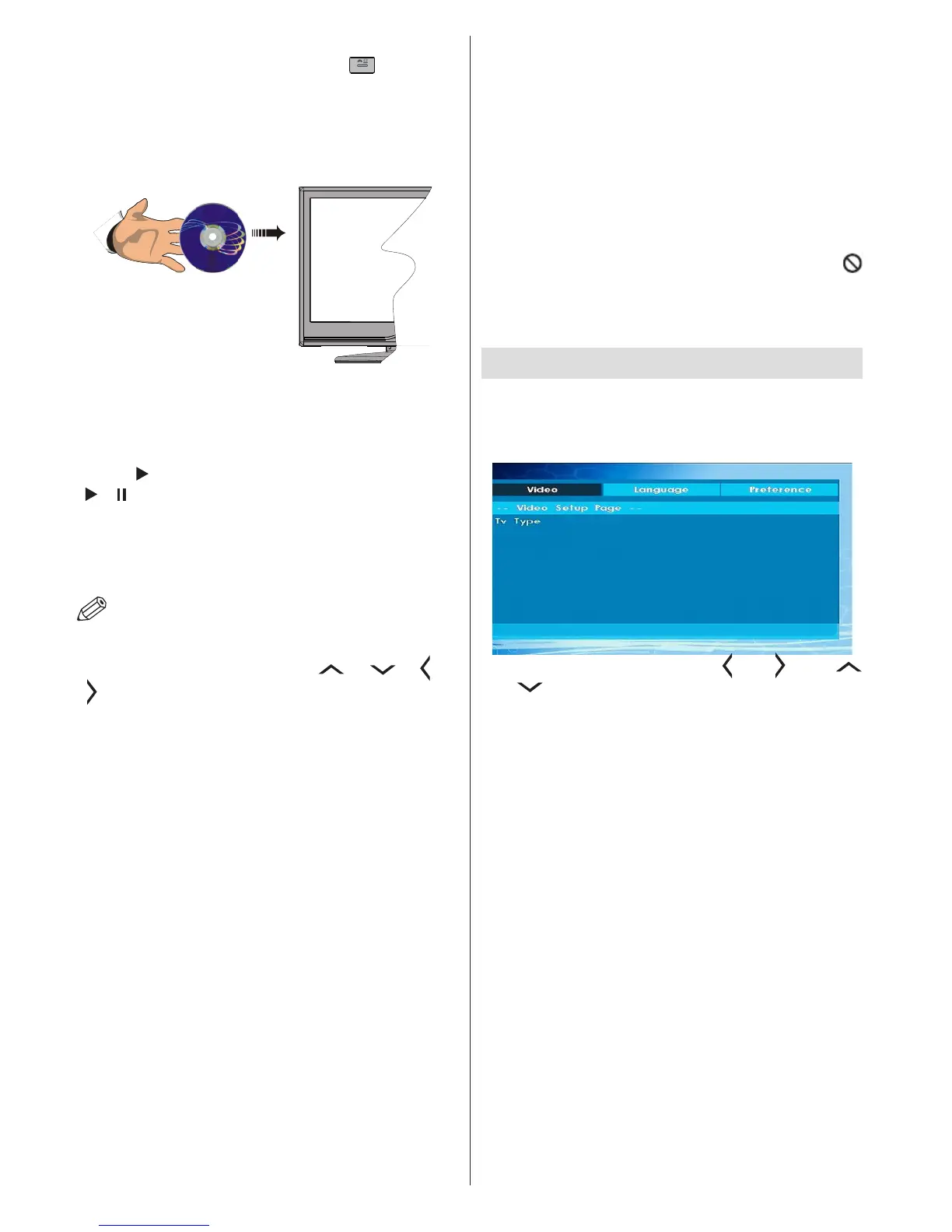
3. Insert a disc into the loader.
The disc MUST be facing you when looking at the
TV screen.
Most discs will be automatically loaded and play will
start automatically if the disc does not have any menus
recorded on it.
If play does not start automatically, press the play
button “
” on the remote control, or the play button
“
/ ” on the right side of the TV.
A menu may appear on the TV screen after a few
moments or the lm may start immediately after the
Film/TV Company introduction. This will depend on
the disc content and may differ on each disc.
NOTE: Steps 4 and 5 are only available when
a menu is recorded on the disc.
4. Press the navigation buttons “
” , “ ” ,“ ” or
“
” or the number button/s to select the required title.
5. Press the OK button. The selected item starts to play.
Notes on DVD Playback
a. No sound will be heard during Rapid advance or
Rapid reverse.
b. No sound will be heard during Slow motion play.
c. Reverse Slow motion play is not available.
d. In some cases, the subtitle language will not be
changed immediately to the selected one.
e. When the preferred language will not select, even
after pressing the button several times, it means the
language is not available on the disc.
f. When the DVD player is restarted or the disc
is changed, the subtitle selection is automatically
changed back to the initial settings.
g. If a language is selected that is not supported by
the disc, the subtitle language will automatically be
set to the disc’s priority (default) language.
h. Usually a ‘circulation’ will happen while switching
to another language, this means you can cancel
the subtitle by pressing the same button a number
of times until “Subtitle Off” appears on the screen.
i. When the power is turned on or the disc is
removed, the language heard will be the one
selected at the initial settings.
j. Some DVDs may not contain root and/or title
menus.
k. Reverse stepping is not available.
l. For reference: If you attempt to enter a number
greater than the total time of the current title, the
time search box disappears and “Input Invalid
” message appears on top-left corner of screen.
m. The slide show is disabled when the ZOOM mode
is on.
DVD Mode Conguration
1. While in DVD source, press DISPLAY button to
access DVD Setup menu. This is only possible if
there is no playback.
2. This menu is operated using “ ” or “ ” and “
” or “ ” buttons.
TV Type
TV Type is only available as ‘PAL’. The TV set also
supports NTSC signal; however, the signal will be
converted to PAL when it appears on the screen.
Language Setup
This menu is used for setting language preferences
in DVD mode. Language menu contents are detailed
below:
OSD LANG
You can select the default OSD language of the
player menus
AUDIO
You can select the default audio language if supported
by the DVD disc.
DISC MENU
You can select the DVD’s disc menu language among
these languages. Disc menu appears in the selected
language, if supported by the DVD disc.





 To Next Page