11
Mobile Phone with the Same Screen
IOS Devices User Instruction
1. Ensure the Phone and Projector are under the same WIFI (For IOS Only).
2. Open “Eshare” of the projector.
3. Open “AirPlay” / “Mirror” of the Phone.
4. Choose the device with the same name with Eshare to complete mirror.
Airplay
IOS Old Version
IOS New Version Screen Mirror
Mobile Phone with the Same Screen
The following steps can help us to display content of our mobile phone to projection
screen synchronously through wireless wifi, just enjoy with a larger picture.
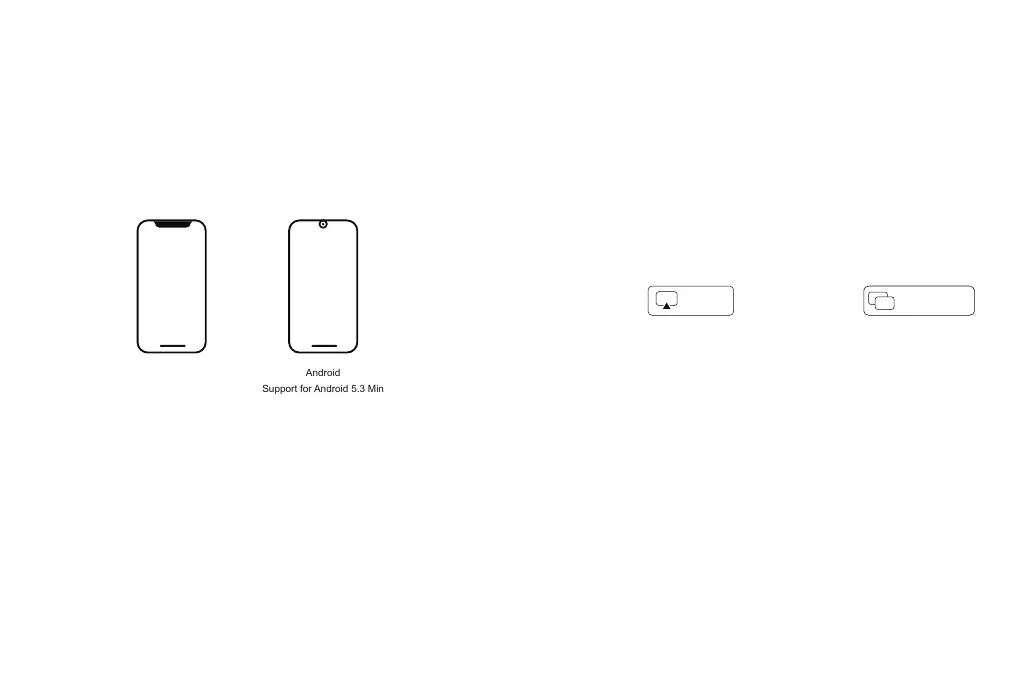
Equipment requirements: support devices above IOS6 and Android 5.3 Min.
Android Devices User Instruction
1. Ensure the Phone and Projector are under the same WIFI (For Android Only).
2. Open “Eshare” of the projector.
3. Choose the device with the same name with Eshare to complete mirror.
Android
Support for Android 5.3 Min
iPhone
Support for IOS6 or Over IOS6
Mobile Phone with the Same Screen
How to be with the same screen for iPhone under status of No Wifi
1. If there has no WIFI, firstly open 4G network of iPhone, then open WIFI hot spot in
the "Settings" interface of the phone.
2. Collect iPhone’s hot spot WIFI for the projector.
3. Open "Eshare".
4. Open "Airplay" / "Screen Mirror".
5. Find the projector and click.


 To Next Page