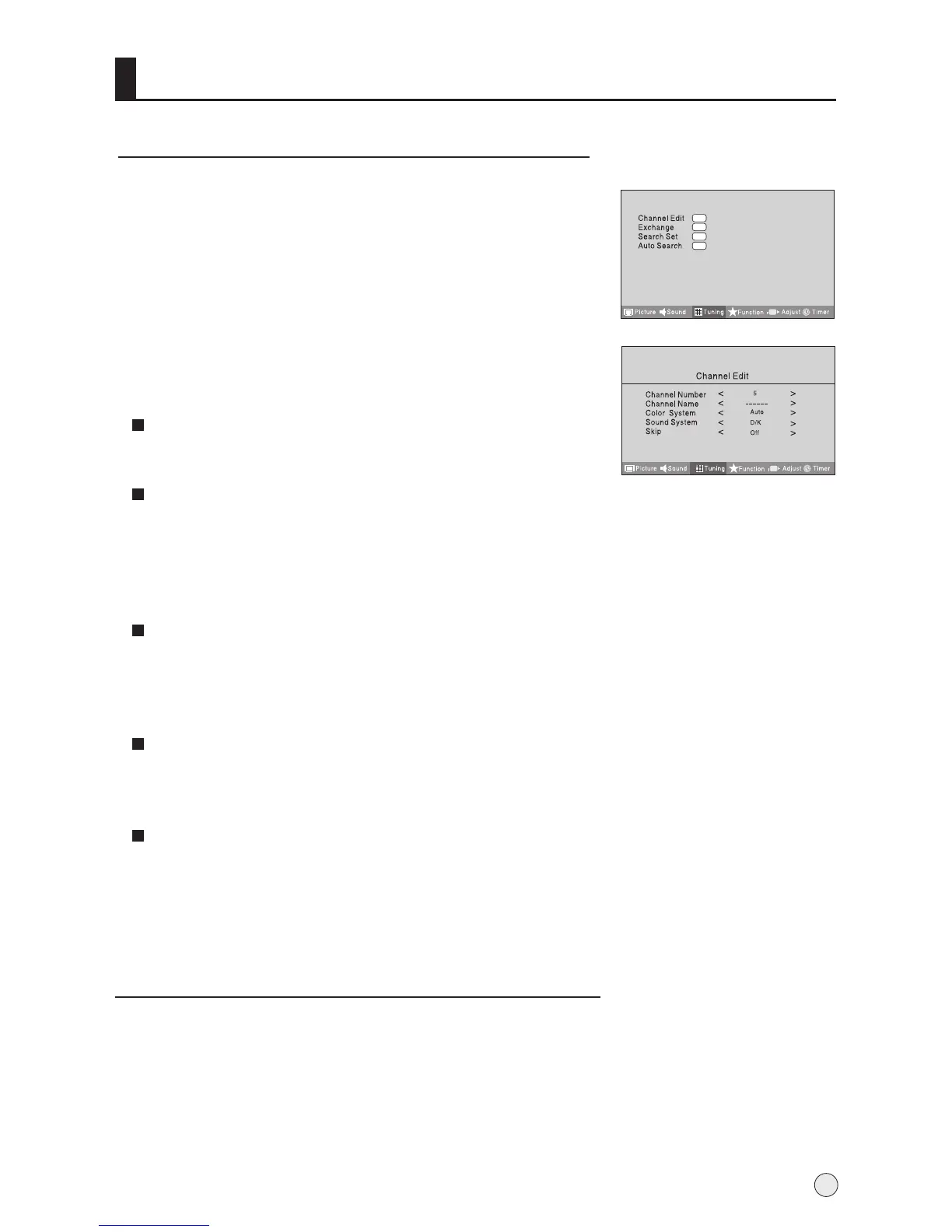
Channel Edit
1
Press VOL+ to enter the submenu.
4 Press CH+/- button to select the item to , and
press VOL+/- button to adjust the item to select.
Press MENU button and then use VOL+/- button to
select the Tuning menu.
adjust
2 Press VOL+/- button to select Channel Edit item.
3
Searching Channel
Channel No.
Press VOL+/- button to select the channel number to edit.
Channel Name
This will adjust the channel name.
Press VOL+/- button to move the cursor, and then use CH+/-
button to select the letter, then press MENU or OK button to
confirm.
Color System
Sound System
Skip
Press CH+/- button to select "Color System", then press
VOL-/+ button to select the correct color system. In general,
you can set it as "AUTO".
Press CH+/- button to select "Sound System", then press
VOL-/+ button to select the correct sound system.
After the programs are presetting, you can skip some programs
so that to select your favorite channels only.
Press VOL-/+ button to set Skip as On.
If you want to recover the skipped channel
1. Use Direct-digit Choosing button to select the number of the
channel to be recovered.
2. Do the above steps again.
3. Press VOL+/- button to set Skip as Off.
16
OK
OK
OK
OK
menu
menu



 To Next Page