100 CHAPTER 9 CLICK 110
Because this parameter can also be set by the DIP switches, you may need to ensure that the
DIP switches are set to Soware conguration mode; if they are set to Hardware, the front
panel menu will be able to display but not change these settings.
Fault Latch
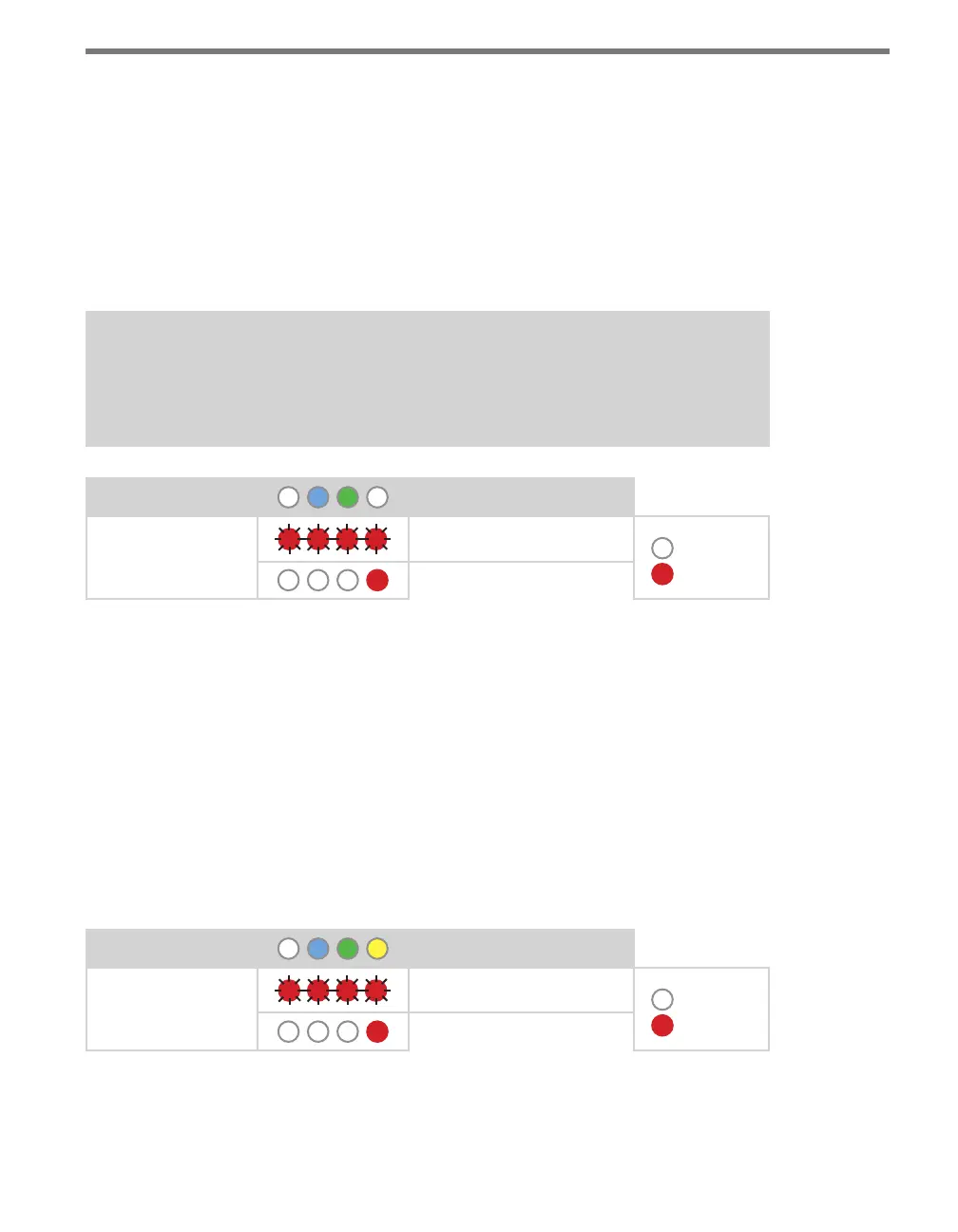
Although the fault latch can only be congured via the DIP switches, you can use the front
panel menu to view the current fault latching conguration, as shown below (see the Fault
Latch section of the DIP Switches section above for more information on this parameter).
Note
This parameter can only be viewed on the front panel menu; it can only configured
using the DIP switches.
Level 1 LEDs
Fault Latch
Level 2 LEDs
Fault latch enabled
LED o
LED on
Fault latch disabled
Table 9.12 – Front Panel Menu Fault Latch Settings
See the earlier Navigating through the Menu and the Menu Operation Example sections for
how to view this parameter.
Aer you have viewed the fault latch conguration, press and release the mode switch to exit.
Outstation Mode
e next option you come across in the front panel menu is outstation mode. Like fault
latch, this is read-only in the front panel menu; you can use it to view which kind outstation
the device is set to use, Peek or Siemens. To modify this setting, use the DIP switches (see
the DIP Switches section for more information).
Level 1 LEDs
Outstation Mode
Level 2 LEDs
Peek Outstation Support
LED o
LED on
Siemens Outstation Support
Table 9.13 – Front Panel Menu Fault Latch Settings
See the earlier Navigating through the Menu and the Menu Operation Example sections for
how to view this parameter.



 To Next Page