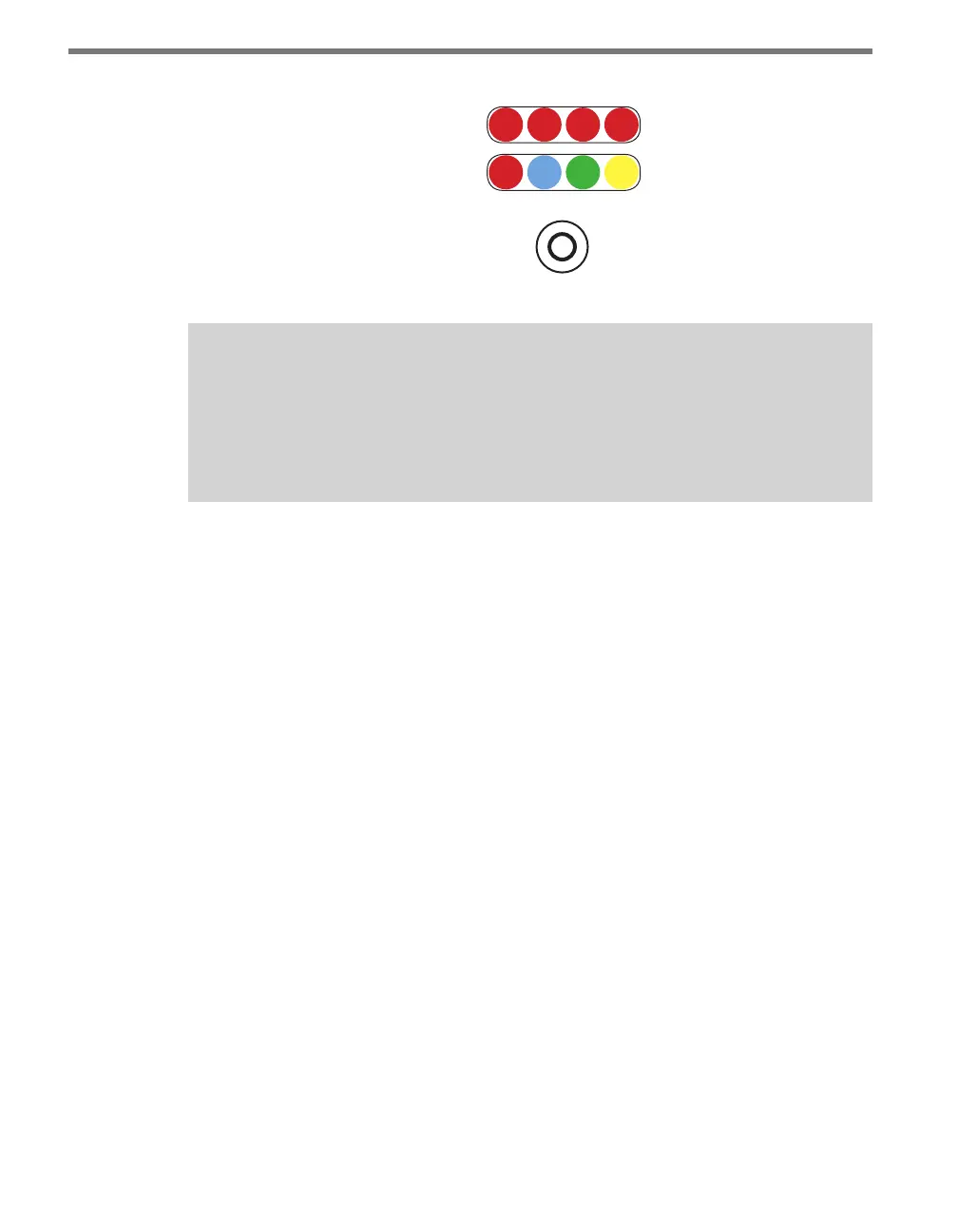
CHAPTER 9 CLICK 110 93
Level 1
Mode Switch
Level 2
Menu
PWR MF TD RD
1 2 3 4
Figure 9.7 – Menu Indicator LEDs and Mode Switch
Note
The LEDs in the lower bank also function as activity/status indicators. These func-
tions, outlined in the Physical Features section of this chapter, are only executed
when the device is not in Menu mode. In this case, the upper bank of LEDs (Level 2)
remains o.
Navigating through the Menu
e mode switch push-button is used to enter Menu mode. To use the menu:
1 Press and hold the mode switch to enter Menu mode. e Level 1 LEDs will start to
light up to indicate that the device is cycling through all menu options (specics on
these menu options, and which LEDs and LED combinations represent them, will be
covered later in this section).
2 Release the mode switch when you reach the desired menu option. (Pressing and hold-
ing again will resume cycling through menu options.)
3 Quickly press and release the mode switch to select the current menu option. Once it’s
selected, the Level 2 LEDs will start to let you congure the options for the selected
menu option.
4 Press and hold the mode switch to cycle through the submenu. e Level 2 LEDs will
light up to indicate that the device is cycling though all conguration options (specif-
ics on these conguration options, and which LEDs and LED combinations represent
them, will be covered later in this section).
5 Release the mode switch once the desired conguration option is reached.
6 Quickly press and release the mode switch to select the current conguration option.
e device will exit Menu mode, and either the selected function will run or the se-
lected conguration will be set and saved to the device.
Inactivity of one minute on the mode switch will exit menu mode and resume normal
operation.
e following table illustrates an example of how the mode switch and menu indicator
LEDs are used in conguring the Click 110—in this case, how to autobaud bus 2.



 To Next Page