7
Connect SmartSensor Manager Matrix to the sensor
1 Make a physical connection to the sensor; generally you do this via a Click 650
or other Click device that has a communication connection with the sensor—
for instance, you could connect to an Ethernet device on the same T-bus as the
Click 222 surge protector the sensor is connected to.
2 Download SmartSensor Manager Matrix from www.wavetronix.com/support.
3 Launch SSMM and click Communication on the main menu. Based on the
kind of connection you’re making, go to the Serial or Internet tab.
4 Change any necessary settings, such as port, timeout or network address, and
click Search.
5 Select the sensor you want to connect to and then click Connect.
From the SSMM main menu, click on Settings to congure settings for this sensor.
˽ Description/Location/Approach – (General tab) Add text here to help you
identify the sensor later.
˽ RF Channel – (General tab) Set sensors to dierent channels to prevent radars
from interfering with each other.
˽ Source – (Ports tab) Ensure this is set to Antenna.
8
Enter the sensor settings
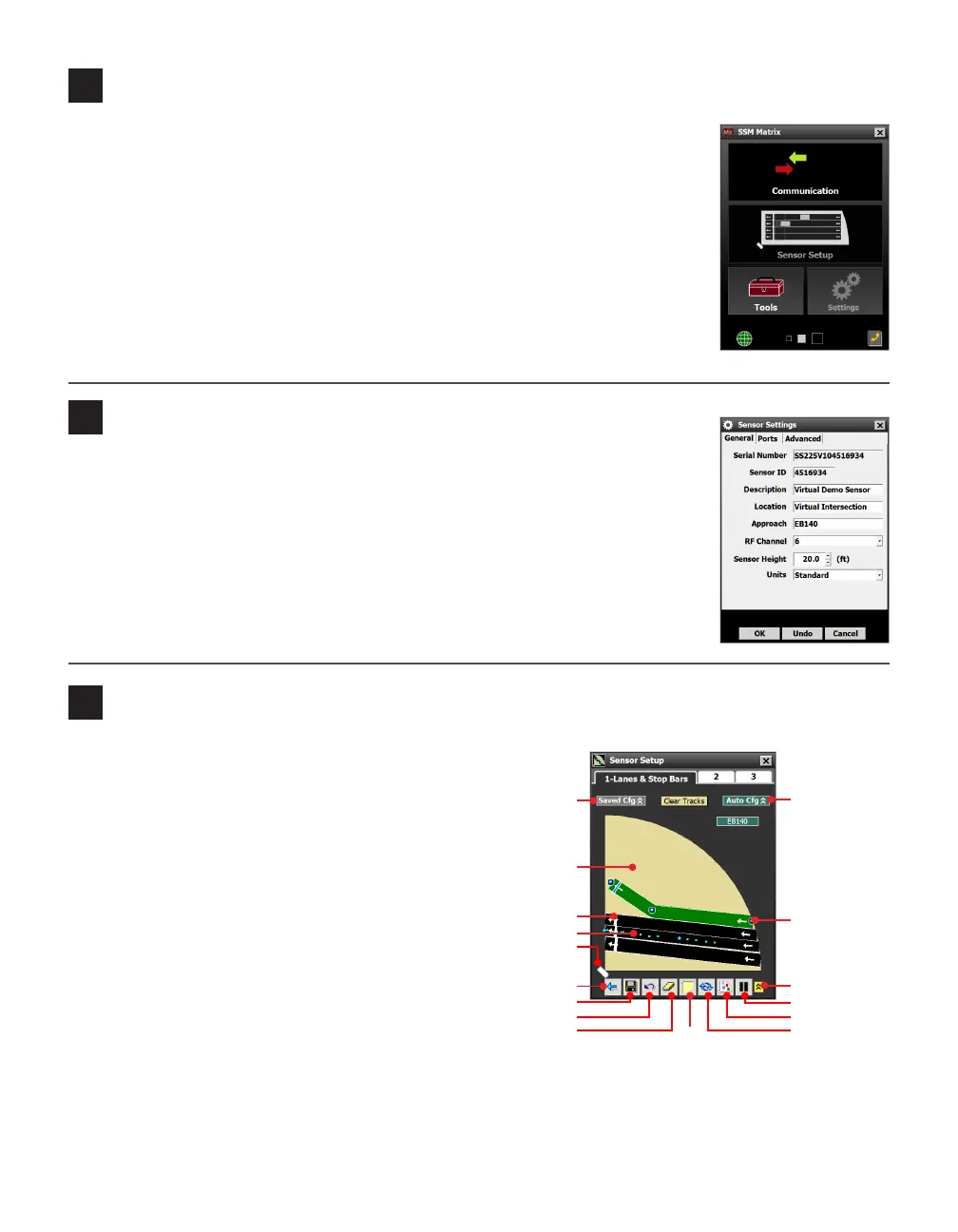
1 Select Sensor Setup from SSMM’s main menu.
2 Start automatic lane conguration by clicking
the Restart/Reboot Auto Cong button. Allow
the intersection to cycle at least twice before
proceeding. (To see your auto congured lanes,
you must have your display set to view Auto Cfg
overlay.)
3 Once the automatically congured lanes have ap-
peared, click once on any lane to highlight it, and
again to bring up the Capture Lane window. Select
Capture Lane or Capture All. Stop bars in the
lanes will be captured as well.
Note. You can also manually add a lane by clicking
anywhere in the edit area and selecting Add Lane.
en you can manually position that lane over the visible lane trackers.
4 Make other manual adjustments by clicking on the area you’d like to adjust. You can add, delete, or
adjust the following parameters: lanes, stop bars, lane nodes (used to change the trajectory, curve, or
width of a lane).
9
Configure lanes with auto config and manual adjustments
To main menu
Edit area
Trackers
Save
Sensor
Undo last edit
Edit thresholds
Pause trac
Menu
View Auto
Config overlay
Move
sensor
Restart/reboot
auto config
Clear edit area
View Saved
Cfg overlay
Stop bar
Lane node


 To Next Page
 Loading...


